|
VOOZH | about |
|
VOOZH | about |
Docker is a widely used platform for containerizing applications, and keeping Docker up-to-date ensures you're benefiting from the latest features, security patches, and performance improvements. This article will guide you through the step-by-step process of updating Docker on a Linux system, specifically for distributions like Ubuntu and CentOS.
Table of Content
Updating Docker regularly is important for several reasons:
Before updating, check the current version of Docker installed on your system:
docker --versionWhile it’s optional, you may choose to uninstall the old version of Docker. You can uninstall Docker without removing images, docker containers,docker volumes, or configuration files.
To Uninstall Docker:
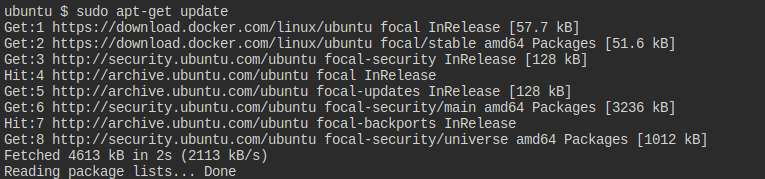
sudo apt-get remove docker docker.io containerd runcMake sure your package repository is up-to-date before updating Docker:
sudo apt-get updatesudo yum updateYou need to install some prerequisite packages:
sudo apt-get install apt-transport-https ca-certificates curl software-properties-commonAdd Docker's GPG key for verification:
curl -fsSL https://download.docker.com/linux/ubuntu//gpg | sudo gpg --dearmor -o /usr/share/keyrings/docker-archive-keyring.gpgNow, add Docker’s repository to your system:
echo "deb [arch=$(dpkg --print-architecture) signed-by=/usr/share/keyrings/docker-archive-keyring.gpg] https://download.docker.com/linux/ubuntu/ $(lsb_release -cs) stable" | sudo tee /etc/apt/sources.list.d/docker.list > /dev/null
After adding Docker’s repository, update your package list again:
sudo apt-get updateIf Docker is already installed, this command will update it to the latest version. Otherwise, it will install Docker:
sudo apt-get install docker-ce docker-ce-cli containerd.io
docker-buildx-plugin docker-compose-plugin
sudo yum install docker-ce docker-ce-cli containerd.io docker-buildx-plugin docker-compose-pluginIf the above command is not working then first execute the following command and then execute the above. (only step 9)
Run the following command to unmask the Docker service:
sudo systemctl unmask dockerAfter unmasking, you can start the Docker service with:
sudo systemctl start dockerTo ensure Docker starts automatically on system boot, run:
sudo systemctl enable dockerYou can check if Docker is running with:
sudo systemctl status dockerTo verify that Docker has been updated successfully, check the version again:
docker --versionFinally, to ensure that Docker is working properly after the update, run a test container:
docker run hello-worldWhile you are trying to upgrade Docker, it is very common to face conflicts between Docker's dependencies and system libraries.
Ensure that your system is fully updated before attempting the Docker upgrade. Use `sudo apt update`(for Ubuntu) or `yum update` (for RHEL) to update all system packages.
Many users face "Permission denied" errors when they do not have access right to install or upgrade Docker.
Ensure you have root or sudo privileges before proceeding. If lacking these, request an administrator to perform the upgrade.
After upgrading, Docker may still be pointing to an old version, causing confusion and errors.
Use `docker --version` to confirm the upgrade. If the old version persists, restart the Docker service with `sudo systemctl restart docker` or reboot your system.
After upgrading, Docker may fail to start due to configuration issues or incomplete installations.
Check Docker’s service logs (`sudo journalctl -u docker`), and if necessary, run `sudo systemctl daemon-reload` to refresh system services.
Keeping Docker updated is crucial for maintaining a secure, feature-rich, and high-performance container environment. Following this guide, you’ve successfully updated Docker to the latest version, verified the installation, and learned how to troubleshoot common issues. Whether you’re a beginner or experienced in container management, updating Docker regularly will help you make the most out of its features and capabilities.