We have now understood the workflow and post-exploitation methods. One of the most important post-exploitation procedures is Active Directory enumeration and exploitation. Once you gain a shell on a target server that hosts a Domain Controller, you can perform various tasks such as LLMNR poisoning, hash capturing, SMB relay attacks, domain enumeration, Golden Ticket attacks, and more.
To perform this Active Directory lab, you need the following requirements:
VirtualBox
Windows 10 – PC 1
Windows 10 – PC 2
Windows Server 2019 – Domain Controller
Kali Linux
Setup User List
Your set-up user list should look like the reference shown below. I have also provided the username and password that I used in my setup for your reference.
Setting Up the Active Directory Lab
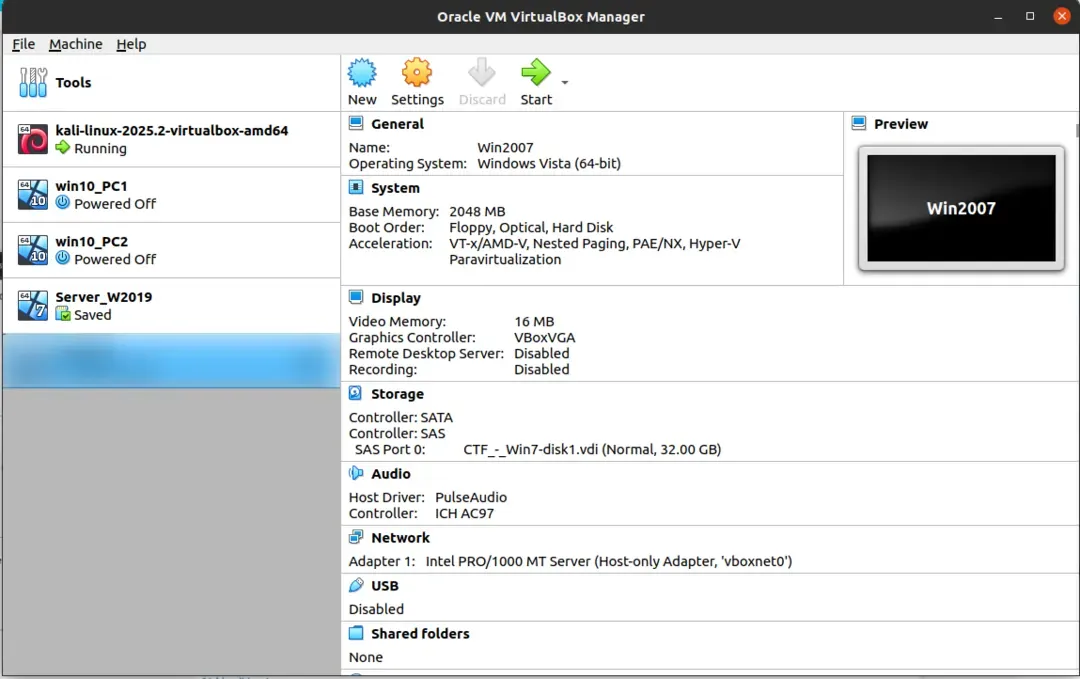
We have already configured VirtualBox and Kali Linux. Next, we will install the remaining components.
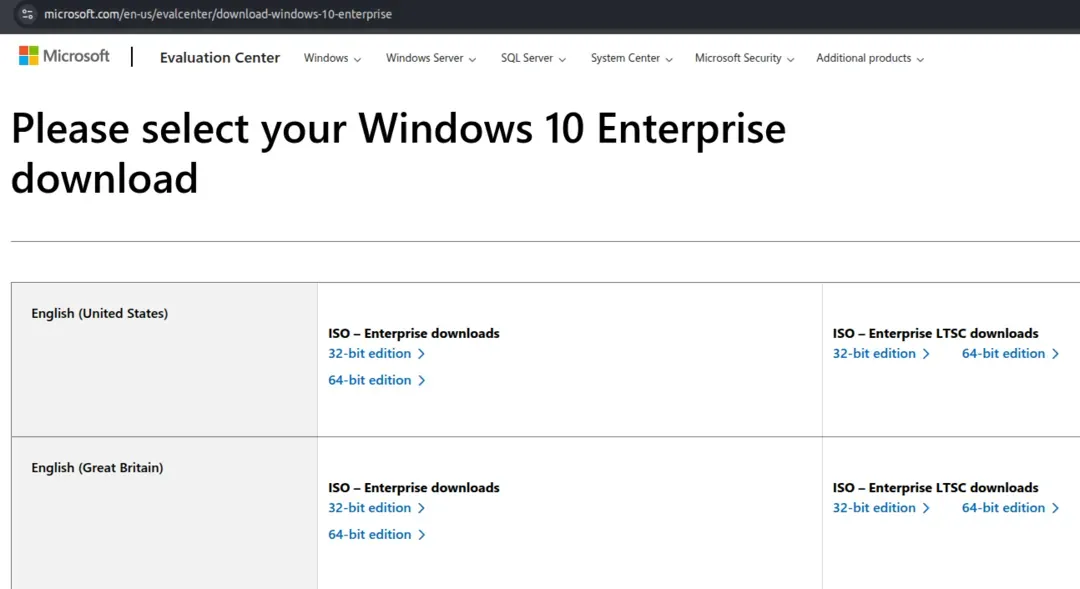
Download and install Windows 10 Enterprise from the official Microsoft website.
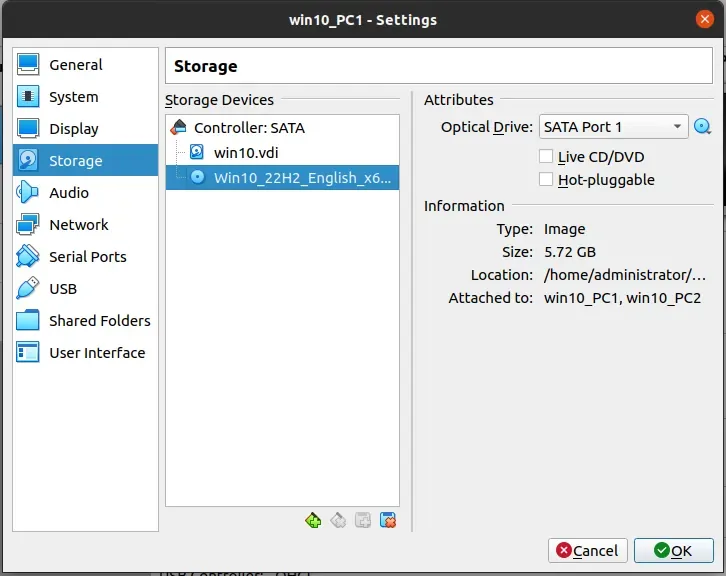
Once the Windows 10 ISO is downloaded, create a new virtual machine in VirtualBox. Name it PC 1 and assign the Windows 10 ISO file as the disk image.
Allocate 10–15 GB of storage and 4 GB of RAM for the installation process (you can later reduce the RAM allocation to 2 GB after installation is complete).
In the process of installation keep everything default, do not use any sign in options using Microsoft account, and try to skip almost every possible steps.
After completing the installation, repeat the same process to create another Windows 10 virtual machine and name it PC 2.
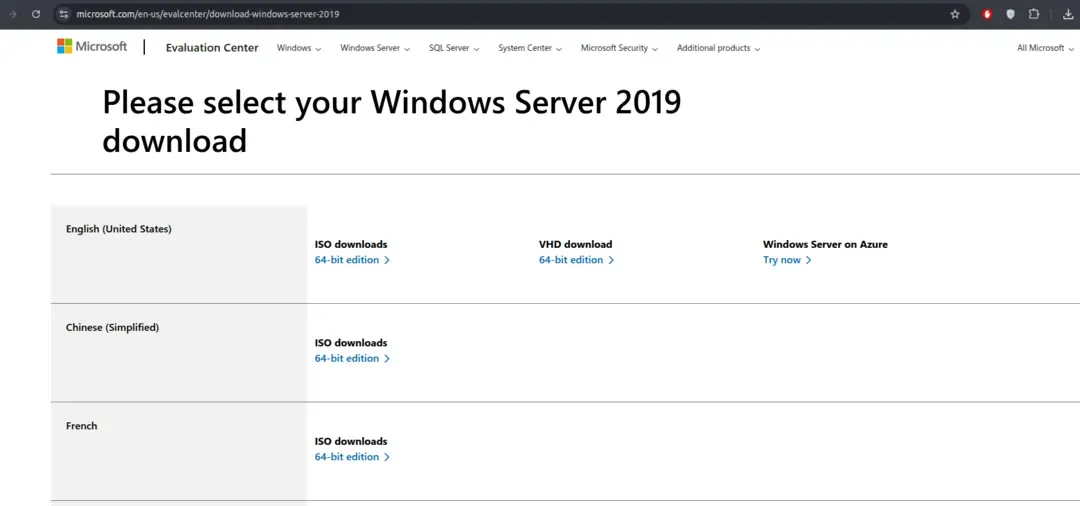
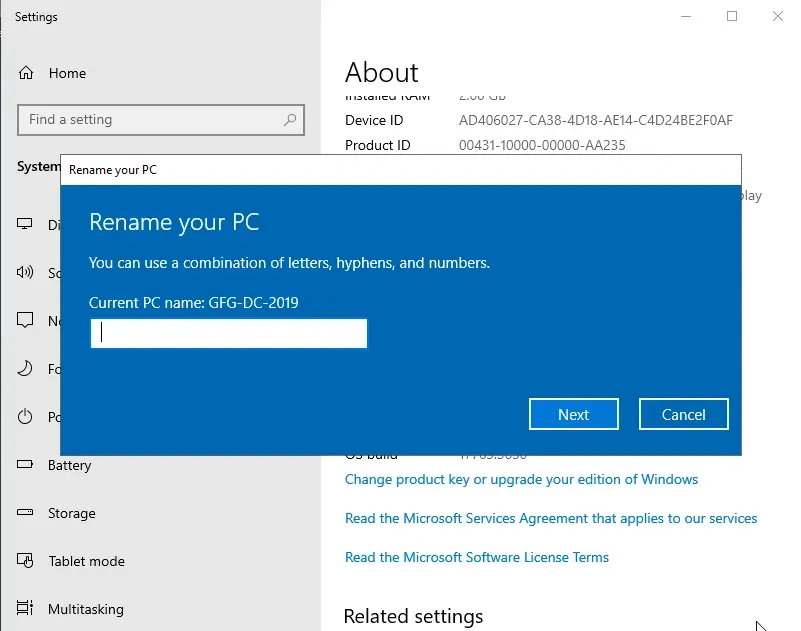
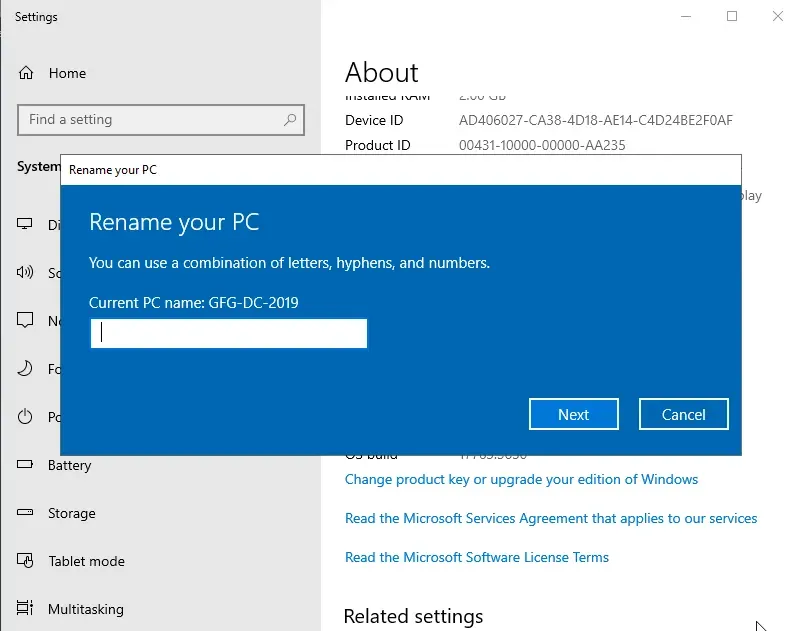
After installing the windows server, open the computer settings and search view PC name and change the PC name to anything as per your preference (This will be the domain controller name). Restart the PC after renaming.
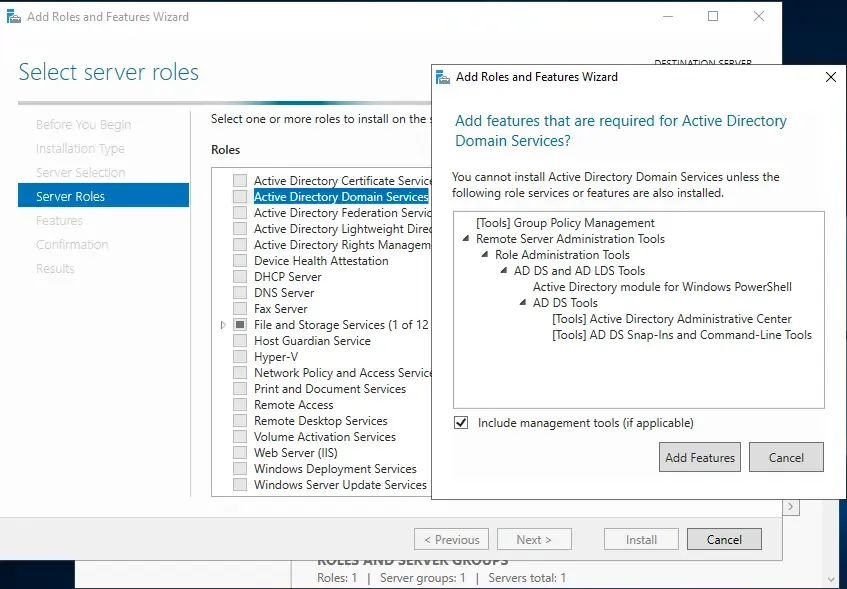
Click Next and Select Role-Based installation, then again click next until server roles category where we will choose the Active Directory Domain Service and Active Directory Certificate Services.
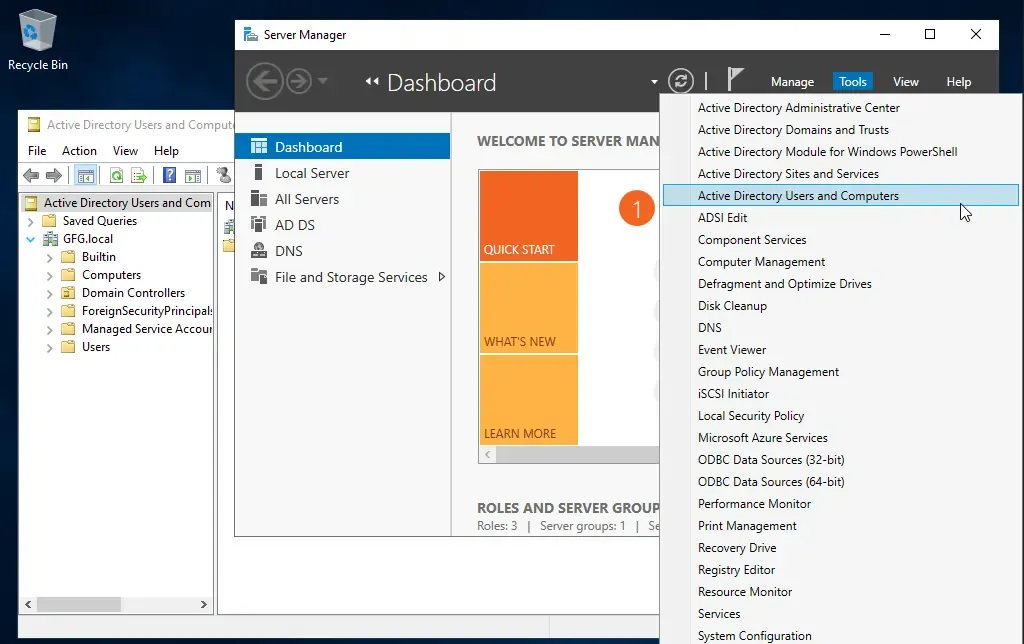
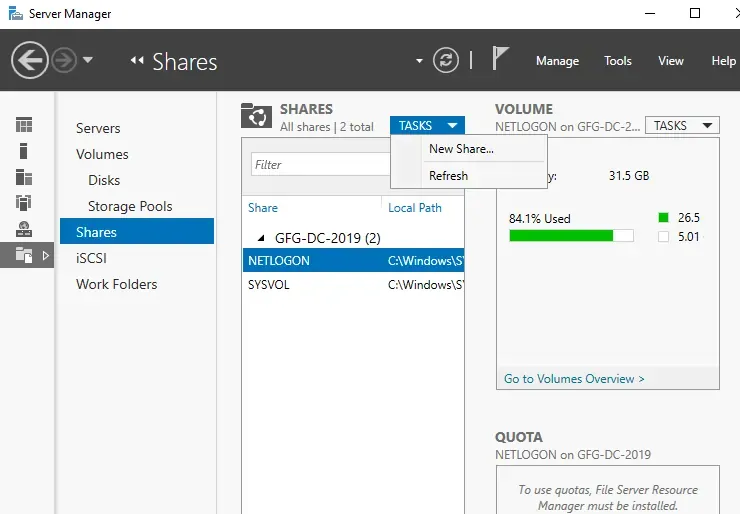
Server Manager > Manage > Add Roles and Features > Click Next until Server Roles > Toggle on Active Directory Certificate Services & Active Directory Domain Services.
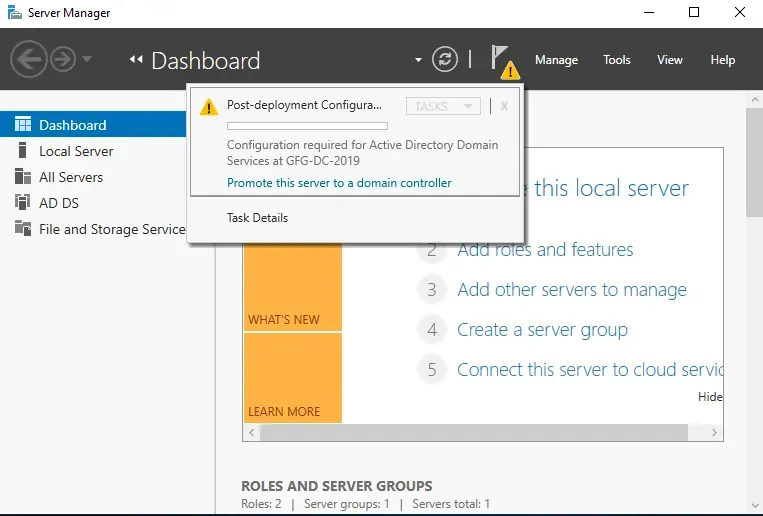
After the installation of the domain controller you may notice an alert symbol in the notification bar, open the notification and continue with the post deployment configuration.
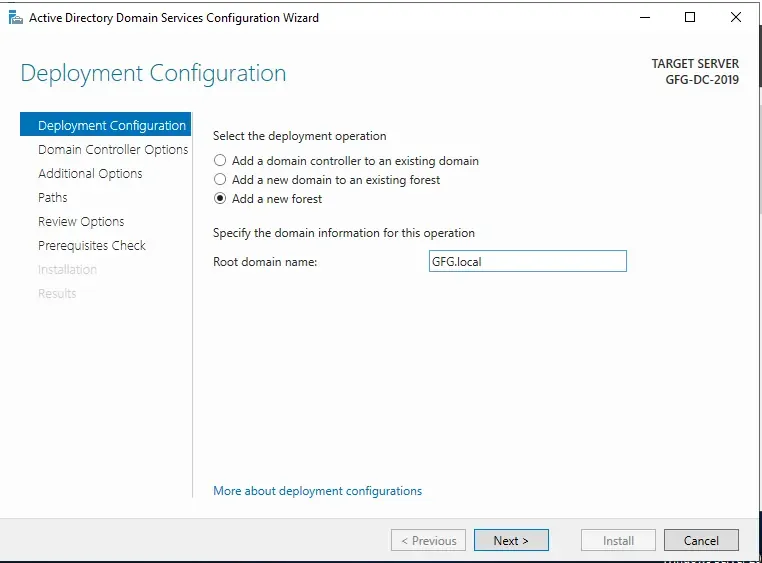
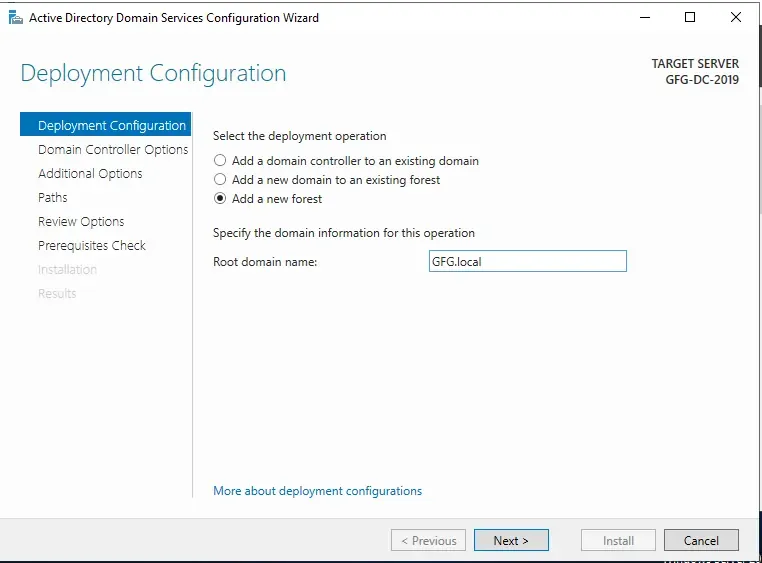
In the Configuration window, select " Add a new forest " as the deployment operation. Then name the domain as per your preference but make sure to put .local at the end which will be our Top Level Domain(TLD).
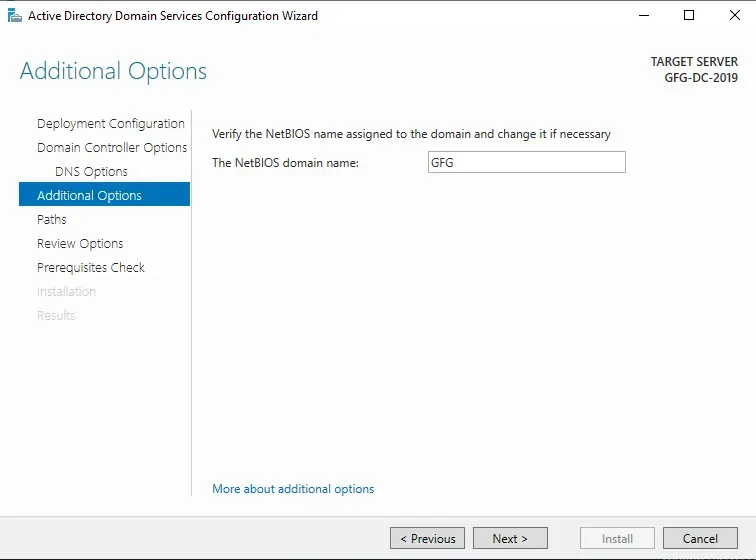
Similarly click next and proceed with installation at the end. After the installation the system will automatically restart.
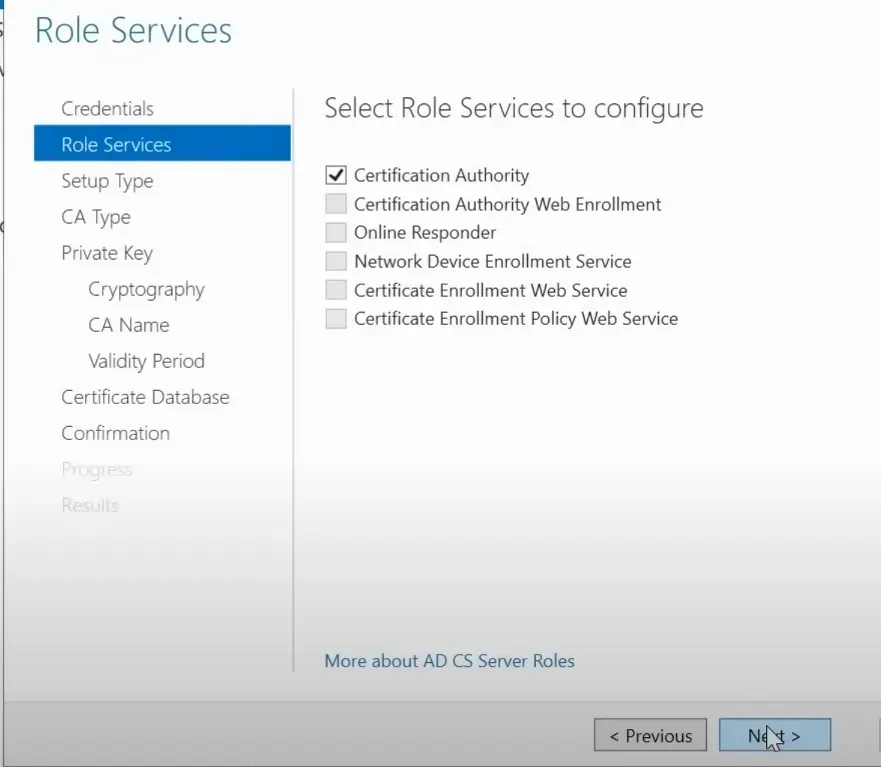
After the restart you will notice an Alert flag click on that and proceed with everything default except the Role Services "Click on Certificate Authority" and then press NEXT.
We will create 2 normal users, 1 duplicate of user of Administrator with any name and 1 SQL service user.
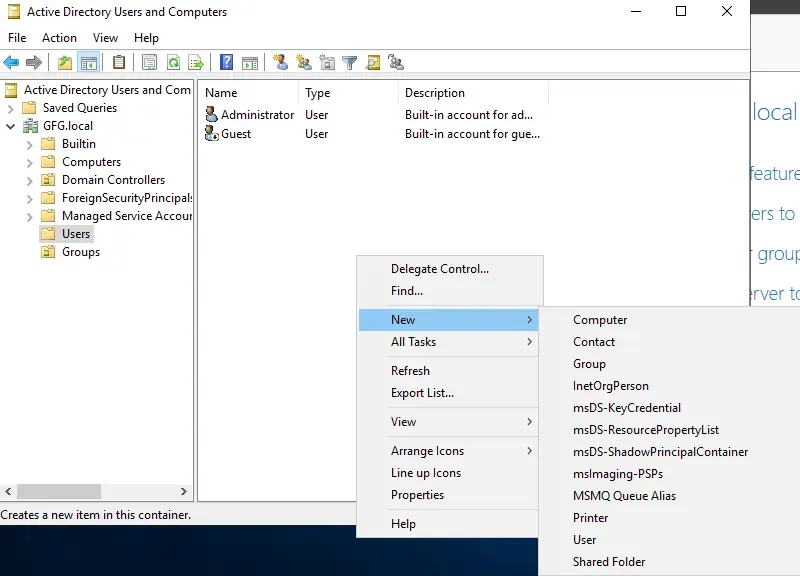
Create a new user named Franklin and change the password settings to "never expires".
Similarly create other users.
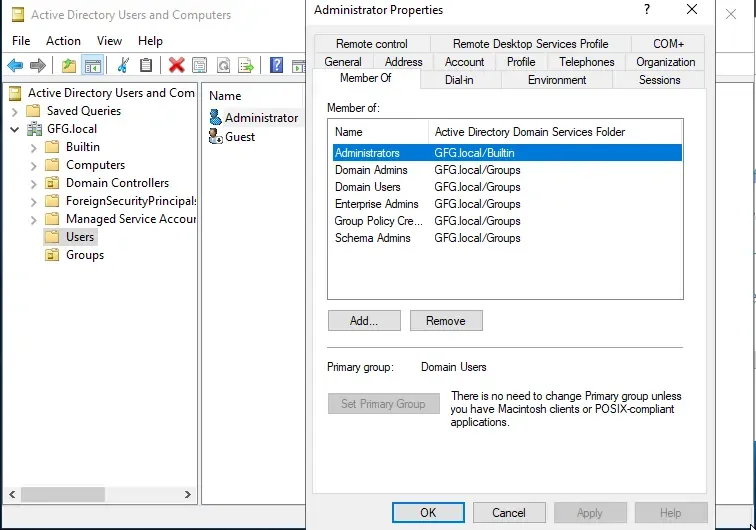
To make duplicate administrator right click on the Administrator > Copy > Enter Name.
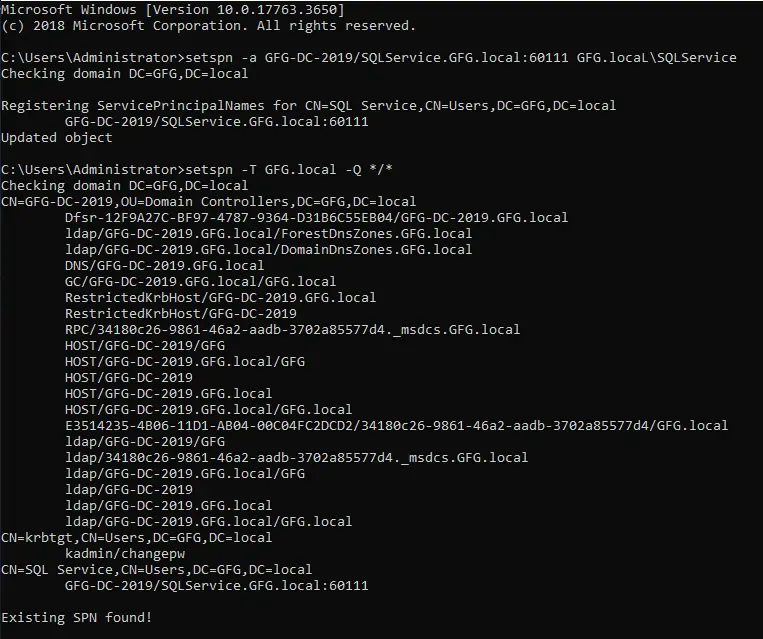
Similarly duplicate Administrator one more time to create a SQL Service Account and add the password in the description from the properties of that User made.
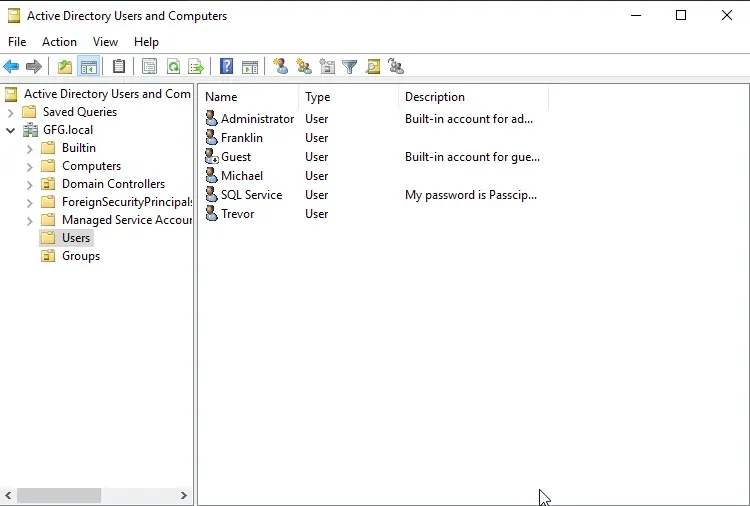
At the end the list of Users should look like this.
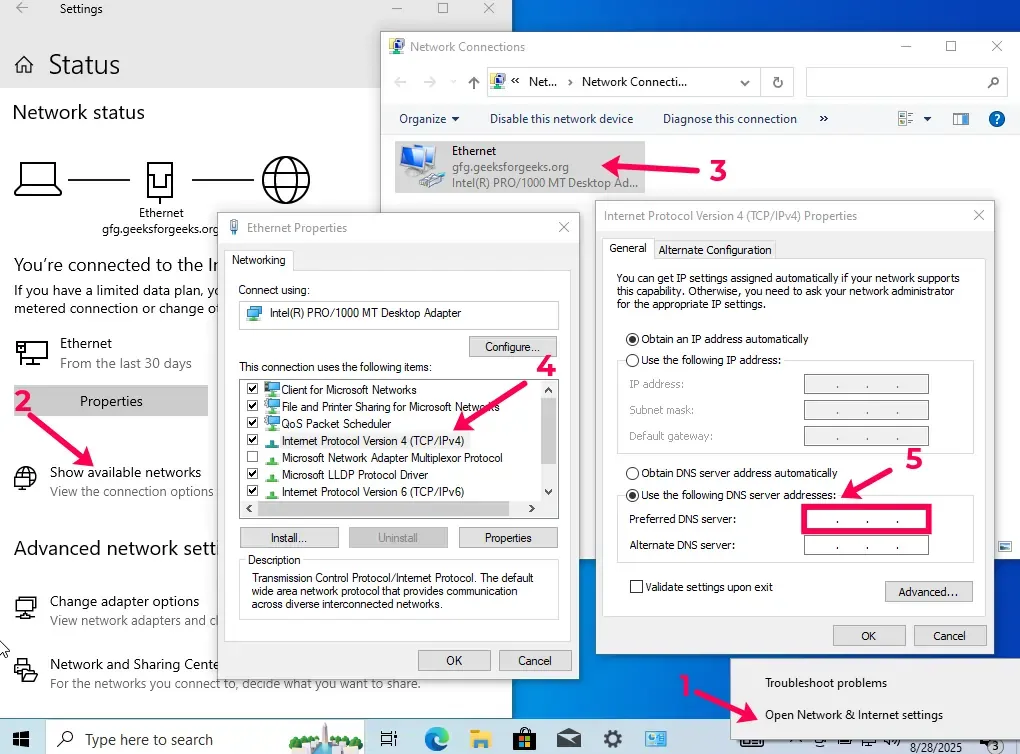
Open the "Network & Internet Settings" Windows 10 PC_1
Click on "Show Available Networks" > Open "Ethernet Properties" > Double click on "IPv4" > Select "Use the following DNS Server address" > Enter the IP address of the domain controller in the Preferred DNS server Box.
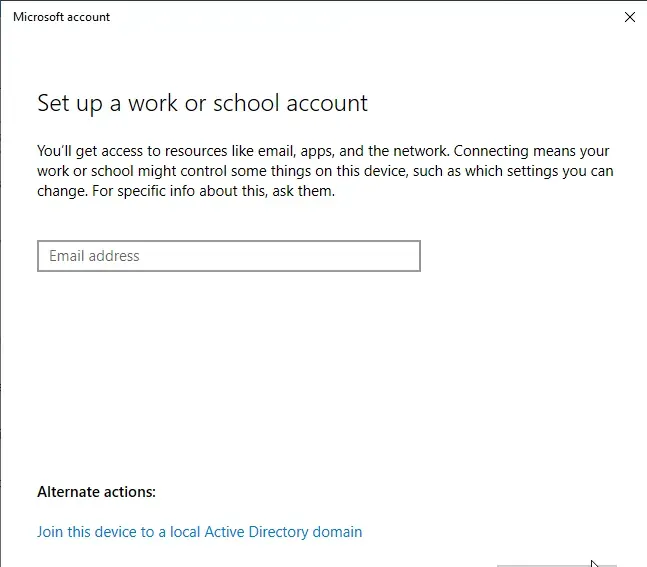
Enter "GFG.local" in the domain name and then Enter the Username as "Administrator" and respective password of Domain Controller > Skip the "User type" setting > Restart Now.
After the restart at the time of log in option choose "Other user" and enter username "Franklin" and respective password.
After Login we need to change few settings again for which we need to sign out and then again login as the Administrator account. Sign in > Other User > "GFG\Administrator" > log in.
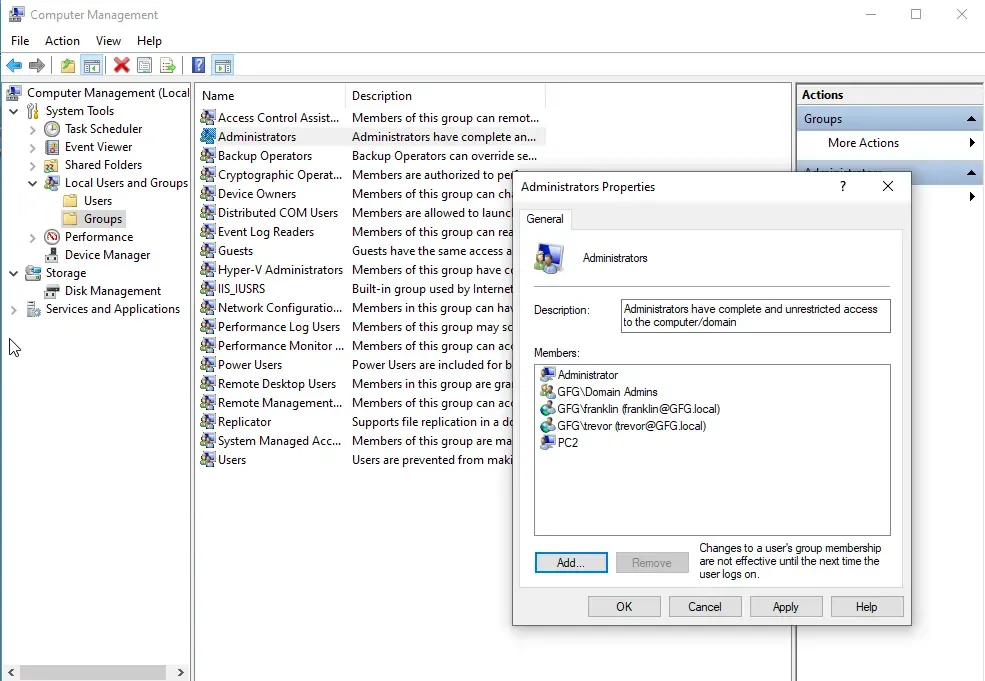
Open computer management > Local Users and Groups > Double Click Groups > Double Click Administrator > Click Add > Enter Franklin > Check Names > Apply
Similarly Add "GFG.local" in the PC2 and Add Administrator User to it > Restart.
Log in with GFG\Administrator in PC2.
Open Computer Management in PC2 > Local Users and Groups > Double Click on Groups > Double Click on Administrator.
Add Trevor and Franklin to the domain as an Administrator.
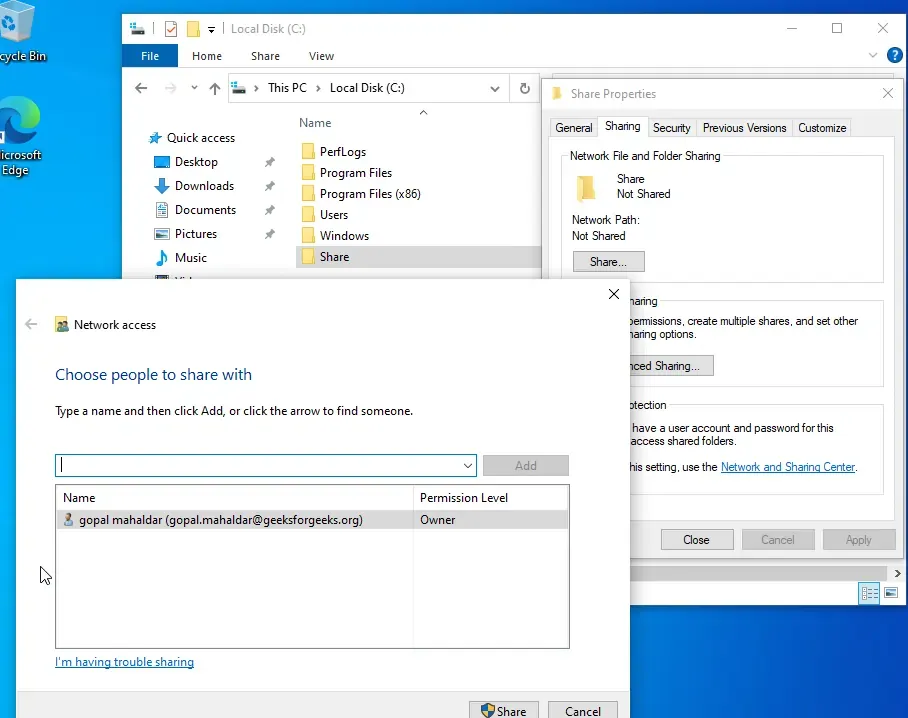
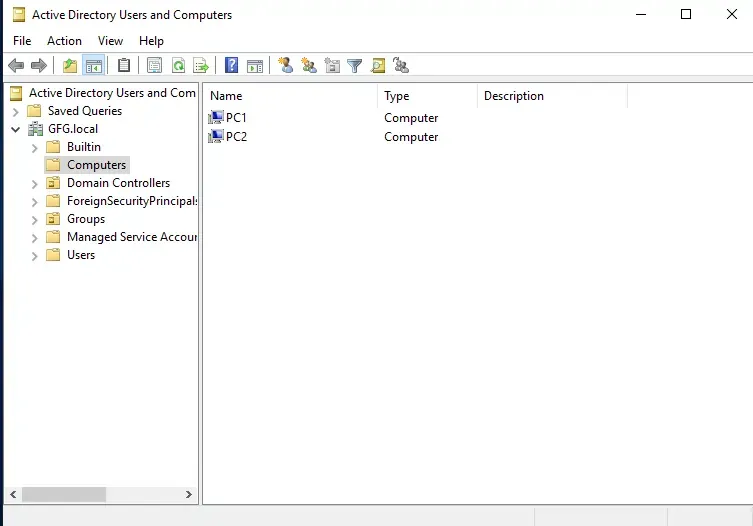
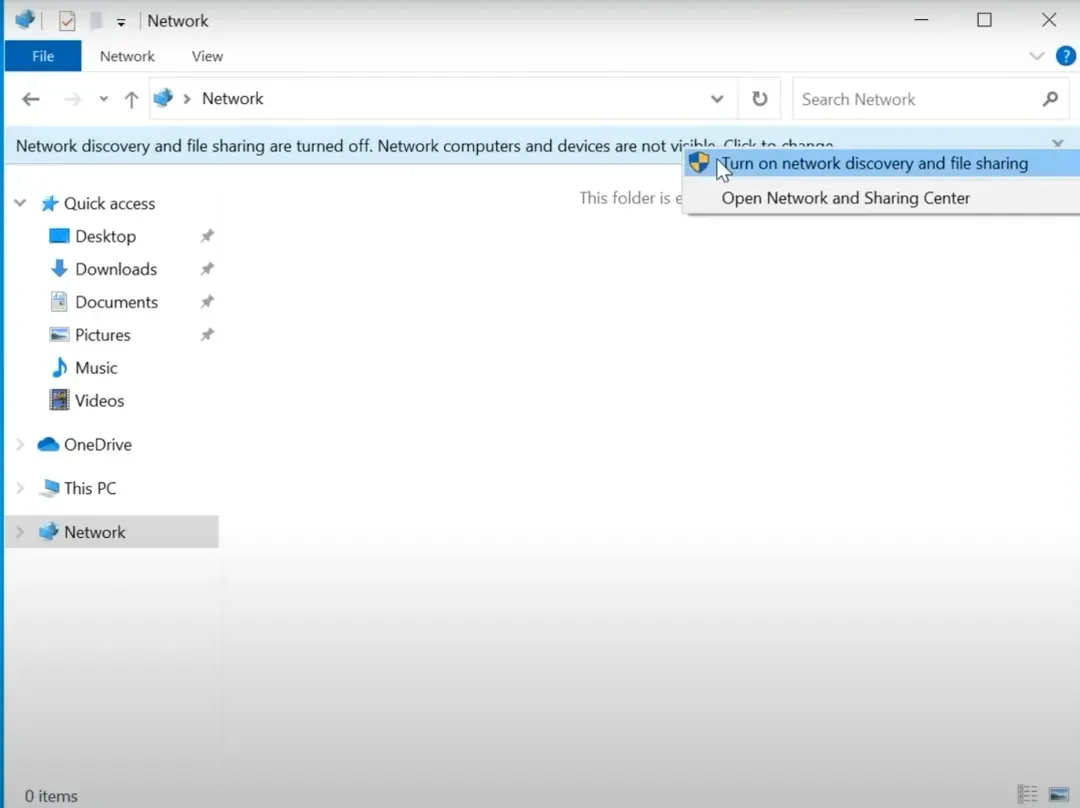
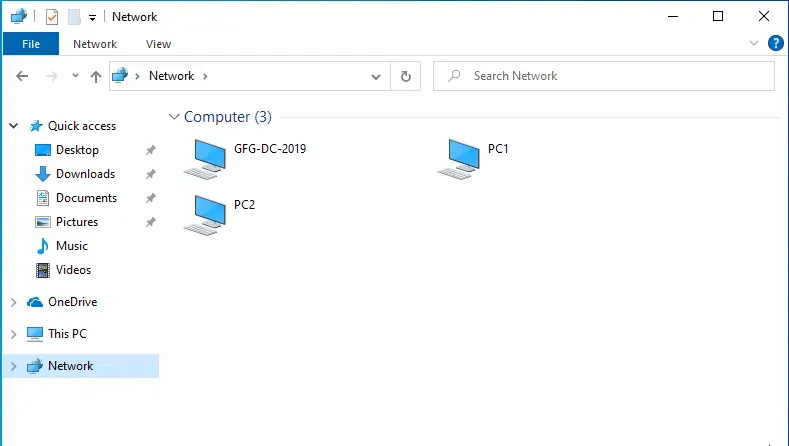
Open the file explorer in all your Window's PC and Server > Go to Network Tab > Allow PC to be discoverable on local network > Give the permission. (You should see Windows Server and PC in Network Tab).