Process Monitor (ProcMon) is a Windows monitoring tool used during dynamic malware analysis to observe real-time system activity inside a virtual machine. It helps analysts track file system changes, registry modifications, process creation and network activity triggered by suspicious executables.
Monitors file system, registry, process and thread activity in one interface.
Tracks parent-child processes, DLL loading and command-line execution details.
Supports advanced filtering and logging for forensic investigation.
Helps identify persistence techniques, dropped files and stealth malware behavior.
Requirements to check for before downloading and Running Process Monitor
Before running Process Monitor (ProcMon), use a secure virtual machine environment to safely analyze suspicious files without affecting the host system. Download ProcMon only from trusted official sources and ensure proper isolation settings are configured.
Virtual machine: VMware Workstation or VirtualBox.
Guest OS: Windows (ProcMon is Windows-only).
Network isolation: VM network set to Host-Only (or No-Network) to contain potential malware traffic.
Snapshot/restore point: Create one before analysis.
Malware sample: Stored in a secure, isolated folder.
Admin rights: In the VM (required by ProcMon).
AV in lab: Temporarily disable in the VM only to avoid interference (keep host protected).
Steps to Download Process Monitor
Launch a Secure Virtual Machine Environment: Start your isolated virtual machine before downloading any malware analysis tools. Using a VM helps protect the host system from accidental infection during dynamic malware analysis.
Open a Web Browser Inside the VM: Use a browser within the virtual machine to safely access security tools and analysis resources without exposing the main operating system.
Visit the Official Microsoft Sysinternals Website: Navigate to the official Microsoft Sysinternals portal, the trusted source for downloading Process Monitor and other advanced Windows diagnostic utilities.
Locate the Process Monitor Download Page: Search for “Process Monitor (ProcMon)” in the Sysinternals tools list and open its dedicated download page to review features, system requirements and usage details.
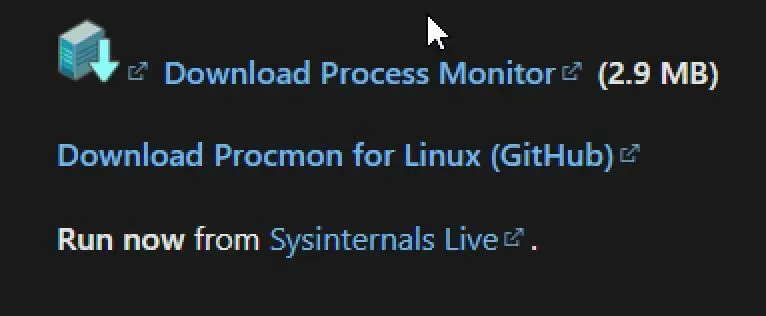
Click on “Download Process Monitor”: Download the latest version of ProcMon directly from Microsoft to ensure authenticity, security and updated functionality for malware analysis and system monitoring.
Extract the Downloaded ZIP File: After downloading, extract the compressed archive to a dedicated analysis folder inside the virtual machine for easy access and organized investigation workflows.
Run ProcMon with Administrator Privileges: Right-click the executable and select “Run as Administrator” to enable full monitoring of system processes, registry activity, file operations and malware behavior.
It helps security analysts observe how suspicious programs interact with files, registry entries, processes and system resources in real time. By monitoring these activities inside a controlled virtual machine, analysts can uncover malicious behavior, persistence techniques and indicators of compromise (IOCs).
Step 1: Launch Process Monitor
Before analyzing any suspicious executable, start an isolated virtual machine environment. Using a VM protects the host operating system from accidental infection and allows safe malware experimentation.
Open your Windows virtual machine.
Navigate to the folder where Process Monitor was extracted.
Run Procmon.exe or Procmon64.exe for 64-bit systems.
Accept the Microsoft Sysinternals license agreement when prompted.
Step 2: Start Monitoring System Activity
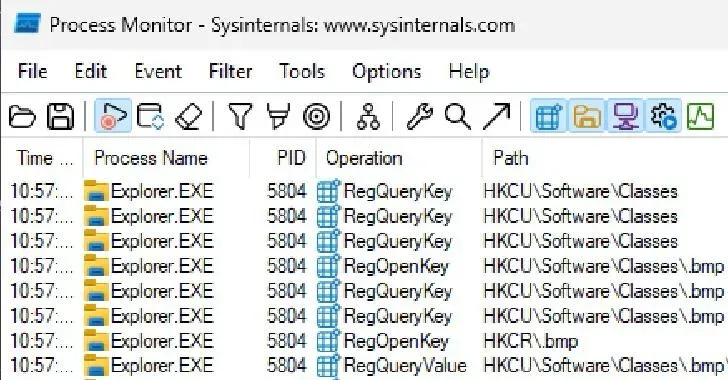
Once launched, Process Monitor automatically starts capturing live system events. The main window displays a live stream of events generated by applications and background processes running inside the system. The tool continuously records:
Before executing the malware sample, clear all previous events to avoid unnecessary noise in the analysis results. This helps isolate only the events generated during malware execution.
Click the eraser icon or press Ctrl + X to clear the existing event logs.
This ensures you’re only capturing the events generated by the malware sample.
Step 4: Run the Malware Sample
Run the suspicious executable inside the virtual machine. Always avoid running unknown malware directly on the host system. Allow the malware to execute for a short duration so ProcMon can capture its complete behavior, including:
File creation or deletion
Registry persistence attempts
Payload extraction
Process injection activity
Communication attempts with external servers
Step 5: Stop Event Capture
Stopping event capture reduces background system noise and makes analysis easier and more accurate.
Click the Capture icon or press Ctrl + E to stop logging events.
Stopping the capture prevents unnecessary noise from being recorded after execution.
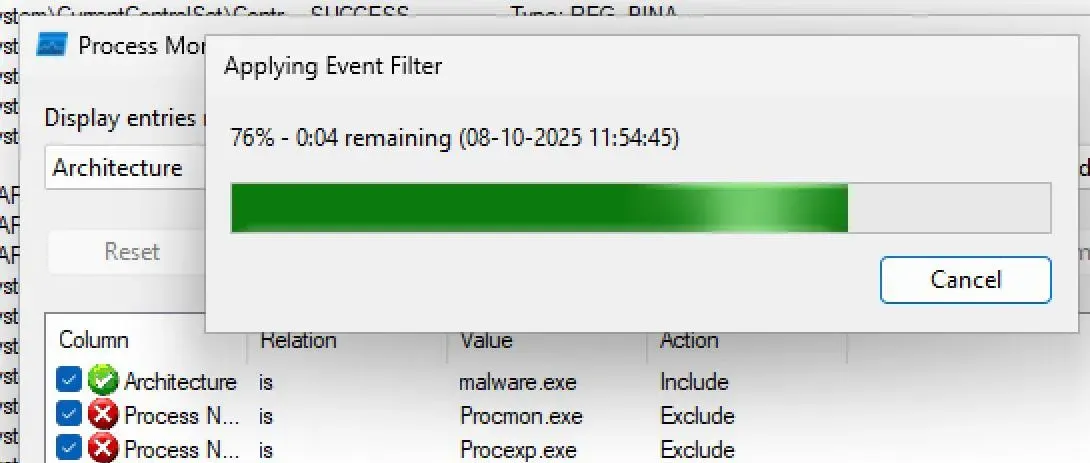
Step 6: Apply Filters to Focus on Malicious Activity
Process Monitor generates thousands of events, so filtering is essential for effective malware investigation.Using filters helps analysts focus only on events directly related to the malware sample. Go to:Filter
Carefully inspect the captured events to identify malicious actions performed by the executable.This behavioral analysis helps uncover malware objectives, persistence mechanisms and attack techniques. Indicators to investigate include:
Files created, modified or deleted
Registry keys added for persistence
Suspicious child processes
Dropped payloads and temporary files
Attempts to disable security software
Connections to suspicious IP addresses or domains
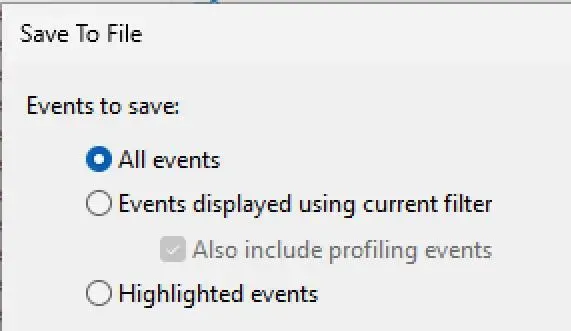
Step 8: Save the Captured ProcMon Logs
Saving logs also allows analysts to revisit and compare malware behaviors during future investigations. After completing the analysis: