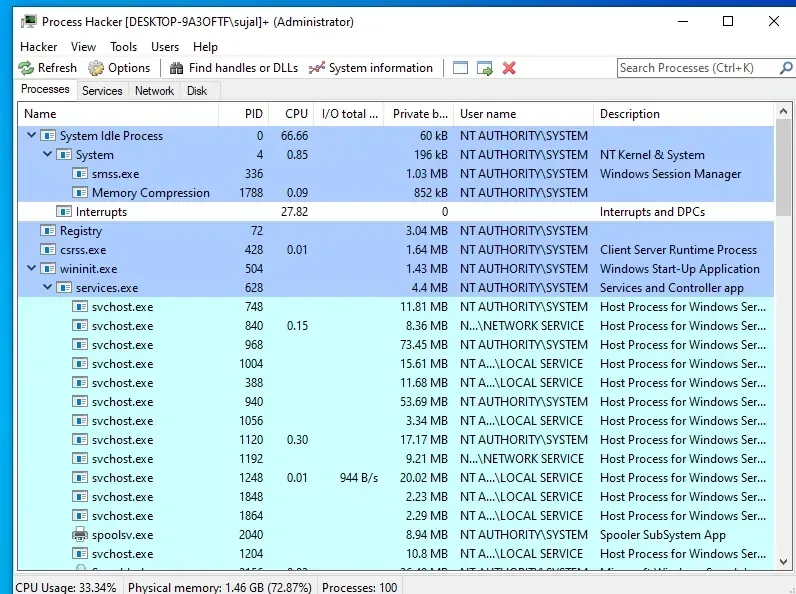
Process Hacker is an open-source system monitoring and debugging tool for Windows that allows users to view, analyze and control running processes, services and network connections in real time. It provides deep visibility into how applications interact with system resources such as CPU, memory, disk and network.
Key Features of Process Hacker
1. Detailed Process Tree View
Process Hacker displays running processes in a detailed tree structure, helping users understand parent-child relationships between applications and services.
View process IDs, file paths and command-line details.
Identify suspicious or hidden processes.
Monitor CPU and memory usage in real time.
2. Service Management
The tool allows users to manage Windows services directly from one interface.
Start, stop or restart services.
View service configurations and dependencies.
Detect unauthorized startup service.
3. Network Monitoring
Process Hacker provides real-time visibility into process-based network activity.
Monitors TCP and UDP connections per process.
Displays remote IP addresses, ports and connection states.
4. Memory and Handle Management
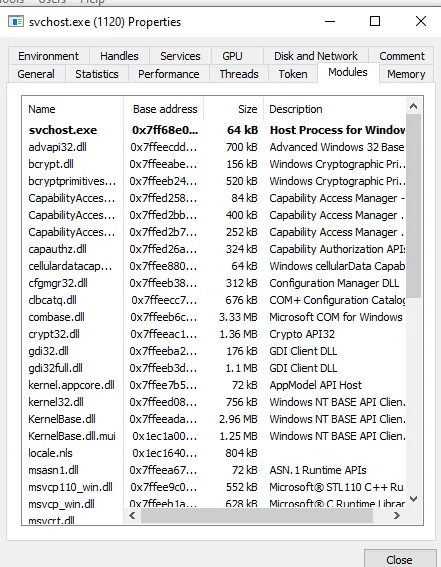
Enables inspection of process memory, modules and system handles. It provides deep insight into how processes interact with system resources.
Monitor TCP and UDP connections.
View remote IP addresses and ports.
Detect suspicious outbound communication.
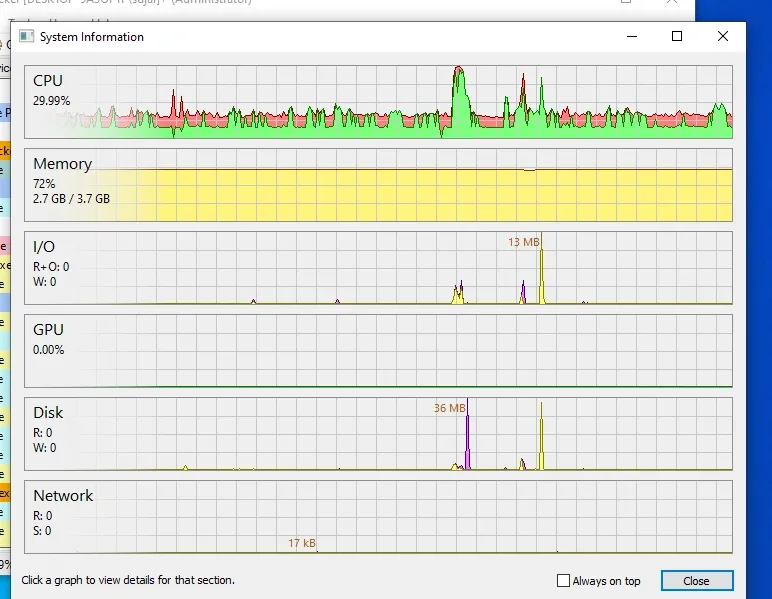
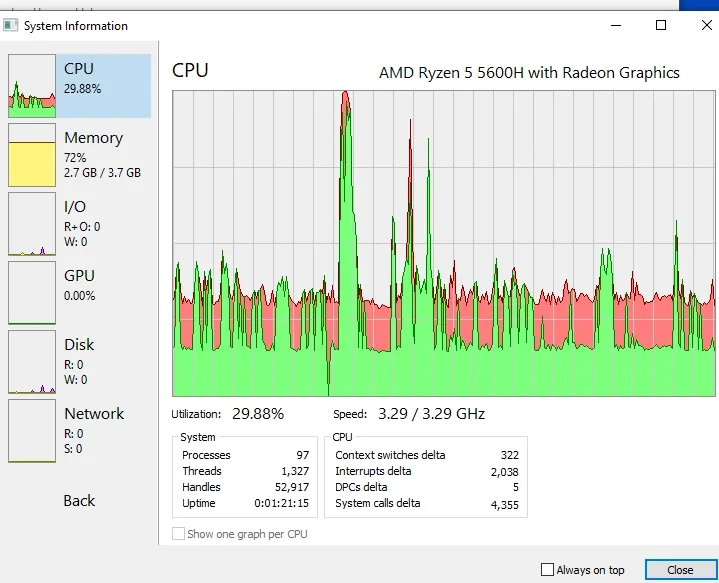
5. Real-time System Information
It helps users inspect process memory and system resources for advanced troubleshooting.
View loaded DLLs and memory regions.
Detect abnormal memory usage or code injection.
Identify resource-heavy applications.
Installation and setup: Process Hacker on Windows
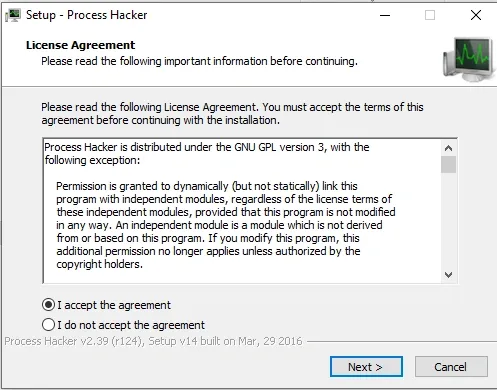
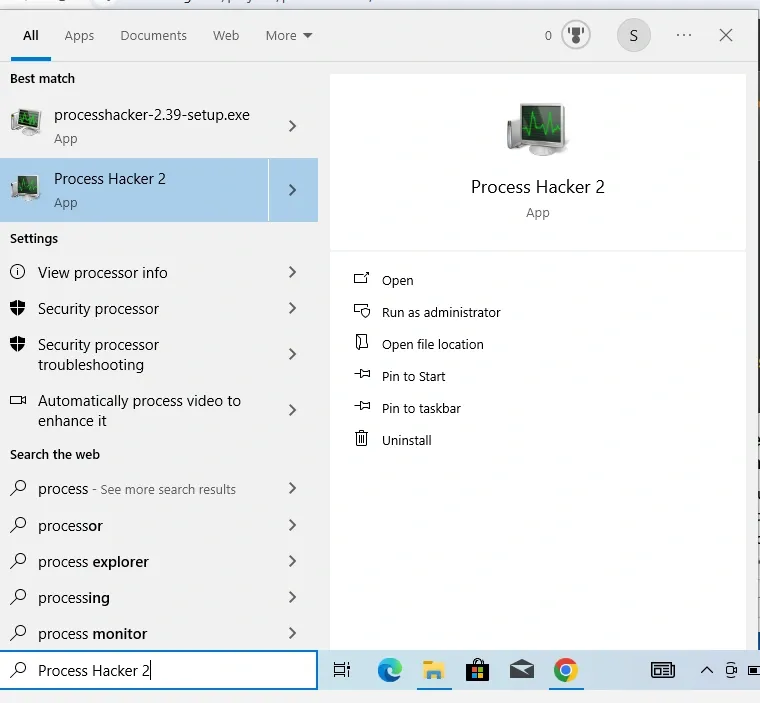
Below is a clear, practical step-by-step guide to download, install and configure Process Hacker on Windows.
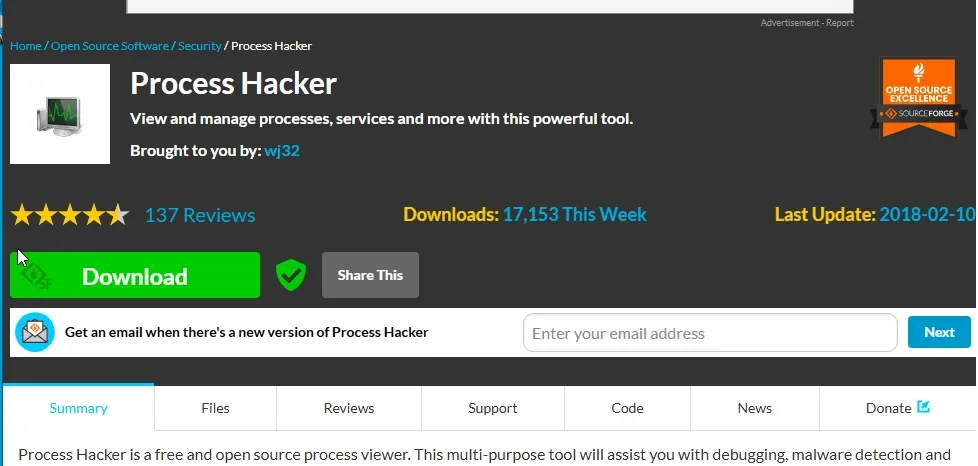
Step 1: Go to the official download page
Open your browser and search for “Process Hacker releases” or visit the official Process Hacker website.
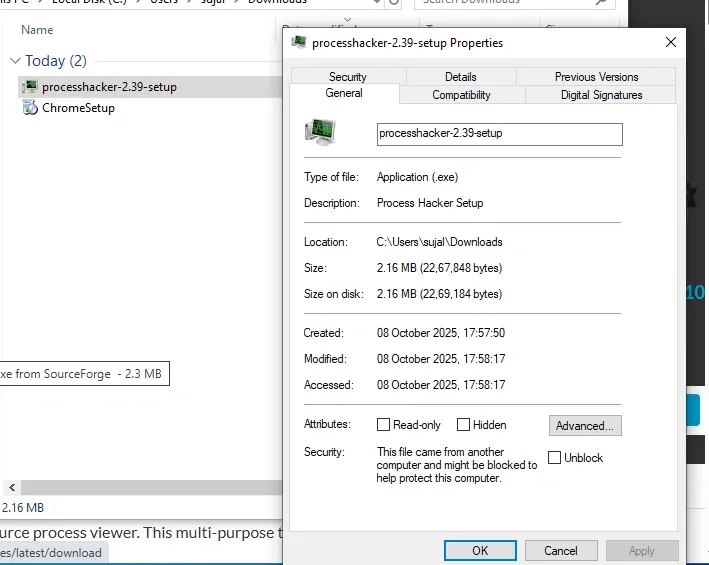
Step 2: Download the installer
On the SourceForge page, click the Download button.
Real-world use cases explained with clear, step-by-step guidance. Based on Process Hacker version 2 and 3.
1. Terminating Unresponsive or Malicious Processes
Imagine your web browser freezes and won't close normally or you've accidentally downloaded a suspicious program that's running in the background and consuming resources. Process Hacker can force-terminate it safely, preventing further issues like data loss or security risks.
Steps to Perform:
Open Process Hacker and run it as administrator.
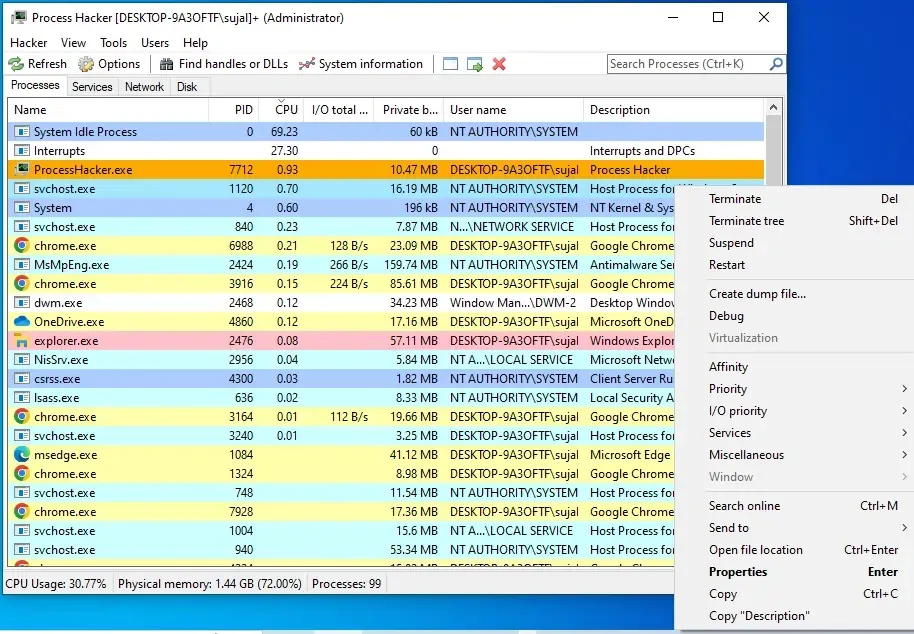
In the main window, look at the list of processes (sorted by name or CPU usage by clicking the column headers).
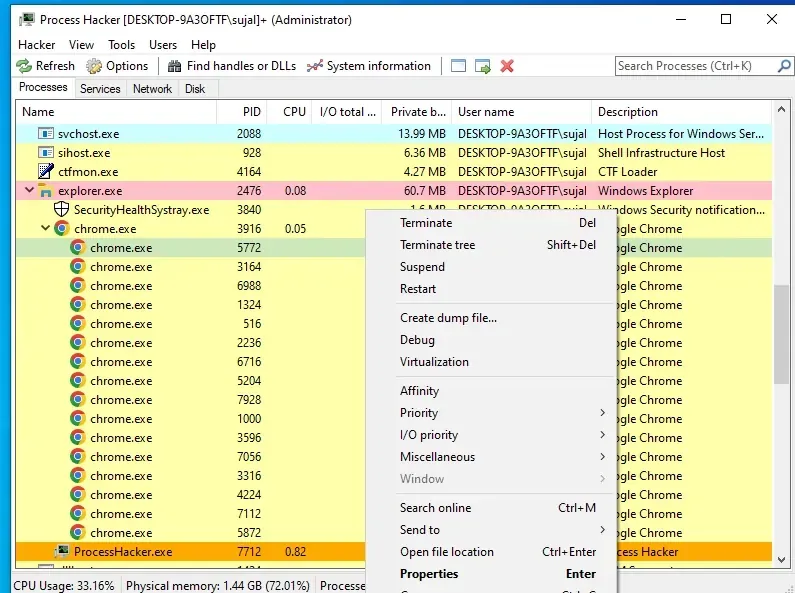
If it's a tree of related processes (like multiple browser tabs), right-click and choose "Terminate tree" to end all child processes.
2. Investigating Malware or Suspicious Activity
If your computer is slowing down unexpectedly or you notice unusual network activity (e.g., a program sending data without your knowledge), Process Hacker helps inspect processes for signs of malware, like hidden connections or high resource use from unknown apps.
Steps to Perform:
Launch Process Hacker as administrator.
Sort the process list by CPU, Memory or I/O (input/output) columns to spot high-usage items.
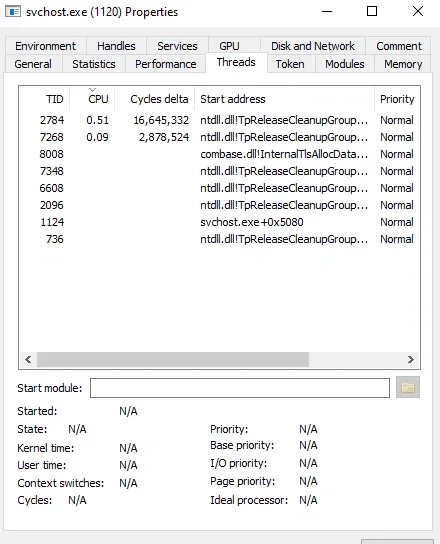
Right-click a suspicious process (e.g., one with a generic name like "svchost.exe" but unusual behavior) and select "Properties."
In the Properties window, check tabs:
Threads: See what the process is doing in real-time.
Handles: Look for open files or registry keys it might be accessing suspiciously.
Network: Check for active connections (e.g., IP addresses it's connecting to).
3. Monitoring System Performance
If your PC feels sluggish during gaming or video editing, Process Hacker can track overall CPU, memory, disk and network usage in real-time, helping you identify bottlenecks like a program hogging RAM.
Steps to Perform:
Open Process Hacker as administrator.
Go to the "System Information" window (Tools > System Information or Ctrl+I).