|
VOOZH | about |
|
VOOZH | about |
Threat hunting is a proactive search for hidden or ongoing cyber threats inside a network to find and stop them before they cause major damage.
YARA is a lightweight pattern-matching engine used to identify and classify files and in-memory objects based on user-defined rules that combine text, hex, regex, and metadata checks.
Why use YARA
For example, A YARA rule encodes the traits of malware (file signatures, code strings, regexes, hashes). When YARA runs, it compares those rule patterns against a target (file, directory, or memory); if the target meets the rule’s condition, YARA reports the rule name and the exact matched strings/offsets. Rules let analysts reliably flag families of malware even when samples are tweaked.
rule example_rule {
 strings:
 $a = "malware string 1"
 $b = "malware string 2"
 condition:
 any of them
}1. Write rules that describe what to look for: A rule has three parts: meta (optional human info), strings (text/hex/regex patterns), and condition (the logic that decides a match). This rule matches if either $a or $b appears in the scanned target.
2. When you run YARA (CLI or library), the engine compiles rules into an optimized matcher. Pre-compiling or loading compiled rulesets speeds repeated scans in production.
3. YARA scans targets
yara rules.yar sample.bin or yara -r rules.yar /path.4. On a match YARA reports the rule name, any meta fields, which strings matched, and offsets (byte positions). Example CLI-style output might look like:
example_rule sample.bin
 $a at 0x02fa: "malware string 1"
Programmatic APIs (for example yara-python) return structured match objects with the same details.
Install YARA on your OS, then use a few simple commands to scan folders and files.
sudo apt-get update
sudo apt-get install -y yara
yara --versionyara -r rules.yar /path/to/scanIn windows download prebuilt binaries (yara64.exe, yarac64.exe) and put them in a folder on %PATH% (e.g., C:\Tools\YARA).
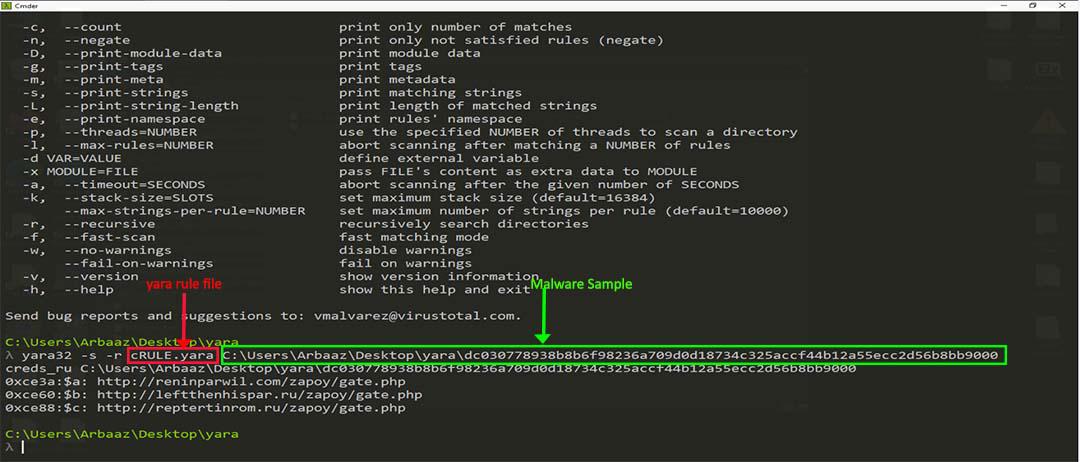
To run Yara on a Windows system, you will need to have the Yara software installed. You can download and install Yara from the Yara website (https://github.com/VirusTotal/Yara/releases). Once Yara is installed, you can use the following syntax to run it from the command prompt:
Yara32 [options] <rule_file> <target_file>
The <rule_file> parameter specifies the path to the Yara rule file that you want to use, and the <target_file> parameter specifies the path to the file that you want to scan.
Here are a few examples of how you might use this syntax:
To scan a single file for malware using a Yara rule file called "malware rules.Yara":
Yara32 malware_rules.Yara C:\myfile.exe
To scan a directory and all of its subdirectories for malware using a Yara rule file called "malware rules.Yara":
Yara32 -r malware_rules.Yara C:\mydirectory
Scan the file and print the names of all the rules that match:
Yara32 -g malware_rules.Yara C:\myfile.exe
There are many other options and parameters that you can use with Yara, including options for specifying multiple rule files, modifying the output format, and using multiple threads for scanning. You can refer to the Yara documentation or use the 'Yara32 --h' command for a complete list of options and syntax.
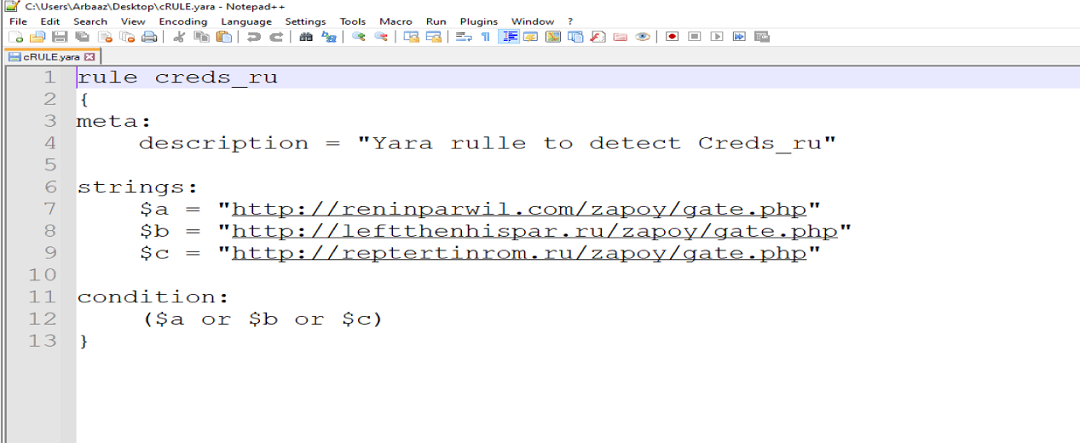
In the above screenshot I create a rule called "creds.ru" after that I added I description of the malware using the "meta" tag, then after declaring three strings named $a, $b, and $c. These strings are important strings associated with the malware that we are trying to detect. And at the end, we applied a condition. The above condition statement specifies that the rule will match if either of these strings is found in the software being analyzed.
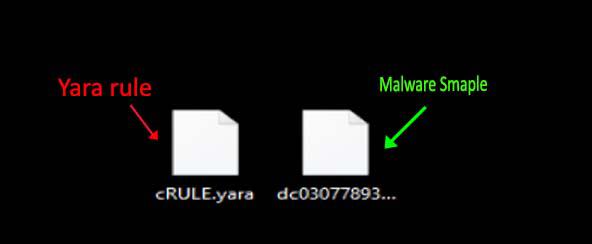
Now we have two files.
There are several types of Yara rules that you can use to identify and classify malware and other malicious software. Here are a few examples:
There are many other types of Yara rules that you can use, and you can also combine different types of rules to create more specific and sophisticated detection methods. It is important to carefully consider which characteristics are most relevant for detecting the specific type of malware that you are targeting.
To write a string-based Yara rule, you need to specify the strings of text that are associated with the malware that you are trying to detect. Here is an example of a simple string-based Yara rule:
rule example_string_rule
{
 strings:
 $a = "malware string 1"
 $b = "malware string 2"
 condition:
 any of them
}
This Yara rule contains two strings, $a and $b, that are associated with the malware that you are trying to detect. The condition statement specifies that the rule will match if either of these strings is found in the software being analyzed. You can also use regular expressions in your string-based Yara rules. For example, the following rule uses a regular expression to detect a string of text that contains a specific pattern:
rule example_regex_rule
{
 strings:
 $a = /[A-Za-z0-9]{8}/
 condition:
 $a
}
This rule will match any string that contains an 8-character alphanumeric sequence. It is essential to carefully consider which strings are most relevant for detecting the specific type of malware that you are targeting. You can use multiple strings in a single Yara rule, and you can also use logical operators to create more complex and specific rules.
To write a file metadata-based Yara rule, you need to specify the metadata characteristics of the files that are associated with the malware that you are trying to detect. Here is an example of a simple file metadata-based Yara rule:
rule example_metadata_rule
{
 condition:
 file.extension == "exe" and
 file.size > 100KB
}
This Yara rule will match any file that has a “.exe” extension and is larger than 100 KB in size. There are many types of file metadata that you can use in your Yara rules, including the file extension, size, creation, and modification dates, and attributes such as “hidden” or “system.” You can also use logical operators and other syntax elements to create more complex and specific rules. For example, the following rule uses a regular expression to match the file name and a logical operator to specify that the file must have been created within the past 7 days:
rule example_complex_metadata_rule
{
 condition:
 file.name matches /^malware.*\.exe$/ and
 file.creation_time > (now - 7d)
}
It is important to carefully consider which file metadata characteristics are most relevant for detecting the specific type of malware that you are targeting. You can use multiple metadata characteristics in a single Yara rule to create more specific and sophisticated detection methods.
To write a hash-based Yara rule, you need to specify the cryptographic hashes of the files that are associated with the malware that you are trying to detect. Here is an example of a simple hash-based Yara rule:
rule example_hash_rule
{
 strings:
 $a = {0A0B0C0D0E0F0A0B0C0D0E0F0A0B0C0D}
 condition:
 $a
}
This Yara rule contains a single string, $a, which is the cryptographic hash of a specific file. The 'condition' statement specifies that the rule will match if the hash of the file being analyzed matches the hash specified in the rule. You can use multiple hashes in a single Yara rule, and you can also use logical operators to create more complex and specific rules. For example, the following rule uses a logical operator to specify that the file must have a hash that matches either of two different values:
rule example_complex_hash_rule
{
 strings:
 $a = {0A0B0C0D0E0F0A0B0C0D0E0F0A0B0C0D}
 $b = {1A1B1C1D1E1F1A1B1C1D1E1F1A1B1C1D}
 condition:
 $a or $b
}
Hash-based Yara rules can be used to detect malware that has been modified or disguised in an attempt to evade detection. It is important to carefully consider which hashes are most relevant for detecting the specific type of malware that you are targeting.
To write a network-based Yara rule, you need to specify the network traffic characteristics of the malware that you are trying to detect. Here is an example of a simple network-based Yara rule:
rule example_network_rule
{
 condition:
 network.ip == "192.168.1.1" and
 network.port == 80
}
This Yara rule will match any network traffic that originates from the IP address “192.168.1.1” and is sent to port 80. You can use a variety of network traffic characteristics in your Yara rules, including IP addresses, port numbers, protocols, and packet payloads. You can also use logical operators and other syntax elements to create more complex and specific rules. For example, the following rule uses a regular expression to match the packet payload and a logical operator to specify that the traffic must be sent over either the HTTP or HTTPS protocols:
rule example_complex_network_rule
{
 condition:
 network.protocol in
 { "HTTP", "HTTPS" } and
 (network.payload matches
 /login/ or network.payload
 matches /password/)
}
It is essential to carefully consider which network traffic characteristics are most relevant for detecting the specific type of malware that you are targeting. You can use multiple characteristics in a single Yara rule to create more specific and sophisticated detection methods.