|
VOOZH | about |
|
VOOZH | about |
Packet colorization in Wireshark is a feature for Visually Distinguishing between different types of packets, By this packet colorization feature we can identify packet data in some specific color based on packet property. Wireshark has a packet colorization scheme by Default but if we want to change this scheme based on our priority, then we can change this color scheme. This is usually helpful in Broad area networks where a high volume of data is captured. In this situation, Packet colorization makes it easy to identify and understand the traffic data in capture and in very less time. Packet colorization can also be customized for highlight packets based on different criteria, such as source or destination IP address, a protocol like TCP, or ARP, or the presence of specific fields in the captured packet.
In Wireshark, we can colorize packets by assigning a unique color to the protocol name, then we can quickly identify packets based on belonging to specific protocols, and after that, we can analyze packets for our purpose whatever we want.
For colorize packets based on protocols in Wireshark following are steps :
Step 1: Open Wireshark and decide on which interface you want to capture data. After selecting the interface now click on the blue Wireshark icon which is on the left side.
Step 2: Now look at packet capturing it will show the following interface. This packet-capturing interface shows some colors with some specific pre-defined properties of packets. In Wireshark that is by default.
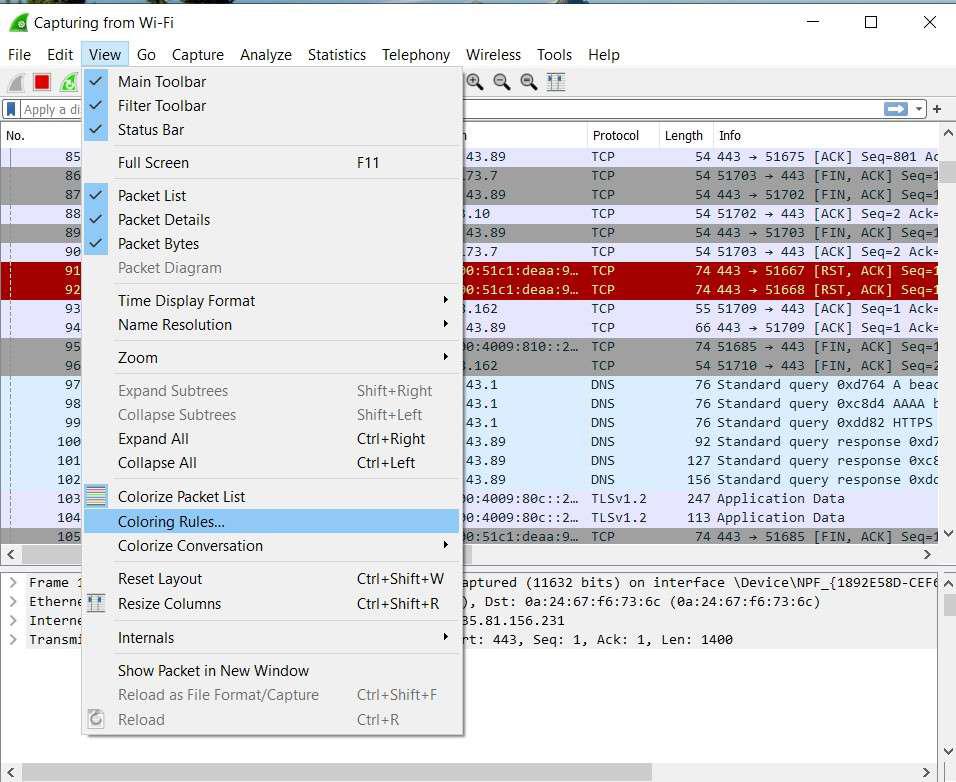
Step 3: For customizing color by Protocol Now click on View->Coloring Rules.
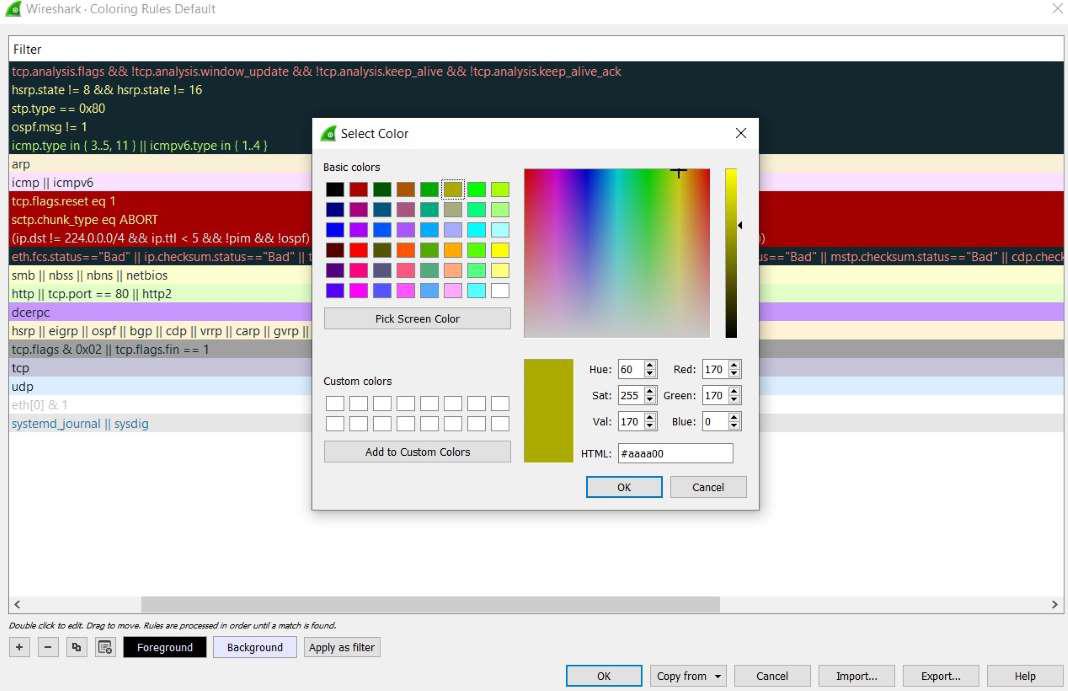
Step 4: By Default, the coloring interface will be shown. Now suppose we want to change the Background color theme of TCP protocol in captured data. For this select TCP and click on the Background color option.
Step 5: Now choose the color we want. and click on OK.
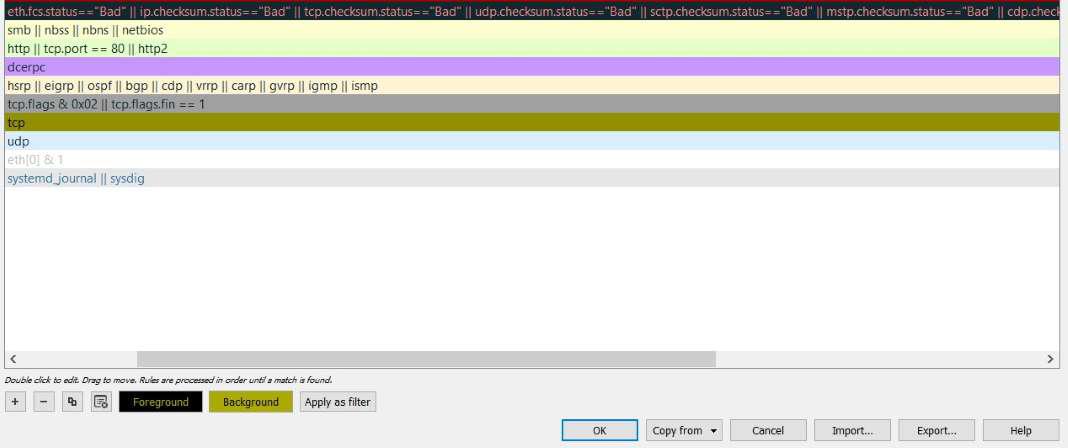
Step 6: We can see our background color is changed for packets which are related to TCP Protocol. Now again click on OK.
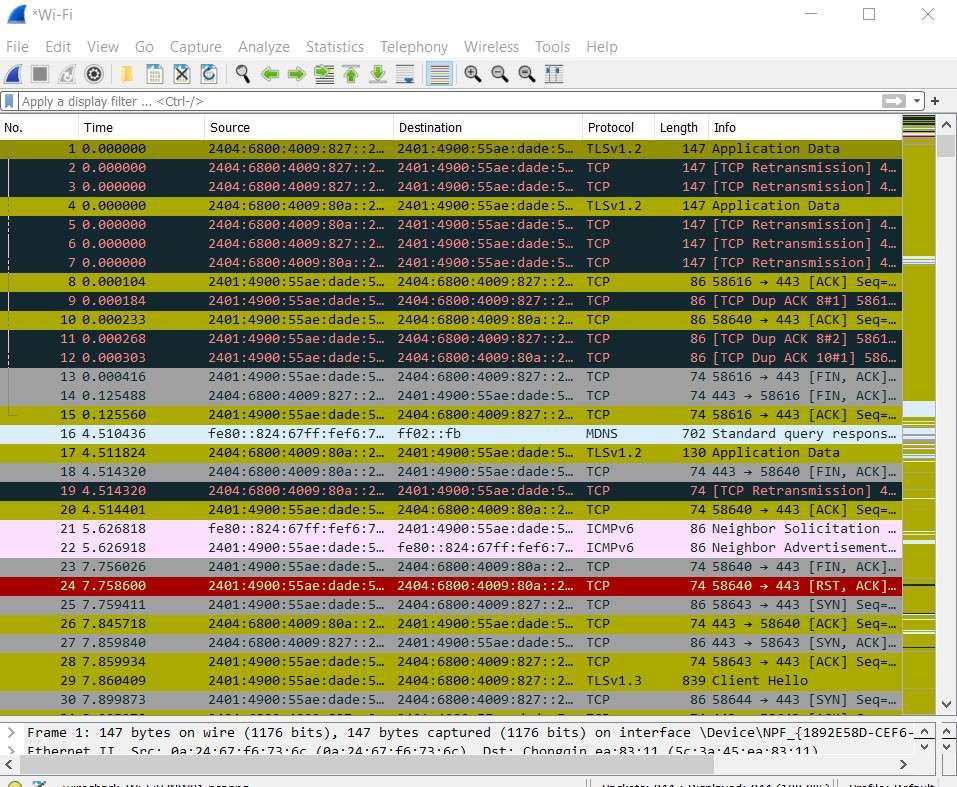
Step 7: Now See the packet capturing interface again. By our selected color we can easily identify this packet is belonging to TCP protocol.
This is another way for colorization packets in Wireshark. We can apply filters based on an IP address or port number or protocol type. After applying the filter we customized the color for the type of filtered packets. To perform this task let's see the steps:
Step 1: Open Wireshark Packet capturing interface.
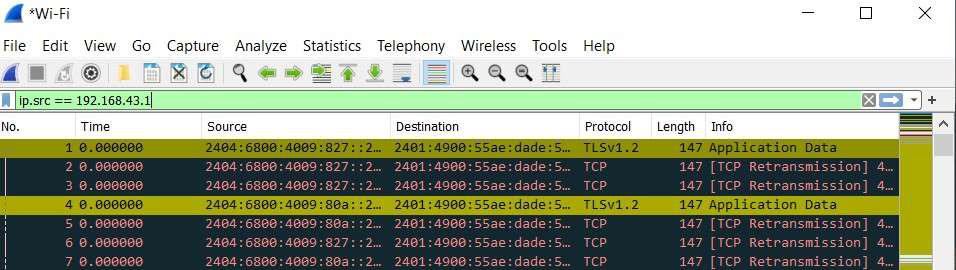
Step 2: Now for packet filtering enter input. here we are going to filter packets based on Source IP Address. In your case whatever IP you have you can enter.
ip.src==<ip address>
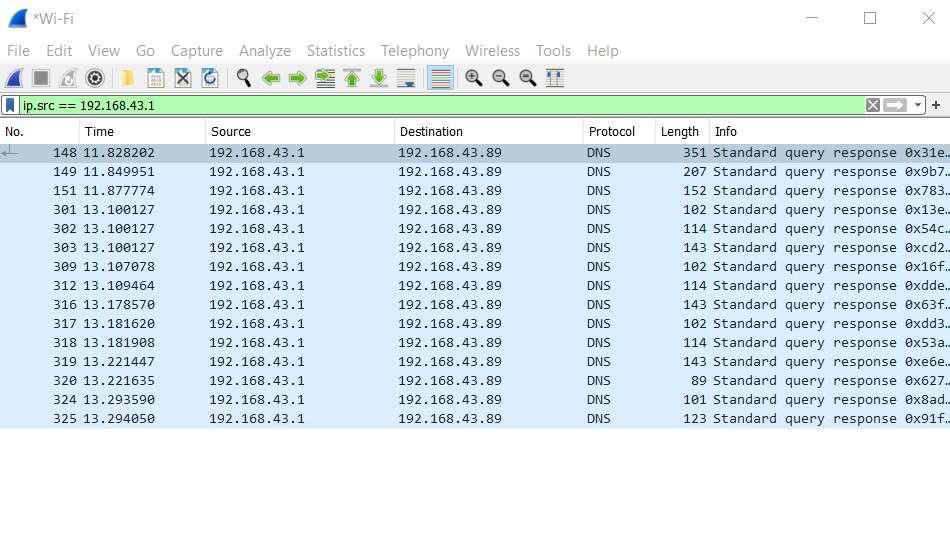
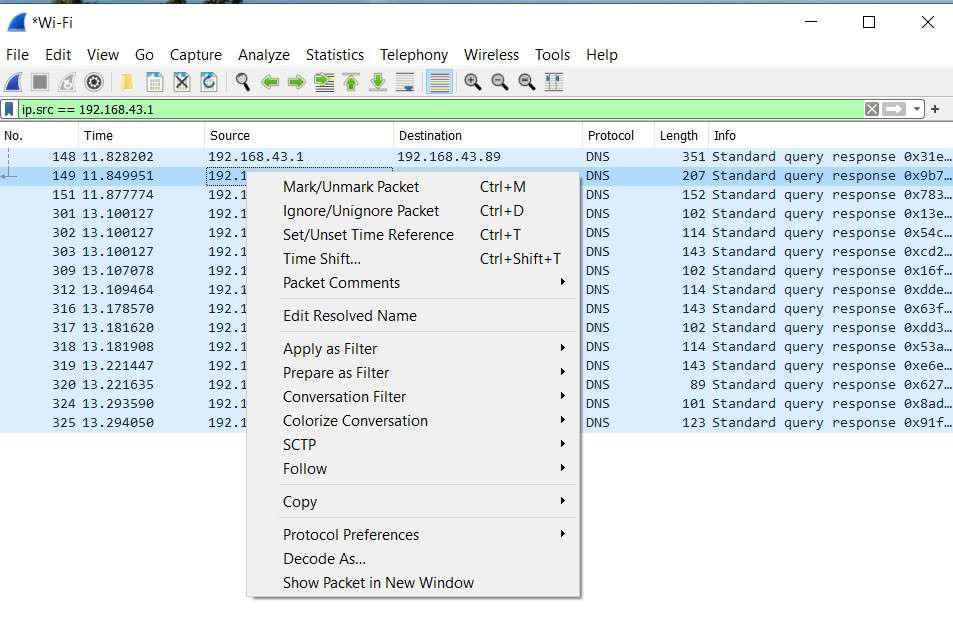
Step 3: Now hit enter. it will show all packets related to our filtered Source IP Address. Now select anyone of them and right-click.
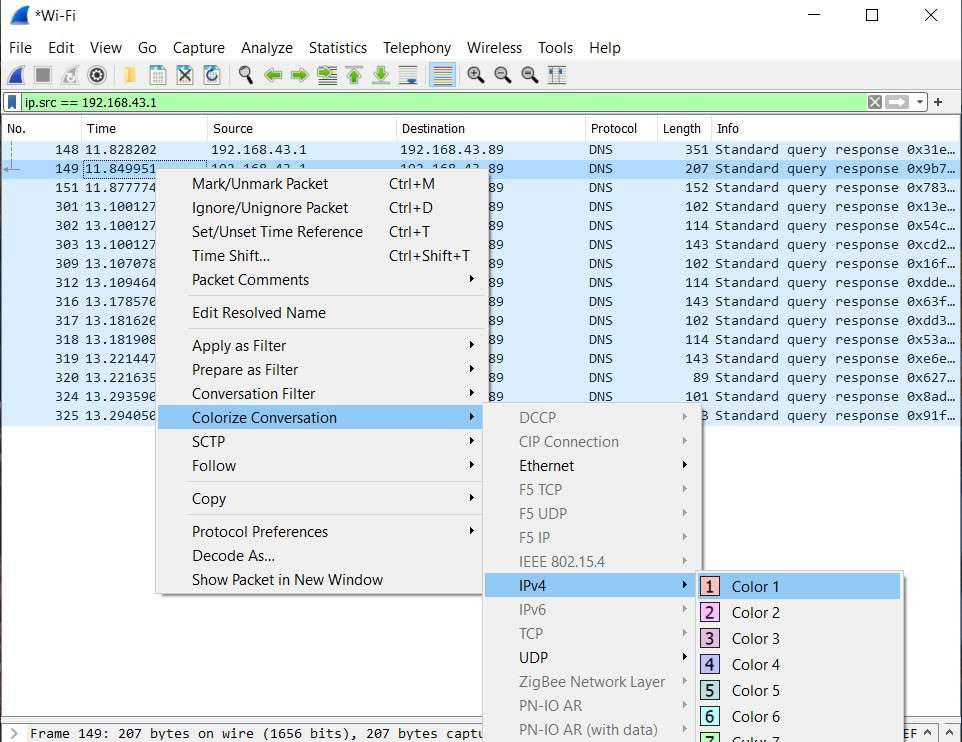
Step 4: Now for colorizing right click on Colorizing Conversation.
Step 5 : Next Select protocol and color. In our case, we are selecting IPv4 and Color 1.
Step 6: Now we can see our color is changed for filtered packets.
Step 7: In our main packet captured page background color is changed for our selected IP address - 192.168.43.1.
In these ways we can perform packet Colorization in Wireshark.