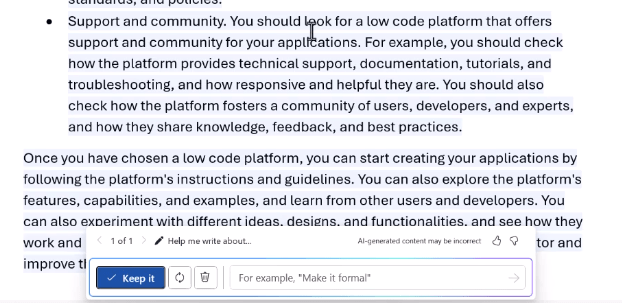
Copilot in Word boosts productivity by providing real-time suggestions and automating complex tasks. It enhances clarity, tone, and formatting, generates content from sentences to full reports, adapts it to specific audiences, and reduces repetitive manual work.
Key Features:
Provides alternative phrasing for clarity, professionalism, and audience fit.
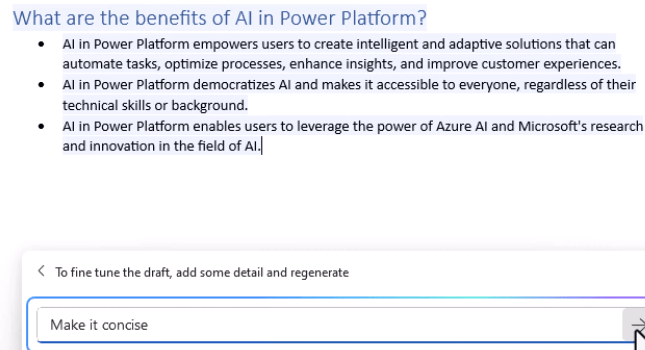
Adjusts tone (formal, casual, persuasive, etc.) based on prompts.
Recommends formatting improvements such as bullet points, headings, and structure.
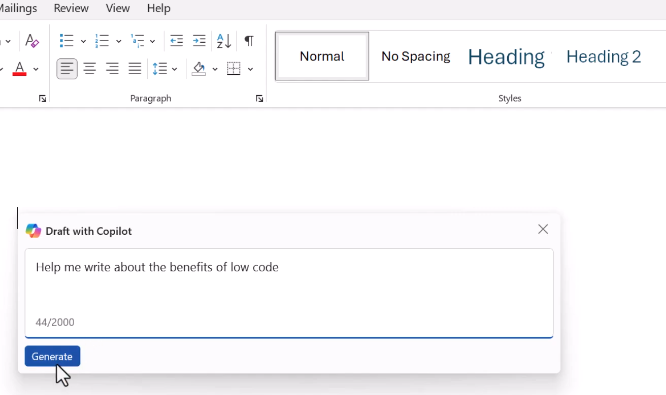
Generates full documents or sections from natural language prompts.
Automates repetitive tasks, ensuring consistency in templates and standardized content.
Steps to Use Copilot for Suggestions, Edits, and Automation
Step 1. Access Copilot for Suggestions and Edits
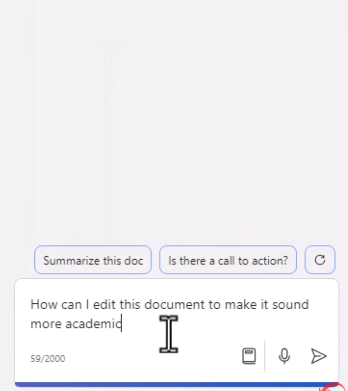
Open Copilot Sidebar:
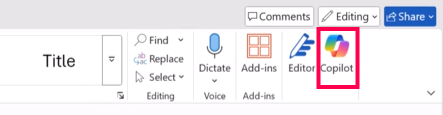
In a Word document (Microsoft 365 with Copilot license), click the Copilot icon in the Home tab to open the sidebar.