Convert a Word file to Google Docs by either uploading it to Google Drive and opening it with Google Docs, or by directly importing the file using the upload option in Google Docs. These methods quickly turn your document into an editable online format with easy sharing and collaboration features.
Method 1: Using Google Drive to Convert Microsoft Word to Google Docs
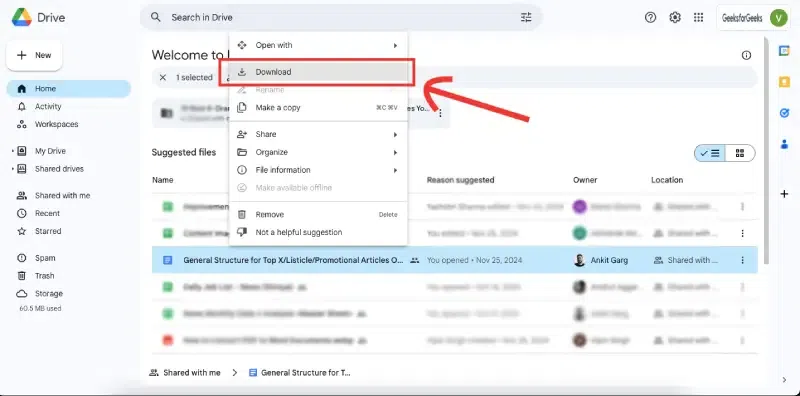
Using Google Drive, you can convert and download your Google Docsfile directly in Word format. This method is especially convenient if you manage multiple files in Drive.
Step 1: Open Google Drive
Visit drive.google.com and sign in to your account.
Step 2: Locate Your Document
Browse or search for the document you want to convert within your Drive storage.
Check the file for formatting accuracy and save it to your preferred location.
Method 2: Convert Word to Google Docs via Google Docs (Built-in Option)
Google Docs provides a simple, built-in feature to export documents as Microsoft Word files. This method is perfect for users who need an instant Word to Google Docs conversion without using additional tools.
Step 1: Open the Google Docs File
Log in to your Google Drive account and open the document you wish to convert. Make sure it is formatted as needed before conversion.)
Step 2: Access the File Menu
In the top-left corner, click the “File” tab to reveal the dropdown menu.
Click the Microsoft Word option, and the converted document will download. Depending on your browser, it could be downloaded in different places. Once downloaded, you can open the document in Word.


.webp)

