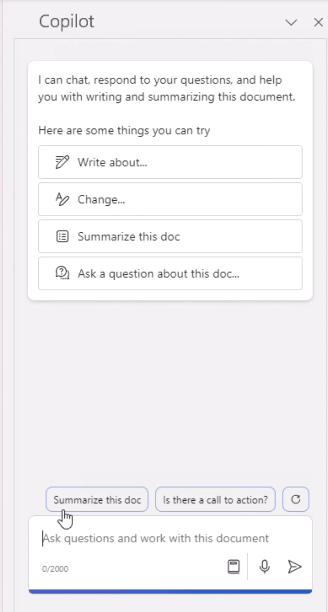
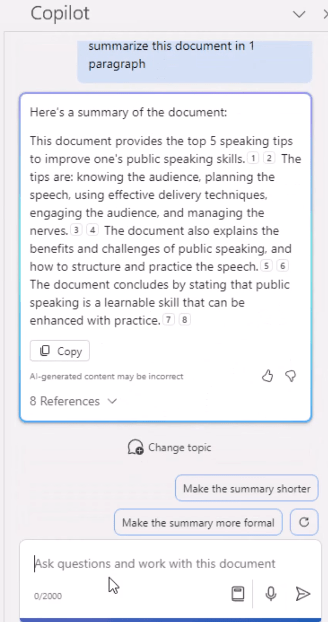
Copilot in Word is an AI-powered feature that assists with document tasks using advanced language models. It helps generate content, offer contextual suggestions, and improve formatting through natural language prompts. Unlike basic tools like spell check, Copilot understands context and user intent to provide more personalized support.
Key Features
AI-Powered Assistance: Helps draft, edit, and format documents using natural language commands.
Context Awareness: Understands the document’s content to provide relevant suggestions or actions.
Integration with Microsoft 365: Works seamlessly with Word, Excel, and other apps for cohesive workflows.
Accessibility: Supports users with a Microsoft 365 Copilot license, requiring an active subscription and internet connection.
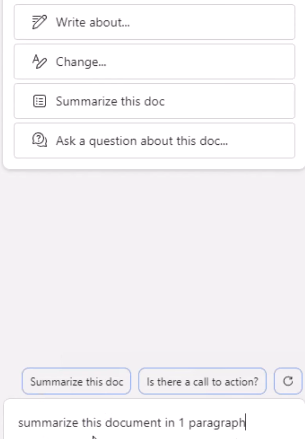
Example: Ask Copilot to “draft a meeting agenda” and receive a formatted outline directly in Word.
Steps to Use Copilot in Word
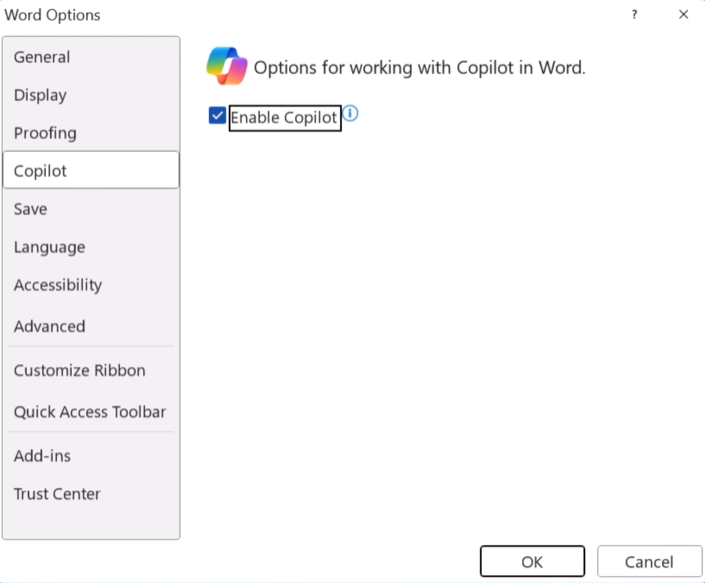
Step 1. Enable Copilot in Word
Set Up Copilot:
Open Microsoft Word (desktop or web version, Microsoft 365 required).
Ensure you have a Microsoft 365 Copilot or Copilot Pro license activated in File > Account > Subscriptions.
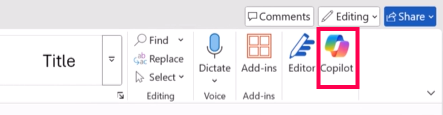
Go to the Home tab and locate the Copilot icon in the toolbar. If not visible, enable it via File > Options > Customize Ribbon > check Copilot (if available in your version).