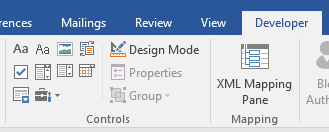
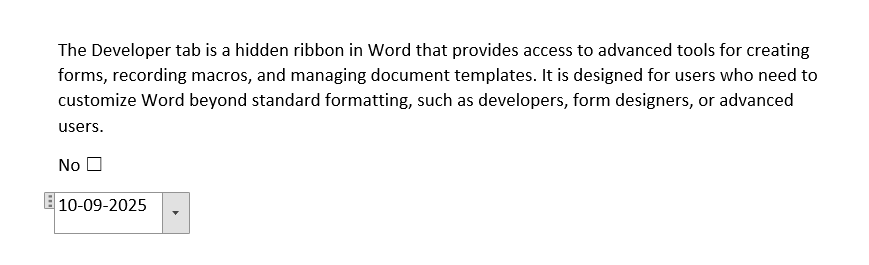
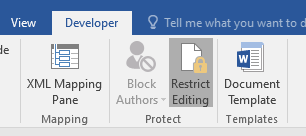
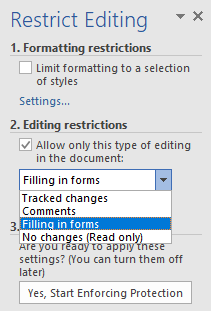
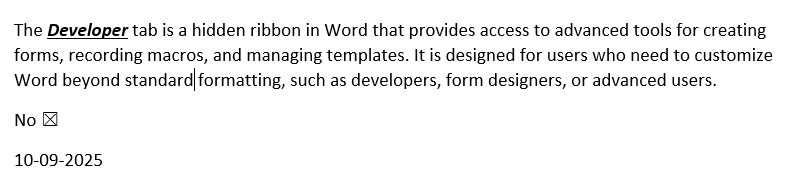
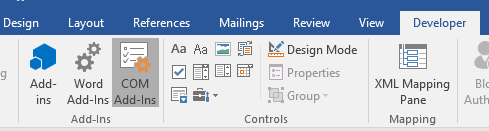
The Developer tab is a hidden ribbon in Word that provides access to advanced tools for creating forms, recording macros, and managing document templates. It is designed for users who need to customize Word beyond standard formatting, such as developers, form designers, or advanced users.
Key Features
Form Controls: Add interactive elements like text boxes, checkboxes, or dropdown lists to create fillable forms.
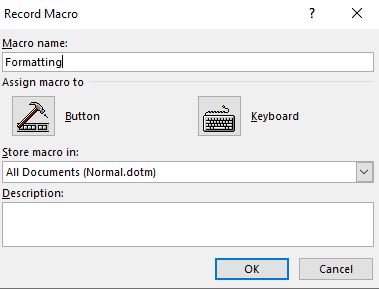
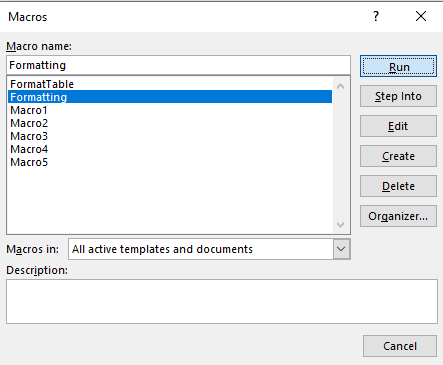
Macros: Record and manage macros to automate repetitive tasks (see "Automate Tasks in MS Word" for details).
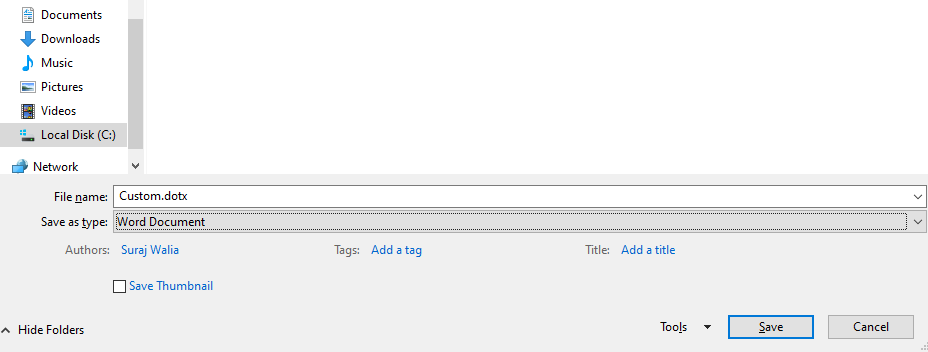
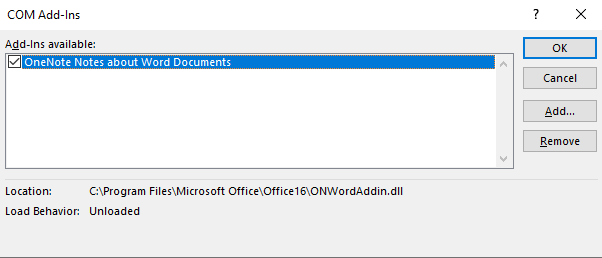
Templates and Add-Ins: Create and manage document templates or integrate third-party tools.
XML and VBA: Customize documents with XML structures or Visual Basic for Applications (VBA) code.
Example: Use the Developer tab to create a fillable survey form with dropdown menus and checkboxes.
Steps to Use Developer Tools
Step 1. Enable the Developer Tab
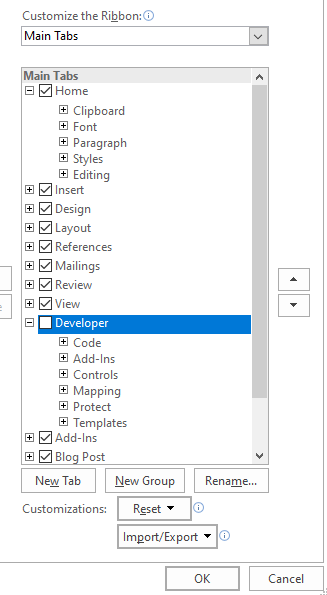
Show the Developer Tab:
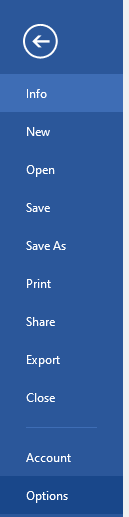
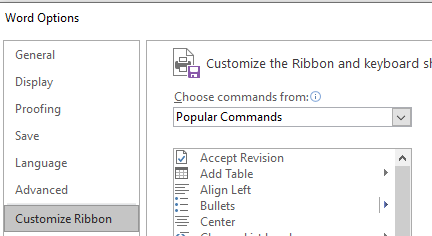
Go to File > Options (Windows) or Word > Preferences (Mac).