|
VOOZH | about |
|
VOOZH | about |
Draft Mode in Next.js enables content previewing and editing directly within your application, allowing content creators to view changes before publishing. This feature is especially useful for content management systems or any app where content updates need to be reviewed in real-time. We will explore what Draft Mode is, how to use it in your Next.js application, and best practices for its usage in this article.
Table of Content
Draft Mode in Next.js allows you to preview changes to your content before it is published. This is especially useful in a content management system (CMS) setup, where you want to see how new or edited content will look on your live website without actually publishing it. Draft Mode ensures that only authorized users can see the draft content, maintaining the integrity of the live site for regular visitors.
When Draft Mode is activated, a special cookie is set to indicate that draft content should be displayed. This allows Next.js to serve draft content instead of the published version.
pages/index.js
import { draftMode } from 'next/headers'

export default function Page() {
 const { isEnabled } = draftMode()
 return (
 <div>
 <p>Draft Mode is currently {isEnabled ? 'Enabled' : 'Disabled'}</p>
 </draft>
 )
}
Enable Draft Mode:
// pages/api/draft-enable/index.js
// for route/api/draft-inable

// route handler enabling draft mode
import { draftMode } from 'next/headers'

export async function GET(request) {
 draftMode().enable()
 return new Response('Draft mode is enabled')
}
Disable Draft Mode:
// pages/api/draft-disable/index.js

// for route/api/draft-disable

import { draftMode } from 'next/headers'

export async function GET(request: Request) {
 draftMode().disable()
 return new Response('Draft mode is disabled')
}
To Implement the Draft Mode in Next.js
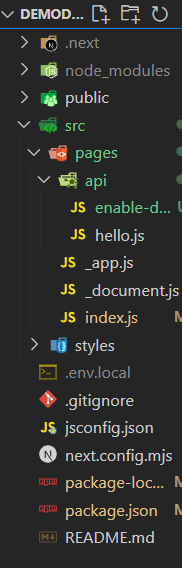
create-next-app command./api/enable-draft endpoint in the browser.Step 1: Create a nextJS application by using this command and navigate to project directory
npx create-next-app draftmode
cd draftmode
Step 2: Install the necessary packages/libraries in your project using the following commands.
npm install contentfulThe updated dependencies in package.json file will look like:
"dependencies": {
 "contentful": "^10.11.2",
 "next": "14.2.3",
 "react": "^18",
 "react-dom": "^18"
}After installing the Contentful package, visit the Contentful official website and sign up. In the settings, create a new API key with the name of your choice.
CONTENTFUL_SPACE_ID=your_space_id
CONTENTFUL_ACCESS_TOKEN=your_access_token
CONTENTFUL_PREVIEW_ACCESS_TOKEN=preview_tokenNext, we will replace our actual valid tokens shown above in the .env.local file. We will also create an API route that enables Draft Mode and fetches draft content from Contentful, creating the Draft Mode API Route.
Modify your data fetching logic to account for Draft Mode. For example, in getStaticProps, you can check if Draft Mode is enabled and fetch draft content accordingly. In this example, we are retrieving pageProduct content. Before fetching, make sure to create one with appropriate fields in the content Model of Contentful.
Example: Implementation to show draft mode.
To enable Draft Mode during development, visit the /api/enable-draft endpoint in your browser. This will set a cookie that enables Draft Mode for your session.
Draft Mode in Next.js is a powerful feature that allows developers and content editors to preview changes before they go live. By following the steps outlined in this guide, you can implement Draft Mode in your Next.js application, providing a seamless and secure way to preview draft content. Remember to secure access to Draft Mode and clearly indicate when it is enabled to ensure a smooth and professional workflow.