|
VOOZH | about |
|
VOOZH | about |
Redux is the state management library for JavaScript apps. It is used to manage the data globally in the app. In redux, there are three parts:
Actions: Actions are the JavaScript objects that have information. Actions provide information for the store. There is one more term that is used to create the action called Action creator, there are simple functions that create fun and return the action object.
Reducer: A reducer in React is a pure function that specifies how the application's state changes in response to dispatched actions.
Store: A store is an object that holds the application's state and provides methods for state access and modification in a predictable manner.
Syntax:
function fun_name(parameters) {
 return { // action object
 type: 'TYPE_NAME',
 task: task
 }
}
Let's make a simple todo application with help of redux.
Step 1: Create a React application using the following command:
npx create-react-app example
Step 2: After creating your project folder i.e. example, move to it using the following command:
cd example
Step 3: Installing npm modules:
npm install redux
npm install react-redux
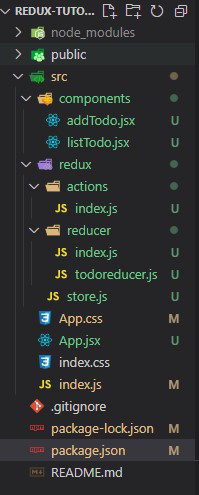
Project Structure:
The updated dependencies in package.json file will look like:
 "dependencies": {
 "react": "^18.2.0",
 "react-dom": "^18.2.0",
 "react-redux": "^8.1.3",
 "react-scripts": "5.0.1",
 "redux": "^4.2.1",
 "web-vitals": "^2.1.4",
 }
Example: Below is the implementation of the above discussed approach.
Step to Run Application: Run the application using the following command from the root directory of the project:
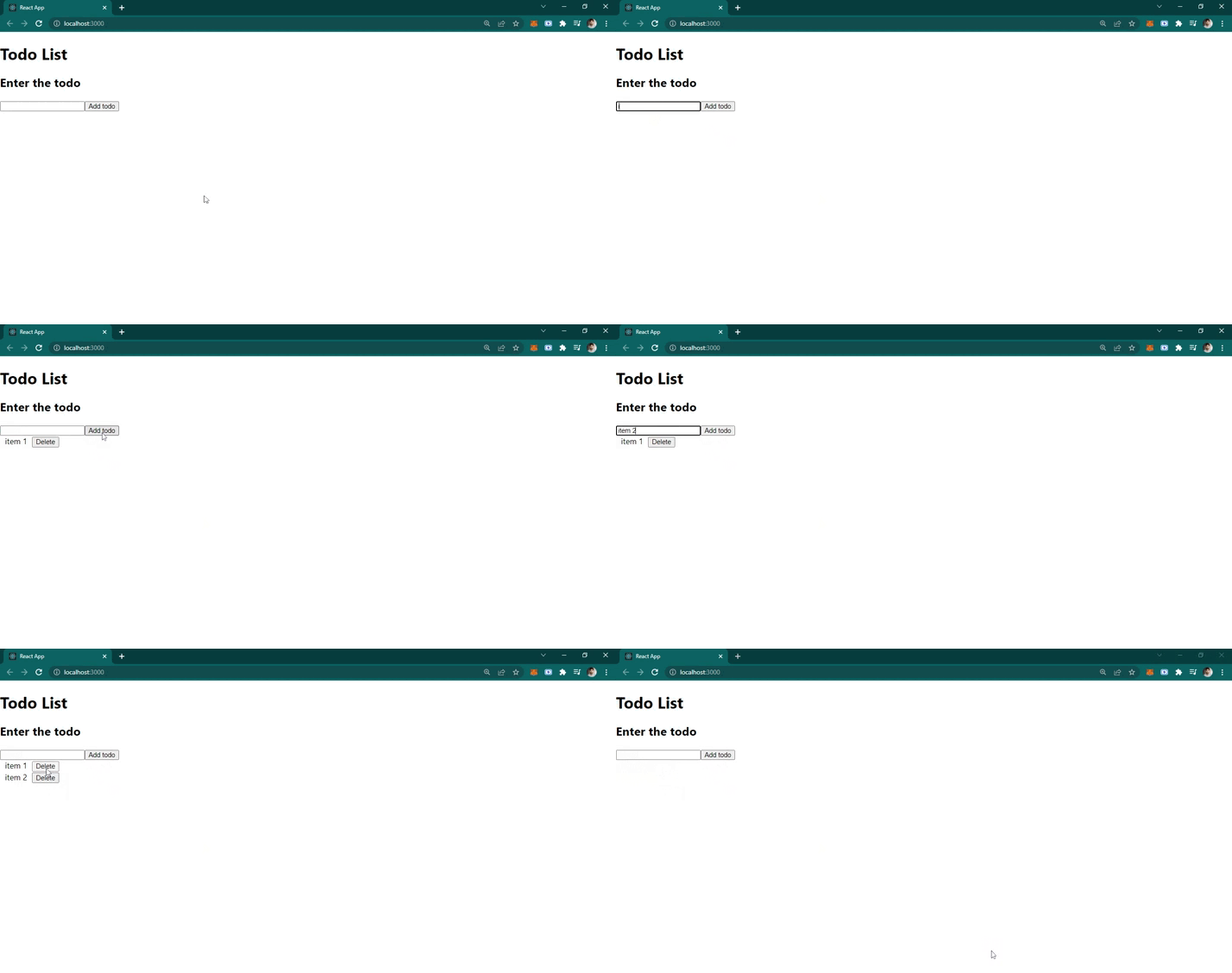
npm startOutput: