|
VOOZH | about |
|
VOOZH | about |
The View component is the fundamental building block used to create layouts in React Native. It acts as a container that supports styling, layout, and nesting of other components.
To center a View component on the screen, we can use two approaches:
Centering components involves using justifyContent and alignItems properties within a View container. Achieving pixel-perfect alignment requires careful attention to layout properties.
Now, create a project with the following command.
npx create-expo-app app-name --templateNote: Replace the app-name with your app name for example : react-native-demo-app
Next, you might be asked to choose a template. Select one based on your preference as shown in the image below. I am selecting the blank template because it will generate a minimal app, as clean as an empty canvas in JavaScript.
It completes the project creation and displays a message: "Your Project is ready!" as shown in the image below.
Now go into your project folder, i.e., react-native-demo
cd app-nameStart the server by using the following command.
npx expo startThen, the application will display a QR code.
1. For the Android users,
2. For iOS users, simply scan the QR code using the Camera app.
3. If you're using a web browser, it will provide a local host link that you can use as mentioned in the image below.
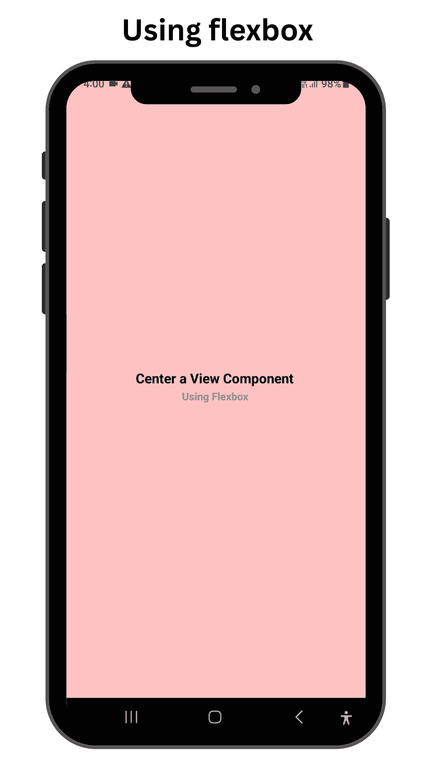
We will use a single View Component with nested Text components as its children. To center our View component, we will use the flex property, which is set to 1, along with the justifyAlign and alignItems properties (both set to center since the View component is required to be centered on the screen).
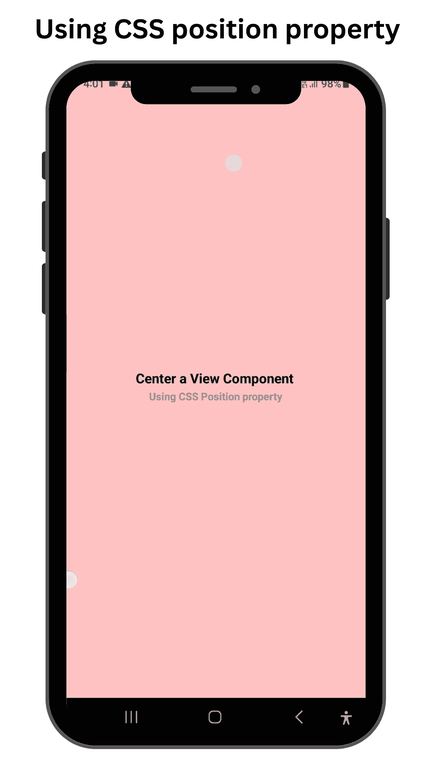
We will use a single View Component with nested Text components as its children. To center our View component, we will use the position property, which is set to absolute. We will also use the top, bottom, left and right values and set them to 0 (since the View component is required to be centered on the screen). As before, we will also require the justifyAlign and alignItems properties with their values set as center.