|
VOOZH | about |
|
VOOZH | about |
When you think about a GIF image, a video is a must convert into a .gif format to an image. For this project, we are using FFMPEG library utility written in the C programming language. With the support of web Assembly, it can run in browsers easily without any need for a server, also here we are using the ReactJS library to make it simple and more understandable.
You can know about web Assembly from the below Links:
Also, you can learn about FFMPEG which is a free and open-source software project consisting of a large suite of libraries and programs for handling video, audio, and other multimedia files and streams you can check from the https://ffmpeg.org/ link.
FFMPEG: FFmpeg.wasm is a WebAssembly port of FFmpeg, which you can install via npm and use within Node or the browser just like any other JavaScript module. Create a simple client-side transcoder that streams data into a video element.
Before going to make this project you have a hands-on experience on ReactJS because we are using react hook that is useState. So, ok with that concept go further and create your directory for the project.
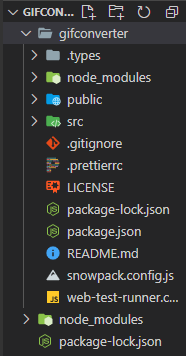
npm create vite@latest gifconverter --template reactnpm install @ffmpeg/ffmpeg @ffmpeg/corenpm i styled-componentsProject Structure: All installation for the project is complete, and we are now going for developing our aiming project. Now you can see the project directory looks like the following and you're all dependencies are installed successfully than good to go.
👁 ImageNow you open your command prompt and type the following command to start your server by running the below command. Then your browser opens in port number 8080 where your app is running, If your browser looks like this then you are in the right place.
cd gifconverter
npm run dev
Now open your project folder in your code editor and make a folder in src directory called components and under this folder make various JSX components file by following
src/components:
After creating the above JSX components, Let's go for add the code for our project:
Filename- Button.jsx: This component is a convert button, when you click on it automatically changes the .mp4 file to .gif file.
Filename- Dbutton.jsx: This component is a download button where you can download the .gif image after the convert from the .mp4 file.
Filename- Header.jsx:
Filename- Inputfile.jsx: This component used for getting user input of video file (.mp4 file)
Filename- Inputvideo.jsx:
Filename- Resultimage.jsx: This component is showing the .gif image which converter from a video file.
From the above individual components you can see there are many useState props are passed in the arrow function using curly bracket, don't worry that state you can find in the App.jsx. I prefer to consider all hooks in the App.jsx.
So, we are adding all code for our required components that are used for our project. After the adding of all the code, then we have to import the components file to the App.jsx
Filename- App.jsx: Here is our App.jsx code. Let's import our components into this file. In the below App.jsx , we are importing a library as discussed previously that is FFmpeg as createFFmpeg , fetchFile.
We are in the last phase of our project to finalize is our project working well or not ?:) Then after refreshing, you can see what your GIF converter looks like in the following image.
Output: If your browser gives this output, Then your project is running fine. Then choose a video file to convert into the image, After converting click on the convert button you can see it gives us a .gif format animated image.