|
VOOZH | about |
|
VOOZH | about |
Data visualization is an essential aspect of many web applications. To Create a Bar Chart in React using material UI and Devexpress is a commonly used visualization technique to represent data in a visually appealing and understandable format. I
DevExpress: DevExpress is a package for controlling and building the user interface of Windows, Mobile, and other applications.
Bar Charts: A bar chart is a pictorial representation of data that presents categorical data with rectangular bars with heights or lengths proportional to the values that they represent. In other words, it is the pictorial representation of the dataset. These data sets contain the numerical values of variables that represent the length or height.
To create a Bar Chart in React using material UI and DevExpress, we will install the dev express and MUI packages first. Then create dummy data in the form of an array of objects with numeric values and represent them on the Bar chart using the Chart component and respective attributes.
Step 1: Create a React application using the following command.
npx create-react-app foldernameStep 2: After creating your project folder i.e. folder name, move to it using the following command.
cd foldernameStep 3: After creating the ReactJS application, install the required modules using the following command.
npm i --save @devexpress/dx-react-core @devexpress/dx-react-chart @material-ui/core
 @devexpress/dx-react-chart-material-ui
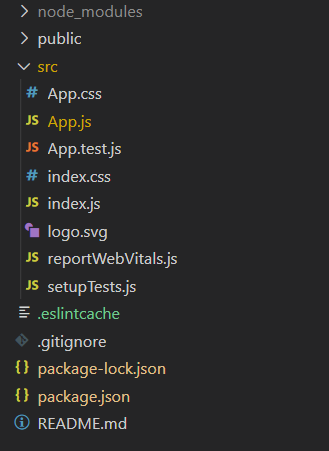
Project Structure:
The updated dependencies in package.json file will look like:
"dependencies": {
 "@devexpress/dx-react-chart": "^4.0.5",
 "@devexpress/dx-react-chart-material-ui": "^4.0.5",
 "@devexpress/dx-react-core": "^4.0.5",
 "@material-ui/core": "^4.12.4",
 "@testing-library/jest-dom": "^5.17.0",
 "@testing-library/react": "^13.4.0",
 "@testing-library/user-event": "^13.5.0",
 "react": "^18.2.0",
 "react-dom": "^18.2.0",
 "react-scripts": "5.0.1",
 "web-vitals": "^2.1.4"
}
Example: Thhis example implements chart component form the dev express to visualise the data as a Bar chart.
Step to Run Application: Run the application using the following command from the root directory of the project:
npm startOutput: Now open your browser and go to http://localhost:3000/, you will see the following output: