|
VOOZH | about |
|
VOOZH | about |
In this article, we will learn about how to scroll or skip a particular element in React JS, We can do this using React hook useRef and React styled-components.
It is used to scroll to the specified element in the browser. Here, we use top or left or right or bottom as the first parameter to scroll the page in the desired direction.
The second parameter is the behavior (of the scroll). It tells us how the window is going to reach the specified element and has a default value of the auto. However, it's not compulsory to provide this parameter as the browser uses its default value in case it's not provided.
Syntax:
//Auto behavior or Smooth behavior syntax
window.scrollTo({
 top: 100px,
 behavior: "auto" or "smooth"
});
Step 1: Create a React application using the following command:
npx create-react-app react-scrollStep 2: After creating your project folder i.e. example, move to it using the following command:
cd react-scrollStep 3: Installing Required module dependencies:
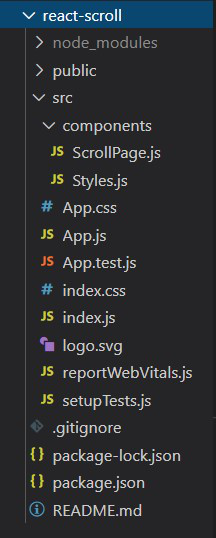
npm install --save styled-componentsProject Structure:
👁 ImageThe updated dependencies in package.json file will look like:
"dependencies": {
 "react": "^18.2.0",
 "react-dom": "^18.2.0",
 "react-scripts": "5.0.1",
 "styled-components": "^6.1.1",
 "web-vitals": "^2.1.4",
}
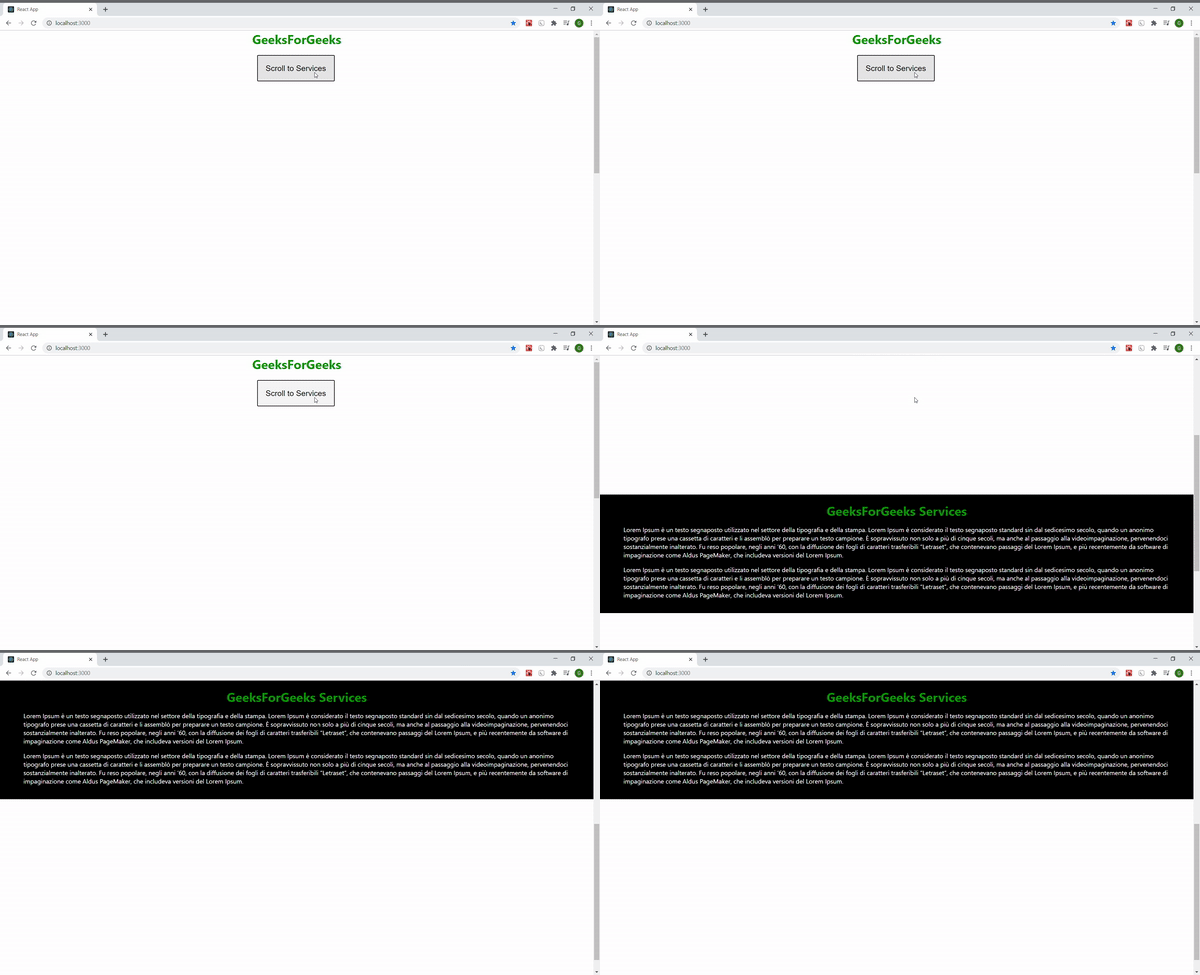
Example: When we click on the button the function gotoServices is getting triggered through onClick event. This top position of the Services element is accessed by the offsetTop property by writing Services.current.offsetTop which returns the top position (in pixels) relative to the top of the offsetParent element.
Step to Run Application: Run the application using the following command from the root directory of the project:
npm startOutput: Now open your browser and go to http://localhost:3000
Using default behavior (auto): See how it directly jumps to the element. 👁 Image
Using smooth behavior: See how it goes smoothly through the page. 👁 Image