|
VOOZH | about |
|
VOOZH | about |
Bootstrap is a popular front-end framework for building responsive, mobile-first websites in React using ready-made UI components, grid systems, utility classes, and easy customization.
If you're new to React or want to deepen your understanding, consider checking out the React JS Beginner to Advance course . This comprehensive course covers everything from the basics to advanced concepts, ensuring you can build robust applications with React.
Step 1: Add the Bootstrap CSS link
In your public/index.html file, add the following line inside the <head> section to include the Bootstrap CSS:
<link
 rel="stylesheet"
 href="https://stackpath.bootstrapcdn.com/bootstrap/5.3.2/css/bootstrap.min.css"
 integrity="sha384-GLhlTQ8iRABQYhWfXcQH87EoGdH6j2L04K17Qixxpa5zLx1W5TDBm7t0j1JbntcG"
 crossorigin="anonymous"
/>
Step 2: Add Bootstrap’s JavaScript files
If your app requires Bootstrap’s interactive JavaScript components (like modals, tooltips, etc.), add the following scripts just before the closing </body> tag:
<script
 src="https://cdn.jsdelivr.net/npm/@popperjs/core@2.11.6/dist/umd/popper.min.js"
 integrity="sha384-oBqDVmMz4fnFO9gyb56E8fR+6xKnujsH1X2jxXUSqWExY0g0U7tUdbzPvV4H8nX"
 crossorigin="anonymous"
></script>
<script
 src="https://stackpath.bootstrapcdn.com/bootstrap/5.3.2/js/bootstrap.min.js"
 integrity="sha384-pzjw8f+ua7Kw1TIq0sStbd5Y7fuD9BqR6O3doBoq3UMaS2m5uZlZKHw3LFG2Orv6"
 crossorigin="anonymous"
></script>
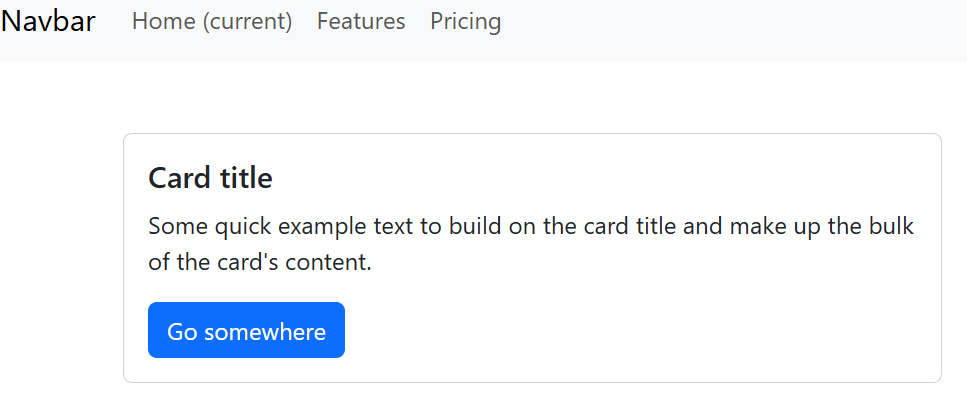
Output
<div id="root"></div> serves as the React app’s mounting pointInstall Bootstrap via npm and import it in React for better dependency control and version management, especially with bundlers like Webpack.
1. Install Bootstrap and Supporting Libraries
Run the following command to install Bootstrap and Popper.js (which are required for certain Bootstrap components) as dependencies:
npm install bootstrap @popperjs/core2. Import Bootstrap in Your React App
After installing the packages, open your src/index.js (or src/index.tsx for TypeScript) and import Bootstrap CSS:
import 'bootstrap/dist/css/bootstrap.min.css';
import 'bootstrap/dist/js/bootstrap.bundle.min';
Output
For a more React-friendly approach, you can use the React-Bootstrap library, which provides pre-built Bootstrap components as React components. React-Bootstrap helps to seamlessly integrate Bootstrap’s UI elements into your React applications without relying on jQuery.
Step 1: Install React-Bootstrap and Bootstrap
Run the following command to install both the react-bootstrap package and Bootstrap itself:
npm install react-bootstrap bootstrapStep 2: Import React-Bootstrap Components
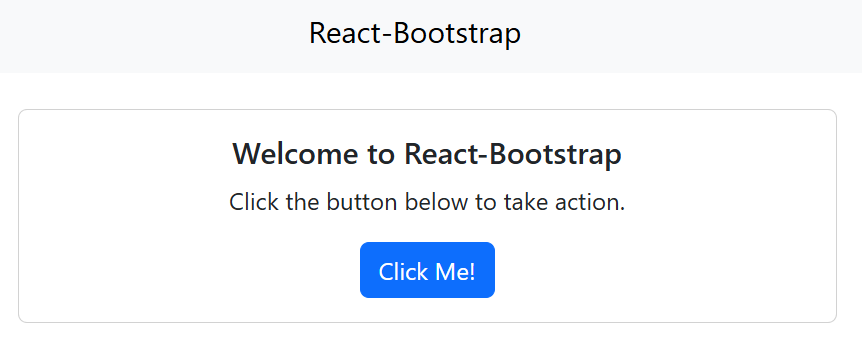
React-Bootstrap allows you to use Bootstrap components as React components. For example, to add a navbar and a button:
Output
npx create-react-app my-app
cd my-app
npm install axios bootstrap react-bootstrap👁 Screenshot-from-2023-10-19-12-40-38
Dependency list After installing packages
"dependencies": {
 "@testing-library/jest-dom": "^5.17.0",
 "@testing-library/react": "^13.4.0",
 "@testing-library/user-event": "^14.4.3",
 "axios": "^1.6.0",
 "bootstrap": "^5.3.2",
 "react": "^18.3.0",
 "react-bootstrap": "^2.11.0",
 "react-dom": "^18.3.0",
 "react-router-dom": "^6.18.0",
 "react-scripts": "5.0.1",
 "web-vitals": "^2.1.4"
}
Here's a simple implementation of a web page using react-bootstrap with navbar, dropdown, cards and and posts.
Output: This output will be visible on http://localhost:3000/ on the browser window.
Bootstrap offers ready-to-use components for responsive websites, but you can customize them to match your React app’s style.
Step 1: Install Bootstrap in Your React Project
To get started, you need to install Bootstrap in your React project. You can do this by running the following command:
npm install bootstrapStep 2: Import Bootstrap CSS
Once Bootstrap is installed, you can import its CSS into your React app. Go to your src/index.js (or src/index.tsx for TypeScript) file and add the following import statement at the top:
import 'bootstrap/dist/css/bootstrap.min.css';Step 3: Create a Custom CSS File for Your Customizations
The easiest way to customize Bootstrap in React is by overriding its default styles with your own custom CSS. You can create a new CSS file, such as src/custom.css, to add these overrides.
/* custom.css */

/* Change the background color of the primary button */
.btn-primary {
 background-color: #4CAF50; /* Green color */
 border-color: #4CAF50;
}

/* Change the navbar background to dark */
.navbar {
 background-color: #333; /* Dark background for navbar */
}
Step 4: Import the Custom CSS File
After creating the custom styles, you need to import the custom.css file into your app. Go back to src/index.js and add this import statement after the Bootstrap CSS import:
import './custom.css'; // Import your custom stylesStep 5: Use Bootstrap Components with Your Custom Styles
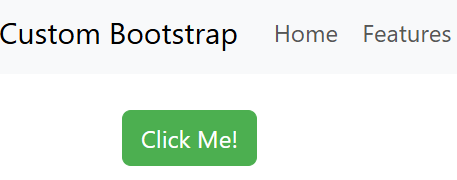
With custom styles added, you can use Bootstrap components in React, like a Navbar and a Primary Button with your customized colors.
Output