VOOZH about

URL: https://www.geeksforgeeks.org/reactjs/react-suite-modal-accessibility/

⇱ React Suite Modal Accessibility - GeeksforGeeks


  • Courses
  • Tutorials
  • Interview Prep

React Suite Modal Accessibility

Last Updated : 15 Sep, 2022

React suite is a library of React components, sensible UI design, and a friendly development experience. It is supported in all major browsers. It provides pre-built components of React which can be used easily in any web application.

In this article, we'll learn about React suite Modal Accessibility. Accessibility is a tool or a way that enables a website accessible easily by the user by providing features like buttons, breadcrumbs, checkboxes or dropdowns, etc. Modal accessibility describes how a modal is accessible like a keyboard, states, properties, etc. The modal component has default role-dialog, aria-modal set to true, aria-labelledby, aria-describedby for title and description of modal respectively that is defined by WAI-ARIA.

Modal Props:

  • autoFocus: The Modal is opened and is automatically focused on its own when this is set to true.
  • backdrop: The Modal will display the background in its opened state when this is set to true.
  • backdropClassName: It is used to add an optional extra class name to .modal-backdrop.
  • classPrefix: It denotes the prefix of the component CSS class.
  • dialogClassName: It is used for the CSS class applied to Dialog DOM nodes.
  • enforceFocus: The Modal will prevent the focus from leaving when opened when this is set to true.
  • keyboard: It closes a modal when the ESC key is pressed.
  • onClose: It is a callback function fired when Modal hides.
  • onEnter: It is a callback function that is triggered before the Modal transitions in.
  • onEntered: It is a callback function that is triggered after the Modal finishes transitioning in.
  • onEntering: It is a callback function that is triggered as the Modal begins to transition in.
  • onExit: It is a callback function that is triggered right before the Modal transitions out.
  • onExited: It is a callback function that is triggered after the Modal finishes transitioning out.
  • onExiting: It is a callback function that is triggered as the Modal begins to transition out.
  • onOpen: It is a callback function that is triggered when Modal displays.
  • overflow: It automatically sets the height when the body content is too long.
  • size: It sets the Modal size.

Modal.Header Props:

  • as: It is used to add a custom element for this component.
  • classPrefix: It denotes the prefix of the component CSS class.
  • closeButton: It displays the close button.
  • onHide: It is a callback function that is triggered when Modal is hidden.
 

Modal.Title Props:

  • as: It is used to add a custom element for this component.
  • classPrefix: It denotes the prefix of the component CSS class.

Modal.Footer Props:

  • as: It is used to add a custom element for this component.
  • classPrefix: It denotes the prefix of the component CSS class.

Modal.Body Props:

  • as: It is used to add a custom element for this component.
  • classPrefix: It denotes the prefix of the component CSS class.

Syntax:

import { Modal } from "rsuite";
export default function App() {
 return (
 <Modal 
 keyboard={false}
 aria-labelledby="modal-title"
 aria-describedby="modal-description"
 >
 ...
 </Modal>
 );
}

Creating React Application And Installing Module:

Step 1: Create a React application using the given command:

npm create-react-app projectname

Step 2: After creating your project, move to it using the given command:

cd projectname

Step 3: Now Install the rsuite node package using the given command:

npm install rsuite

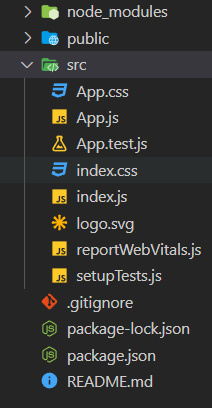
Project Structure: Now your project structure should look like the following:

👁 Image
 

Step to Run Application: Run the application using the following command from the root directory of the project:

npm start

Example 1: Below example demonstrates the modal when the keyboard interaction is 'true'.

Output:

👁 Image
 

Note: In the above example, the modal is closed using the 'Esc' key.

Example 2: Below example demonstrates the usage of aria-labelledby and aria-described in the modal.

Output:

👁 Image
 

Reference: https://rsuitejs.com/components/modal/#accessibility

Comment