Ant Design Library has this component pre-built, and it is very easy to integrate as well. AutoComplete Component is used for auto-completing the free text value with the option value. We can use the following approach in ReactJS to use the Ant Design AutoComplete Component.
AutoComplete Methods:
blur(): This method is used to remove the focus from the element.
focus(): This method is used to get the focus on the element.
AutoComplete Props:
allowClear: It is used to show the clear button.
autoFocus: It is used to get the focus when the component is mounted.
backfill: If this value is true, then it back fills the selected item the input when using the keyboard.
children(for customize input element): It is used to customize the input element.
children(for dataSource): It is used for the data source to auto-complete.
defaultActiveFirstOption: It is used to denote whether the first option is to be active by default or not.
defaultOpen: It is used to indicate the initial open state of the dropdown.
defaultValue: It is used to indicate the initially selected option.
disabled: It is used to disable the select.
dropdownClassName: It is used to pass the class name for the styling of the dropdown menu.
dropdownMatchSelectWidth: It is used to determine whether the select input and the dropdown menu are of the same width or not.
filterOption: It is used to apply the filter options against it if this is set to true.
notFoundContent: It is used to show the content when no result matches.
open: It is used to control the open state of the dropdown.
options: It is used to pass the select options.
placeholder: It is used to indicate the placeholder of input.
value: It is used to denote the selected option value.
onBlur: It is a callback function that is triggered on leaving the component.
onChange: It is a callback function that is triggered on the selection of an option or input value change.
onDropdownVisibleChange: It is a callback function that is triggered when the dropdown is open.
onFocus: It is a callback function that is triggered when entering the component.
onSearch: It is a callback function that is triggered when searching items.
onSelect: It is a callback function that is triggered on the selection of an option.
Creating React Application And Installing Module:
Step 1: Create a React application using the following command:
npx create-react-app foldername
Step 2: After creating your project folder i.e. foldername, move to it using the following command:
cd foldername
Step 3: After creating the ReactJS application, Install therequiredmodule using the following command:
npm install antd
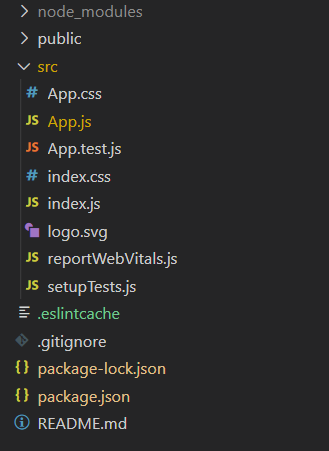
Project Structure: It will look like the following.