|
VOOZH | about |
|
VOOZH | about |
Ant Design Library has this component pre-built, and it is very easy to integrate as well. PageHeader Component is a header with common actions and design elements that are built-in. We can use the following approach in ReactJS to use the Ant Design PageHeader Component.
Syntax:<PageHeader
onBack={() => {
// Action on click
}}
title=""
subTitle=" "
className=" "
/>
PageHeader Props:
Creating React Application And Installing Module:
Step 1: Create a React application using the following command:
npx create-react-app foldername
Step 2: After creating your project folder i.e. folder name, move to it using the following command:
cd foldername
Step 3: After creating the ReactJS application, Install the required module using the following command:
npm install antd
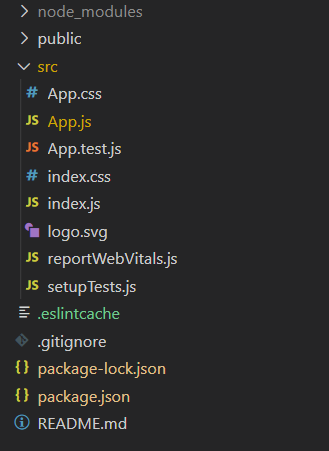
Project Structure: It will look like the following.
Example: Now write down the following code in the App.js file. Here, App is our default component where we have written our code.
Step to Run Application: Run the application using the following command from the root directory of the project:
npm start
Output: Now open your browser and go to http://localhost:3000/, you will see the following output:
👁 Image