|
VOOZH | about |
|
VOOZH | about |
Semantic UI integration for Meteor is a technique to use the Semantic frontend framework with Meteor. This enables us to use the prebuild component and styles of the Semantic UI in your Meteor projects. With this, you can take advantage of this frontend library to make amazing and responsive websites. Meteor is a full-stack technology that works with React, and Vue and comes with a prebuilt connection to the MongoDB database.
Semantic UI has various prebuilt components. so we are going to use them in our meteor project using React as our frontend technology.
Step 1: Open your terminal and enter the following command to check the version of node. To create a meteor project the node version should be greater than 9 and less than 15. if you don't have that version install. please the above
node --versionStep 2: To create a meteor project we must have meteor installed in our system write the following command to installed in the system.
npm install -g meteorStep 3: Create a meteor project using the below command.
meteor create project_name It will create a meteor project and install all the dependencies
Step 4: Then write the following commands to move into the project folder
cd project_nameStep 1: Install the Semantic:UI Package
meteor add semantic:ui
Step 2: Remove the standard-minifier-css package.
meteor remove standard-minifier-cssStep 3: Install the less and postcss packages.
meteor add less juliancwirko:postcssStep 4: To configure the postcss package, add the following to your package.json file and save it.
{
 "devDependencies": {
 "autoprefixer": "^6.3.1"
 },
 "postcss": {
 "plugins": {
 "autoprefixer": {"browsers": ["last 2 versions"]}
 }
 }
}
Step 5: create custom.semantic.json file in a folder of your project
mkdir - p client/lib/semantic-ui/
touch client/lib/semantic-ui/custom.semantic.json
Step 6: Install the packages
meteor npm install
Semantic UI is now installed in the project
In this example we have used a button component and a input component to take the input from the user and then used a message component to display the text
Example 1: Below is the implementation of the above approach.
To run the project type the following in the terminal:
meteor run
Output:
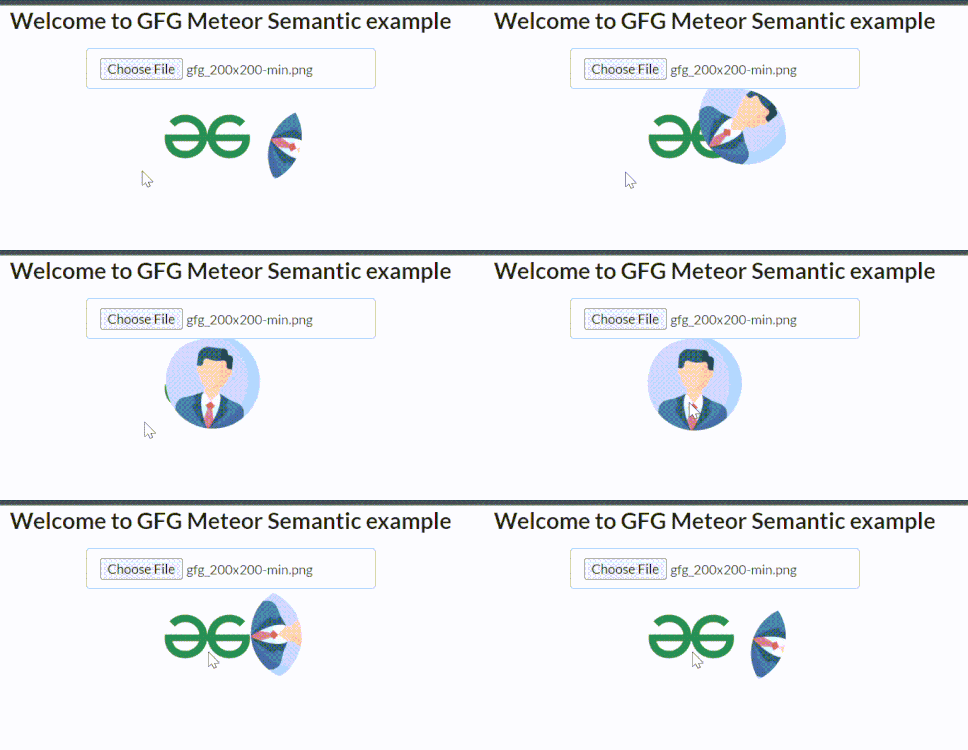
In this example we have used a file input component to take the image from the user and then reveal component to display the image in the reveal component by hovering over it
Example 2: Below is the implementation of the above approach.
To run the project type the following in the terminal:
meteor run
Output: