|
VOOZH | about |
|
VOOZH | about |
In this article, we are going to implement Tenzied Games using React JS. Tenzies is a fast-paced and fun game where players have to race to roll a specific combination with a set of ten dice. As we are building this game with ReactJS, we are using the functional components to build the application, and we have also used React Hooks to manage the application's behavior.
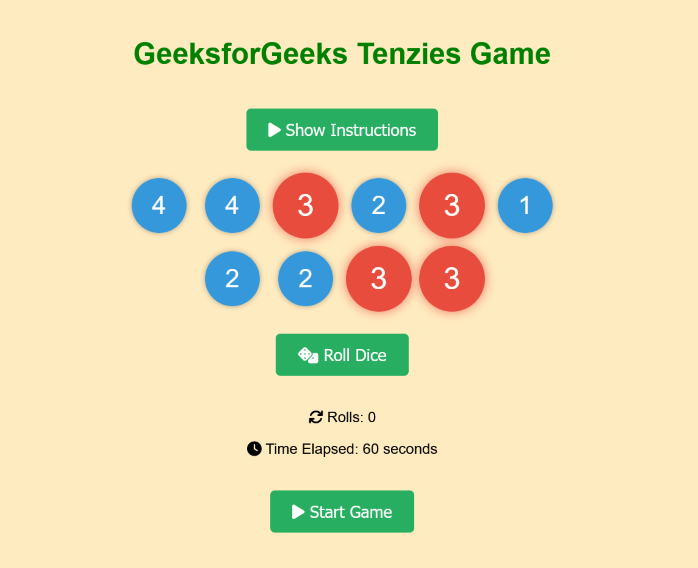
Preview of Final Output: Let us have a look at how the final output will look like.
👁 Screenshot-2023-11-08-at-12-07-00-React-App-min-min
Tenzies Game in ReactJS is a fun game that is the same as Dice Game. This game consists of various dice represented in terms of numerical values. The game allows players to roll these ten dice, hold them to achieve the winning combination, and also track the number of rolls and time. React's state management and useEffect hook are used to make the application dynamic and more user-interactive. In the application, the user freezes the dice and performs the combination on other dice. When the combinations are matched, the game ends with the winning decoration using the CSS styles and properties. The application is completely dynamic and responsive in terms of behavior.
Step 1: Set up the React project using the below command in VSCode IDE.
npm create vite@latest tenzies-game --template reactStep 2: Navigate to the newly created project folder by executing the below command.
cd tenzies-gameStep 3: After navigating we need to install all the required packages described in the package.json file. We can use the below command to install all the packages that are specified in the package.json file
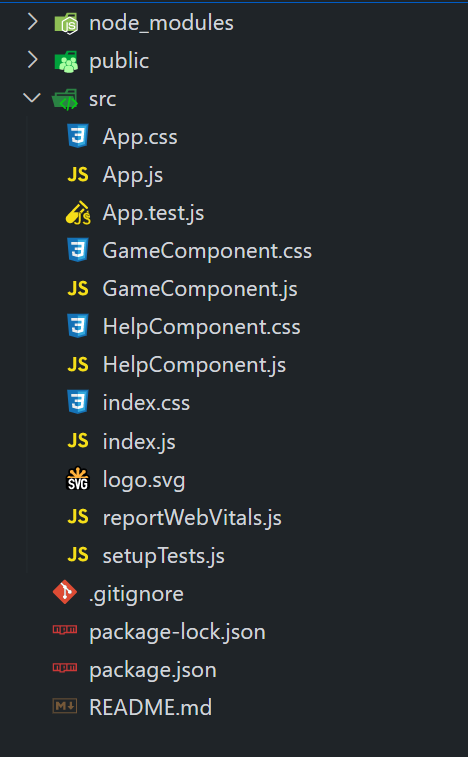
npm install react-bootstrap @fortawesome/free-solid-svg-icons @fortawesome/react-fontawesomeProject Structure:
The updated dependencies in package.json will look like this:
 "dependencies": {
 "@fortawesome/free-solid-svg-icons": "^6.4.2",
 "@fortawesome/react-fontawesome": "^0.2.0",
 "react": "^18.2.0",
 "react-bootstrap": "^2.9.1",
 "react-dom": "^18.2.0",
 "vite": "^4.0.0"
},
"devDependencies": {
 "vite": "^4.0.0"
}
Example: Implementation of the above approach in the following files.
Step 1: Run the application by executing the following command in the terminal.
npm run dev Step 2: Open a web browser like Chrome or Firefox and type the following URL in the address bar.
http://localhost:5173/