|
VOOZH | about |
|
VOOZH | about |
Next.js is a React framework that is used to build full-stack web applications. It is used both for front-end as well and back-end. It comes with a powerful set of features to simplify the development of React applications. One of its features is useRouter hook that is part of the Next.js routing system.
In this article, we will learn about how to use useRouter hook. The useRouter hook allows you to access the Next.js router object and obtain information about the current route, query parameters, and other route-related details.
Note: We'll use the Pages Router(not using App Router), so if you are using App Router then properties like pathname, query, etc, and some methods will not work directly so you need to use specific hooks like usePathname, useSearchParams to get this values and you need import useRouter hook module from next/navigation.
The useRouter hook is imported from the next/router module in Next.js applications.
import { useRouter } from 'next/router ';

function MyComponent() {

 //Main Syntax
 const router = useRouter();

 // Accessing route information using router object
 console.log(router.pathname); // Current route
 console.log(router.query); // Query parameters

 return (
 // Your component JSX
 );
}
The hook provides access to various properties and methods of the Next.js router object.
Step 1: Create a Next.js application using the following command.
npx create-next-app@latest gfgStep 2: It will ask you some questions, so choose as the following.
Would you like to use TypeScript? ... No
√ Would you like to use ESLint? ... Yes
√ Would you like to use Tailwind CSS? ... No
√ Would you like to use `src/` directory? ... Yes
√ Would you like to use App Router? (recommended) ... No (We are using Pages Router)
√ Would you like to customize the default import alias (@/*)? ... Yes
Step 3: After creating your project folder i.e. gfg, move to it using the following command.
cd gfgExample: The below example demonstrates the use of useRouter hook.
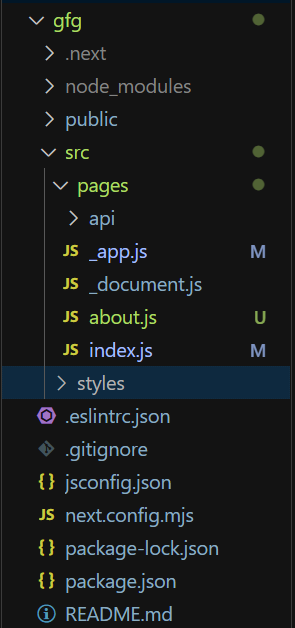
Note: Remove the included css file from _app.js file
Step 1: Add this following code inside index.js file
Step 2: Create about.js file and add the following code in the file:
To run the Application open the terminal in the project folder and enter the following command:
npm run dev