|
VOOZH | about |
|
VOOZH | about |
Tailwind CSS is a utility-first CSS framework that makes it easy to build custom designs without writing custom CSS. It allows you to apply individual utility classes directly in your HTML, which helps create fully customized layouts with minimal effort.
Here, we’ve compiled the Top 60+ Tailwind CSS interview questions and answers, covering essential concepts like utility classes, responsive design, customization, and purging unused styles. Whether you're a beginner or a professional with 2-10 years of experience, these questions will help you confidently ace your next Tailwind CSS interview.
Tailwind CSS is used to design and style web pages fast and Responsive. Rapid Development, Highly Customizable, Reduced CSS File Size, Great Documentation, and Community Support are the main reasons for using Tailwind CSS.
There are two ways to use the Tailwind CSS we can install them on our server or we can use the CDN link as well.
Method 1: Using Tailwind via CDN
<link href=”https://unpkg.com/tailwindcss@1.9.6/dist/tailwind.min.css%E2%80%9D rel=”stylesheet”>
Method 2: Install Tailwind via npm
npm init -y
npm install tailwindcss
Use the @tailwind directive to inject Tailwind’s base, components, and utility styles into your CSS file.
@tailwind base;
@tailwind components;
@tailwind utilities;
This is used to create a config file to customize the designs. It is an optional step.
npx tailwindcss initThis command is used to compile style.css is the file that has to be compiled and output.css is the file on which it has to be compiled. If the file output.css is not created earlier then it will automatically be created.
npx tailwindcss build styles.css -o output.cssTailwind CSS is an open-source project, available for free usage and utility-first CSS framework that provides responsiveness.
The Drop Shadow class is used in Tailwind CSS to apply a filter to the image for setting the shadow of the image. There are various utility classes applied including drop-shadow-sm, drop-shadow, drop-shadow-md, drop-shadow-lg, drop-shadow-xl, drop-shadow-2xl and drop-shadow-none.
For achieving the bold text we can easily add utility class font-bold.
Use self-center to align an item vertically and mx-auto for horizontal centering in Tailwind CSS.
The horizontal and vertical spacing can easily achieved with Tailwind CSS with various utility classes including space-x-{n} for horizontal Spacing and space-y-{n} for vertical Spacing.
<div class="flex space-x-4">...
</div><div class="space-y-4">...</div>
Note: The utility classes mentioned above are applied to the child elements.
Tailwind CSS makes the concept of grid CSS Grid simple for creating complex grid structure. With the help of various utility classes defined in the tailwind CSS we can easily achieve the grid layout. The utility class .grid is used to create grid container.
<div class="grid">...</div>Tailwind CSS offers different CSS utility classes for rotate the elements clock-wise as well as anticlock-wise.
Syntax
<element class="rotate-{degree}">...</element>Note: rotate-0 defines no rotation
Tailwind CSS Border Collapse class is used to set the borders of the cell present inside the table and tells whether these cells will share a common border or not.
<element class="border-collapse">...</element>For achieving aligniment form elements to center, Tailwind CSS uses justify-center and items-center property which is an alternative to the flex-property in CSS. Other flex properties like flex-col, justify-center, items-center are use for alignment purposes.
<div class="flex flex-col justify-center items-center"> ....</div>You can position elements to the left and right in Tailwind CSS using either the flex or flow-root classes. The flow-root class efficiently clears floated content within a container, ensuring proper layout structure. Simultaneously, the position class enables precise control over the placement of positioned elements, offering flexibility in alignment.
Tailwind CSS offers utilities like shadow, shadow-lg, shadow-xl, etc., to apply shadows.
<div class="bg-white p-4 shadow-lg">Box with Shadow</div>Use the w-full utility class to make the element take 100% of the width of its parent.
<div class="w-full bg-blue-500 p-4">Full-width element</div>Unlike traditional frameworks like Bootstrap, which come with predefined components, Tailwind focuses on utility classes to create reusable components. This approach allows for more flexibility and customizability.
The @apply directive allows you to group multiple utility classes into one custom CSS rule. This helps avoid repetitive code and promotes reusability of common style patterns. It is useful when a group of utility classes needs to be applied to multiple elements.
Tailwind CSS has many advantages includes, minimum lines of Code in CSS file, easily customizable for design a components, website responsive. Tailwind CSS offers many features, but it does have some limitations. The major drawbacks frequently observed are illustrated in the table below.
| Limitation | Description |
|---|---|
| Learning Curve | Adapting to utility-first CSS may have a learning curve for developers unfamiliar with the approach. |
| Design Consistency | Maintaining design consistency across projects may require additional effort due to high customization. |
| Not Suitable for Every Project | Tailwind may not be the best fit for projects with strict design systems or complex layouts. |
| Readability in HTML | Some developers find utility classes in HTML markup less readable compared to separate stylesheets. |
Tailwind CSS offers various flex directions including flex-row, flex-row-reverse, flex-col, and flex-col-reverse. To achieve the flex-direction properties, you have to include the flex class in your element before the flex-direction class.
<element class="flex flex-row"> Contents... </element>By using the 'order' class in Tailwind CSS, we can arrange the flex and grid items according to our requirements. This class is utilized to display flex and grid items in an order different from their appearance in the DOM. The classes are order-1, order-2, order-3, order-4, order-5, order-6, order-7, order-8, order-9, order-10, order-11, order-12, order-first, order-last, order-none.
<element order- number | string >Yes, we can change the base font-family in Tailwind config. To adjust the main font style in Tailwind CSS, you can modify it by making changes in the "theme" part of your configuration file (tailwind.config.js). Just open that file, find the theme section, and add or update the fontFamily setting.
Tailwind CSS is designed to be a low-level utility-first framework, which means that classes are not automatically overridden by default. This make the styling process for form elements simple and allowing easy customization with utilities.
Tailwind CSS, offers Tailwind forms as plugins that provide a foundational reset for form styles. We can also use utility classes to make a form with Tailwind CSS, use the easy-to-apply classes for backgrounds, borders, shadows, etc. Start by creating the form element and use the space-y-{n} class to add vertical spacing between the form controls.
Yes, Tailwing CSS provide several Overscroll Behavior classes these. The syntax provide is an example hoe other can be used in this way
<element class="overscroll-auto">...</element>The below table illustrates the various Overscroll Behavior class with their description.
Overscroll Behavior class | Description |
|---|---|
overscroll-auto | It is used to set the scrolling behavior to default. The whole page along with the element will scroll even if the boundary of the element is reached. |
overscroll-contain | It is used to set the scrolling behavior to default only on the element used. |
overscroll-none | It is used to prevent scroll-chaining on all elements. The default scroll overflow behavior is also prevented. |
overscroll-y-auto | This is used to set the scrolling behavior on the y-axis to default on all the elements. |
overscroll-y-contain | It makes scrolling only affect the element it's applied to. When the element reaches its limit, scrolling more won't affect things behind it. |
overscroll-y-none | It is used to prevent scroll-chaining on all elements. The default scroll overflow behavior is also prevented. |
overscroll-x-auto | It is used to set the scrolling behavior on the x-axis to default on all the elements. |
overscroll-x-contain | It is used to set the scrolling behavior on the x-axis to default only on the element used. |
overscroll-x-none | It is used to prevent scroll-chaining on the x-axis on all elements. The default scroll overflow behavior is also prevented. |
The Tailwind CSS class, an alternative to CSS font-family, accepts multiple font names in a single class, covering various properties and allowing fallback fonts for browser compatibility.
Syntax
<element class="font-sans">...</element>Font family classes
You can position elements to the left and right in Tailwind CSS using either the flex or flow-root classes. The flow-root class efficiently clears floated content within a container, ensuring proper layout structure.
Tailwind CSS makes the concept of grid CSS Grid simple for creating complex grid structure. With the help of various utility classes defined in the tailwind CSS we can easily achieve the grid layout. The utility class .grid is used to create grid container.
Syntax
<div class="grid">...</div>This Tailwind CSS class makes it easy to control the box-shadow of an element by offering various options, similar to the CSS box-shadow properties.
Syntax:
<element class="shadow-{shadow-depth}">...</element>The below table illustrates various Box Shadow classes with their description.
shadow-sm | Faded or small shadow effects on the box. |
shadow | Normal shadow effects on the box. |
shadow-md | Medium (md) shadow effects on the box. |
shadow-lg | Large (lg) shadow effects on the box. |
shadow-xl | Extra-large (xl) shadow effects on the box. |
shadow-2xl | 2x large shadow effects on the box. |
shadow-inner | Shadow effects inside the box. |
shadow-none | No shadow effects (dilutes shadow). |
Tailwind CSS controls opacity using utility classes like opacity-0 (fully transparent), opacity-50 (50% opacity), and opacity-100 (fully opaque). You can adjust background, text, and border opacity with classes like bg-opacity-50, text-opacity-75, and border-opacity-25.
It also supports hover and focus states (e.g., hover:opacity-75). For more control, custom opacity values can be defined in tailwind.config.js.
Tailwind CSS provide different Default breakpoints these are illustrated in the table. With the help of these we can make website responsive. Also, we can customize breakpoints in Tailwind CSS and override the default breakpoints.
Breakpoint | Description |
sm | Used for screens with a width of at least 576px, like small laptops and tablets in portrait mode. |
md | Used for screens with a width of at least 768px, such as tablets in landscape mode and larger laptops. |
lg | Used for screens with a width of at least 992px, like large desktop monitors. |
xl | Used for screens with a width of at least 1200px, such as extra-large desktop monitors. |
Use Tailwind’s purge feature to remove unused CSS when building for production.
Tailwind CSS uses a configuration file (tailwind.config.js) where you can extend or override the default theme. You can define custom colors, fonts, and other design tokens in the theme section, which Tailwind will then use throughout your project.
The hover: pseudo-class in Tailwind CSS allows you to define styles that should be applied when an element is hovered over. This is part of Tailwind's state-based styling system, which includes other pseudo-classes like focus:, active:, etc.
Use the dark: variant to apply styles when dark mode is enabled, or enable it globally using class or media.
<div class="dark:bg-gray-800 bg-white">Dark Mode</div>Use max-w-{size}, mx-auto for centering, and lg: for responsiveness.
<div class="max-w-screen-lg mx-auto p-4">Responsive Centered Container</div>This Tailwind CSS class allows you to easily animate elements using CSS animations by providing a range of values and covering all necessary properties.
Syntax:
<element class="animate-{animation_name}">...</element>The table below shows the different utility classes with their description.
Class | Description |
|---|---|
animate-spin | Adds a linear spin animation to elements. |
animate-ping | Makes an element scale and fade like a radar ping or ripple of water |
animate-ping | Makes an element bounce up and down. |
animate-pulse | Gently fades an element in and out. |
Tailwind CSSoffers various differences in the below table the key differences are defined.
| Feature | Traditional CSS Frameworks | Tailwind CSS |
|---|---|---|
| Approach | Component-First | Utility-First |
| Pre-Designed Components | Pre-designed components (buttons, cards, etc.) | No pre-designed components |
| Customization | Customizable, but may have limitations | Highly customizable |
| File Size and Performance | Larger file size; may impact performance | Smaller file size |
| Flexibility | Flexible, but may limit control in some cases. | High flexibility |
| Documentation | Well-documented, but learning curve varies | Excellent, well-organized, beginner-friendly |
| Community Support | Established community for popular frameworks | Large and active community |
Use the given command to effortlessly install Tailwind CSS Custom Forms, enhancing form styling and customization in your project.
npm install @tailwindcss/custom-forms - - save-devWe can download Tailwind CSS Typography using the provided command for easy integration of pre-styled typography in your project.
npm install @tailwindss/typographyOutput:
When we use Tailwind and Next.js together, they can sometimes cause issues. One common issue is missing CSS classes in production, where some Tailwind classes are not included in the final CSS file, that leads to inconsistent website styles across environments.
Possible Causes of Missing CSS Classes
Fixing Missing CSS Classes
To create a fixed or sticky header using Tailwind CSS, utilize the defined utility classes for fixed and sticky positions. Specify the desired position by applying the top-0 and inset-x-0 utility classes.
Syntax
<header class="fixed top-0 inset-x-0">...</header>
<header class="sticky top-0 inset-x-0">...</header>
Note: The parent element should have the relative position defined using the utility class 'relative'.
Tailwind CSS is a widely used CSS framework that makes it easy for developers to create accurate and seamless designs quickly and efficiently. There are two ways to achieve pixel-perfect designs with Tailwind CSS, one is by using specific values, and the other is by custom utilities.
Using arbitrary values: Tailwind CSS offers to use arbitrary values for properties like width, height, and font-size. We can get the pixel-perfect designs without defining custom utilities.
Syntax
<div class="w-[250px]"> ... </div>Using custom utilities: We can also create the custom utilities for pixel-perfect designs.
Syntax
@layer utilities {
 .h - 100 {
 height: 100px;
 }
}
The Letter Spacing in Tailwind CSS is the alternative to the CSS letter-spacing property. This class is defined to control the spacing between text characters, adjusting the space between them in a text.
Syntax
<element class="tracking-{size}">...</element>Table below illustrates the various letter spacing utility classes along with their description.
Class | Description |
|---|---|
tracking-tighter | Zero space between characters, letter spacing set to -0.05em. |
tracking-tight | Little space between characters, letter spacing set to -0.025em |
tracking-normal | Current font's default letter spacing, no extra space between characters (default value). |
tracking-wide | A little more space between characters compared to normal, letter spacing set to 0.025em. |
tracking-wider | A little more space between characters compared to wide, letter spacing set to 0.05em. |
tracking-widest | A little more space between characters compared to wider, letter spacing set to 0.1em. |
Tailwind CSS makes small utilities that come with clear choices, making it easy to directly add existing styles to your HTML code.
The table below shows a descriptive glance to the various utilities that helps in making Card component.
| Class | Description |
|---|---|
| .block | Creates a block-level element. |
| p-6 | Adds padding of 6 from all sides. |
| max-w-sm | Sets the max width of the component as small. |
| rounded-lg | Sets rounded corners as large. |
| border | Adds a border. |
| border-gray-200 | Adds a grey-colored border. |
| shadow-md | Adds a medium-sized shadow. |
| mb-2 | Adds a margin-bottom of 1 rem. |
| text-3xl | Sets the font size to 1.875rem. |
| font-bold | Makes the font weight bold. |
| text-gray-900 | Sets the text color to gray. |
| text-white | Sets the text color to white. |
We can use both the CSS frameworks together but it may occur conflict and is not recommended. For example few classes will contradict with each other like “container”, “clearfix”, etc.
We can center an Image using Tailwind CSS with different ways.
With the help of different resize tailwind utility classes we can easily resize element according to user requirements.
Syntax
<element class="pointer-{axis-boolean}">...</element>Yes, Tailwing CSS provide several Overscroll Behavior classes these. The syntax provide is an example hoe other can be used in this way.
<element class="overscroll-auto">...</element>The below table illustrates the various Overscroll Behavior class with their description.
| Overscroll Behavior class | Description |
|---|---|
| overscroll-auto | It is used to set the scrolling behavior to default. |
| overscroll-contain | It is used to set the scrolling behavior to default only on the element used. |
| overscroll-none | It is used to prevent scroll-chaining on all elements. |
| overscroll-y-auto | This is used to set the scrolling behavior on the y-axis to default on all the elements. |
| overscroll-y-contain | It makes scrolling only affect the element it's applied to. |
| overscroll-y-none | It is used to prevent scroll-chaining on all elements. T |
| overscroll-x-auto | It is used to set the scrolling behavior on the x-axis to default on all the elements. |
| overscroll-x-contain | It is used to set the scrolling behavior on the x-axis to default only on the element used. |
| overscroll-x-none | It is used to prevent scroll-chaining on the x-axis on all elements. |
This Tailwind CSS class makes it easy to control the box-shadow of an element by offering various options, similar to the CSS box-shadow properties.
Syntax
<element class="shadow-{shadow-depth}">...</element>
The below table illustrates various Box Shadow classes with their description.
| Box Shadow Class | Description |
|---|---|
| shadow-sm | Faded or small shadow effects on the box. |
| shadow | Normal shadow effects on the box. |
| shadow-md | Medium (md) shadow effects on the box. |
| shadow-lg | Large (lg) shadow effects on the box. |
| shadow-xl | Extra-large (xl) shadow effects on the box. |
| shadow-2xl | 2x large shadow effects on the box. |
| shadow-inner | Shadow effects inside the box. |
| shadow-none | No shadow effects (dilutes shadow). |
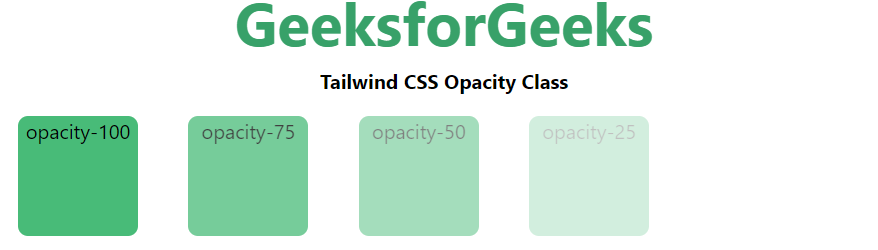
The Tailwind CSS opacity class provides many options to control element transparency. It covers all related properties and works similarly to the CSS opacity property, allowing values from 0 to 100 in increments of 5.
Syntax:
<element class="opacity-{number}">...</element>Output:
The flexbox layout with Tailwind CSS can be achieved by defining various utility classes.
<div class="flex flex-row flex-wrap">...</div>The below table give you a basic idea about the different flex utilities defined in the Tailwind CSS with their description.
| Class | Description |
|---|---|
| Flex Direction | Establishes the main axis of the flexible item. |
| Flex Wrap | Specifies whether flex items are forced into a single line or wrapped. |
| Flex | Sets the length of flexible items. |
| Flex Grow | Specifies how much the item will grow compared to other items in the container. |
| Flex Shrink | Specifies how much the item will shrink compared to other items in the container. |
Note: Use flex-grow and flex-shrink properties to the child elements.
The elements can be styled with variant utilities based on their state. The below is the syntax and table with description.
Syntax:
active:{property}
focus:{property}
hover: {property}
| Variant | Description |
|---|---|
| Hover | Used to style an element when the user hovers the mouse pointer over it. |
| Focus | Typically used to style an element when it has focus, triggered by clicks or tabs. |
| Active | Used to style elements when the user actively clicks or taps them. |
Tailwind CSS provide different Default breakpoints these are illustrated in the table. With the help of these we can make website responsive. Also, we can customize breakpoints in Tailwind CSS and override the default breakpoints.
| Breakpoint | Description |
|---|---|
| sm | Used for screens with a width of at least 576px, like small laptops and tablets in portrait mode. |
| md | Used for screens with a width of at least 768px, such as tablets in landscape mode and larger laptops. |
| lg | Used for screens with a width of at least 992px, like large desktop monitors. |
| xl | Used for screens with a width of at least 1200px, such as extra-large desktop monitors. |
This utility class contains various values in tailwind CSS in which all the properties are covered in class form. The utility class`fill-current` simplifies setting the fill color of an SVG to match the current text color, providing an effortless way to apply an element's fill color by combining it with an existing text color utility.
<svg class="fill-current">...</svg>Tailwind CSS offers utility class that accepts lots of value in tailwind CSS. The below table illustrate different Cursor utility classes with their description.
<element class="cursor-{behaviour}">...</element>| Class | Description |
|---|---|
| cursor-auto | Default class where the browser sets the cursor. |
| cursor-default | Default cursor class. |
| cursor-pointer | Cursor is a pointer, indicating a link. |
| cursor-wait | Cursor indicates that the program is busy. |
| cursor-text | Cursor indicates selectable text. |
| cursor-move | Cursor indicates something to be moved. |
| cursor-help | Cursor indicates help. |
| cursor-not-allowed | Cursor indicates the requested action will not be executed. |
Tailwind CSS offers different CSS utility classes for translate the elements. This class is used to translating elements with transform.
The below table describe the different classes with their description.
| Class | Description |
|---|---|
| translate-x-{amount} | Holds the length of translation along the x-axis. |
| -translate-x-{amount} | Holds the length of translation along the reverse x-axis. |
| translate-y-{amount} | Holds the length of translation along the y-axis. |
| -translate-y-{amount} | Holds the length of translation along the reverse y-axis. |
Note: Values are depends the requirement, it can set as full percentage, or directly put the rem value.
The transition timing function class is used to specify the time an animation uses to change from one set of CSS transitions to another.
<element class="ease-{timing}">...</element>The table below explains various Transition timing function classes.
| Class | Description |
|---|---|
| ease-linear | Animation maintains a consistent speed from start to end. |
| ease-in | Animation eases in, with a faster end. |
| ease-out | Animation eases out, with a faster start. |
| ease-in-out | Sets the class to its default value for easing. |
Example: The example illustratehow the Transition Timing Function used in Tailwind CSS.
Output
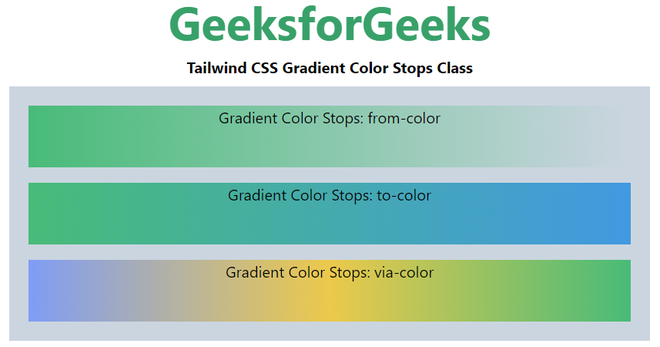
The Tailwind CSS Gradient Color Stops class accepts more than one value in tailwind CSS
<element class="gradient-color-stops">...</element>Note: The number start from 50, 100, 200, and so on up to 900.
Example: The below code explain well howTailwind CSS Gradient Color Stops used.
Output
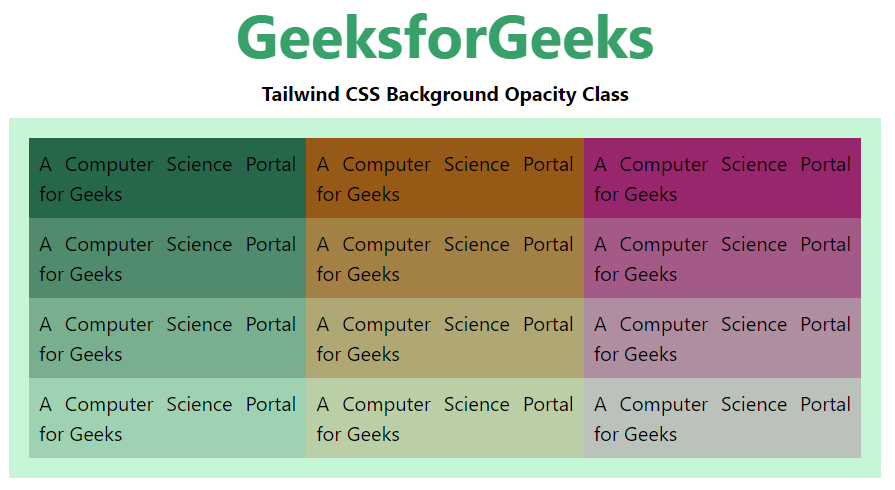
Element can be full, semi or not visible by applying the opacity. It can easily be achieved using Tailwind CSS utility class.
<element class="bg-{opacity}">...</element>Note: The number of the opacity can be changeable from 0 to 100 with the span of 5.
Output