
In Linux, the Network Manager is a daemon that handles the detection of active networks and configuration of network settings. When up and running, the network manager automatically detects active network connections, where wireless or wired, and allows the user to perform further configuration of the active connections.
Read Also: Getting Started with NetworkManager in RHEL/CentOS 8
When the network manager is disabled, it’s impossible to detect any networks or configure any network configurations. Basically, your Linux system gets isolated from any network. In this topic, you will learn how to disable network manager on CentOS 8 and RHEL 8.
Step 1: Update the System
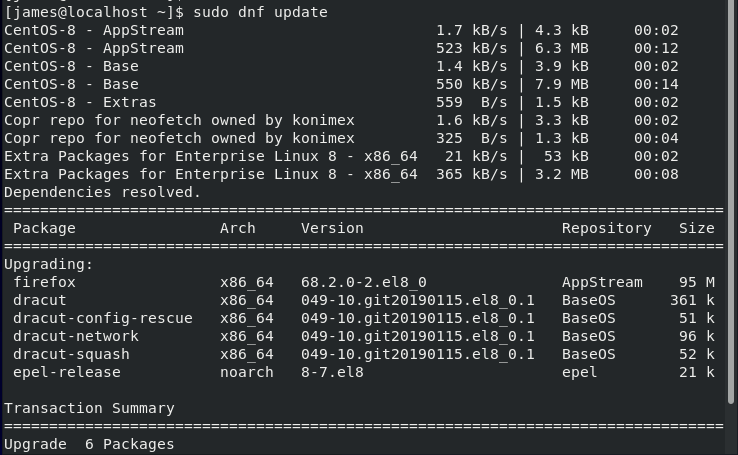
First, log in and update the packages on your CentOS 8 or RHEL 8 system.
$ sudo dnf update
Step 2: List the Active Connections on System
Before we disable Network, it’s prudent to establish the number of active connections on your system. There are a few commands that you can use to display the active connection:
ifconfig command
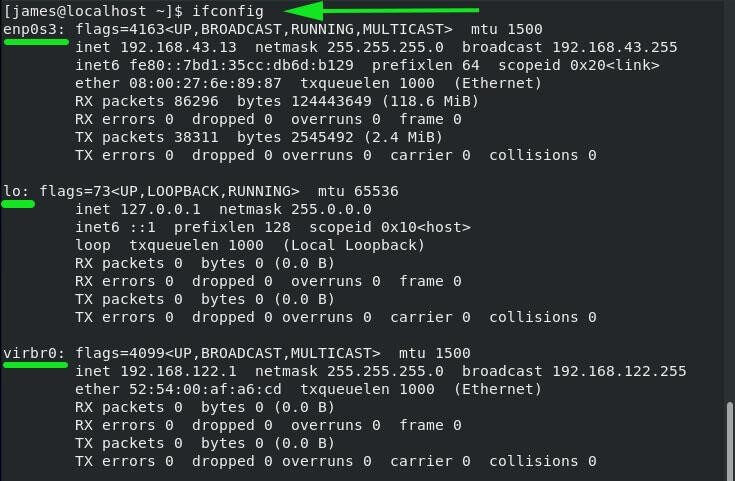
When invoked the ifconfig command, it lists down active network interfaces as shown:
$ ifconfig
nmcli command
nmcli is yet another command-line tool that is more intuitive than the ifconfig command.
# nmcli
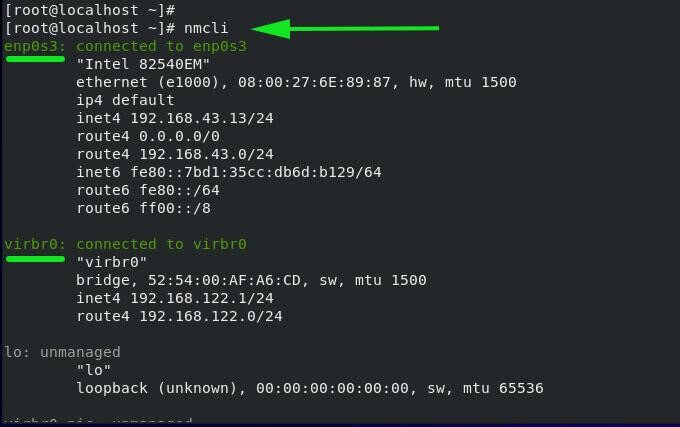
From the output above, we can clearly see that there are 2 active interfaces: enp0s3 which is the wireless interface and virbr0 which is the Virtualbox interface. lo which is the loopback address is unmanaged.
nmtui command
nmtui is a command-line graphical tool, use to configure network settings.
# nmtui
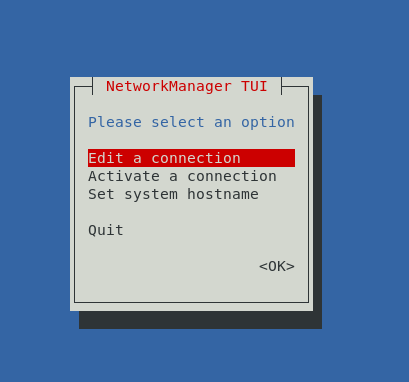
Select the first option ‘Edit a connection‘ and press the TAB key to the ‘Ok‘ option and hit ENTER.
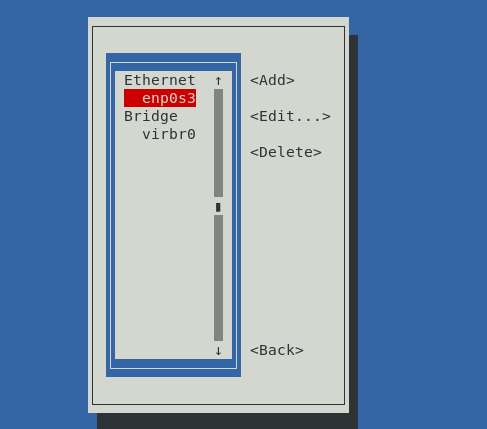
From the output, we can see two active network interfaces, as previously seen in the previous nmcli command.
Step 3: Disable Network Manager in CentOS 8
To disable NetworkManager service in CentOS 8 or RHEL 8, execute the command.
# systemctl stop NetworkManager
To confirm the status of NetworkManager run.
# systemctl status NetworkManager
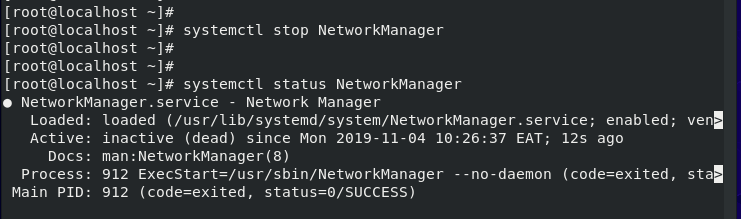
Now try listing the active network interfaces using either nmcli or nmtui command.
# nmcli
# nmtui
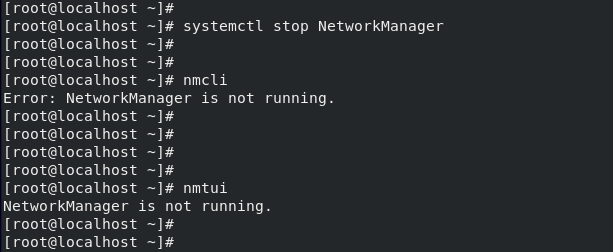
From the output above, we have confirmed that the NetworkManager service is disabled.
Step 4: Enable Network Manager in CentOS 8
To get the NetworkManager service running again, simply run.
# systemctl start NetworkManager
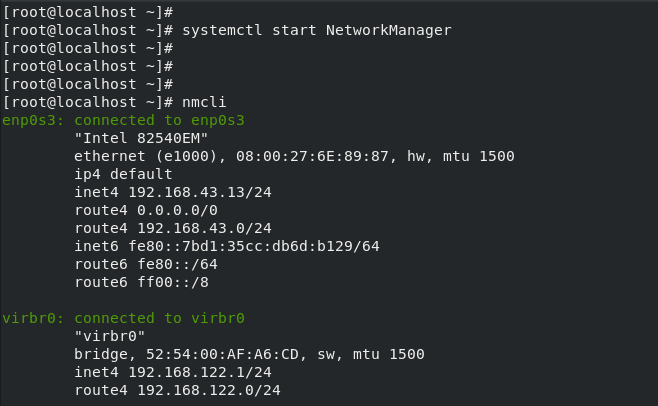
Now check the status of the NetworkManager service using either nmcli or nmtui.
# nmcli
# nmtui
Conclusion
In this article, you learned how to disable and even start NetworkManager service on CentOS 8 and RHEL 8 system. Remember good practice always demands that NetworkManager service is up and running for automatic detection of networks and managing interface settings.
If this article helped you solve a problem, consider buying a coffee. It helps keep TecMint free, supports the authors, and keeps the project going.





Got Something to Say? Join the Discussion... Cancel reply