
In one of our earlier articles, we described how to boot into single user mode on CentOS 7. It is also known as “maintenance mode”, where Linux only starts a handful of services for basic functionality to allow a single user (typically a superuser) perform certain administrative tasks such as using fsck to repair corrupted filesystems.
In single user mode, the system executes a single-user shell where you can run commands without any login credentials (username and password), you land straight in a limited shell with access to the entire filesystem.
This is a massive security hole since it gives intruders direct access to a shell (and possible access to the the entire filesystem). Therefore, it’s important to password protect the single user mode on CentOS 7 as explained below.
In CentOS/RHEL 7, the rescue and emergency targets (which are also single-user modes) are password protected by default.
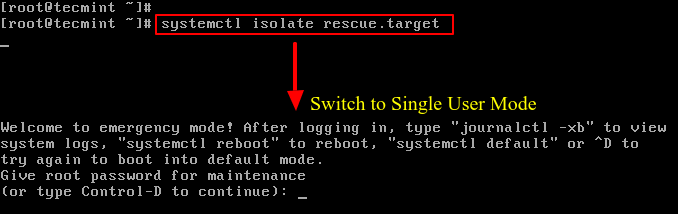
For example when you try to change the target (runlevel) via systemd to rescue.target (also emergency.target), you will be asked for a root password as shown in the following screenshot.
# systemctl isolate rescue.target
OR
# systemctl isolate emergency.target
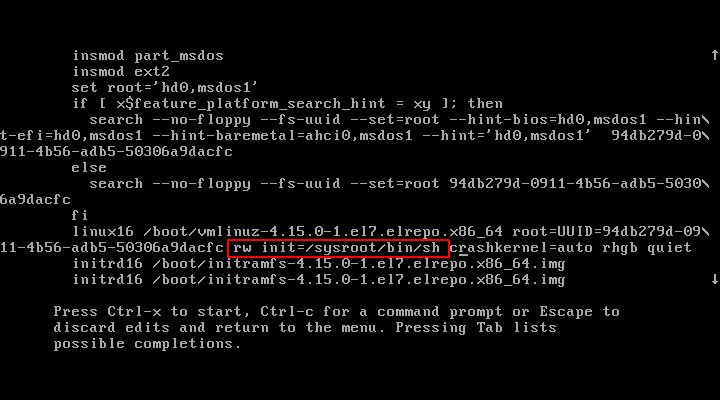
However, if an intruder has physical access to a server, he or she can select a kernel to boot from the grub menu item by pressing e key to edit the first boot option.
On the the kernel line that starts with “linux16“, he/she can change the argument ro to “rw init=/sysroot/bin/sh” and boot into single user mode on CentOS 7 without the system asking for a root password, even if the line SINGLE=/sbin/sushell is changed to SINGLE=/sbin/sulogin in the file /etc/sysconfig/init.
So, the only way to password protect single user mode in CentOS 7 is to protect GRUB with password using the following instructions.
How to Password Protect Grub in CentOS 7
First create a strong encrypted password using grub2-setpassword utility as shown.
# grub2-setpassword

The Hash for the password is stored in /boot/grub2/user.cfg & user i.e.”root” is defined in /boot/grub2/grub.cfg file, you can view the password using cat command as shown.
# cat /boot/grub2/user.cfg

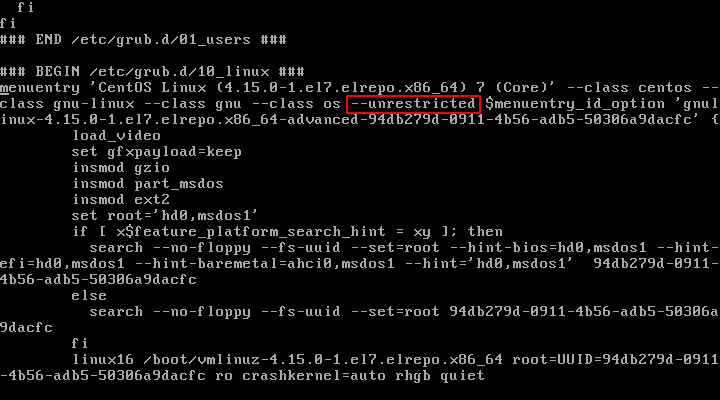
Now open /boot/grub2/grub.cfg file and search for the boot entry that you want to password protect, it starts with menuentry. Once the entry is located, remove the --unrestricted parameter from it.
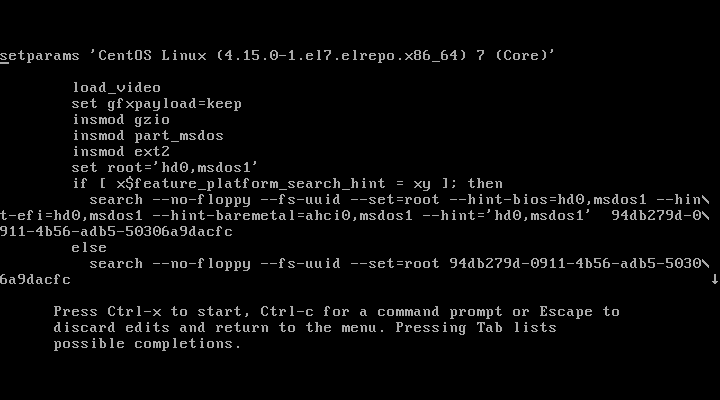
Save the file and close, now try to reboot the CentOS 7 system and modify the boot entries by pressing e key, you will be asked to provide the credentials as shown.

That’s it. You have successfully password protected your CentOS 7 GRUB-menu.
If this article helped you solve a problem, consider buying a coffee. It helps keep TecMint free, supports the authors, and keeps the project going.





Got Something to Say? Join the Discussion... Cancel reply