|
VOOZH | about |
|
VOOZH | about |
This article will guide you on configuring RAID on your computer
What is RAID?
RAID (redundant array of independent disks) is a method of storing the same data in multiple different hard disks or solid-state drives which is done to protect data in case of a drive/hardware failure.
In simple words, it is a method of storing data that helps to make the information more redundant and the data is recoverable in case of a hardware failure.
Types of RAID modes :
RAID 0:
There are even more modes of RAID that may be used for some custom user needs.
For Example:
HOW TO CONFIGURE/SET UP RAID?
Configuring RAID on Windows 10:
1. Install two or more hard drives or solid-state drives and let your computer boot.
2. Back up everything on the hard drives as we will be formatting them while setting up the RAID.
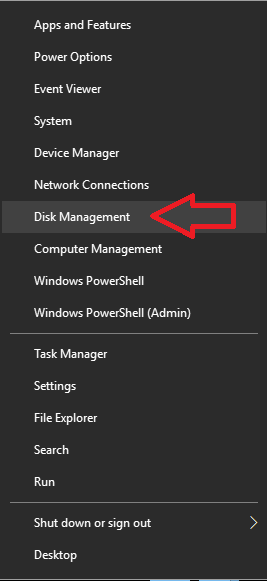
3. Right-click on the Windows Start button at the bottom left of your screen and open Disk Management.
👁 Image4. Verify if all of your drives are working and visible.
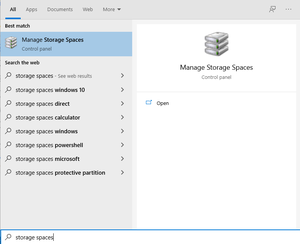
5. Search for Manage Storage Spaces on the Windows Search bar
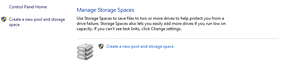
👁 Image6. In the newly opened window, select the “Create a new pool and storage space” option.
👁 Image7. If you are prompted to approve changes in your system, please click Yes.
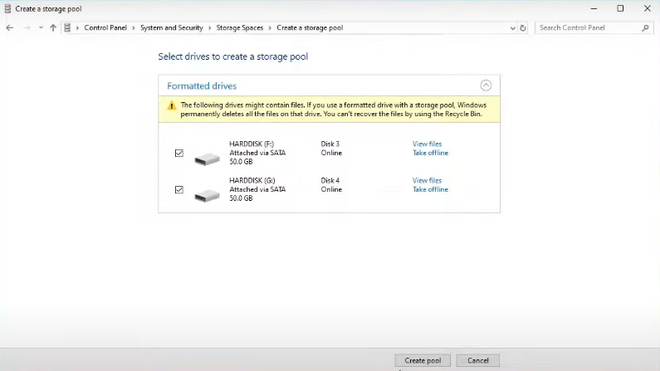
8. Then carefully select the new drives which you want to configure for your RAID array.
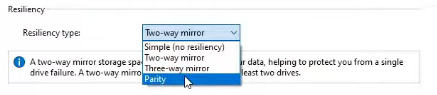
👁 Image9. Select the RAID type under Resiliency type by using the drop-down menu.
👁 Image10. For RAID 0, select Simple.
11. For RAID 1, select Two-way mirror or Three-way mirror. Which creates 2 or 3 copies of the same data respectively in the multiple drives. According to your needs choose your RAID type.
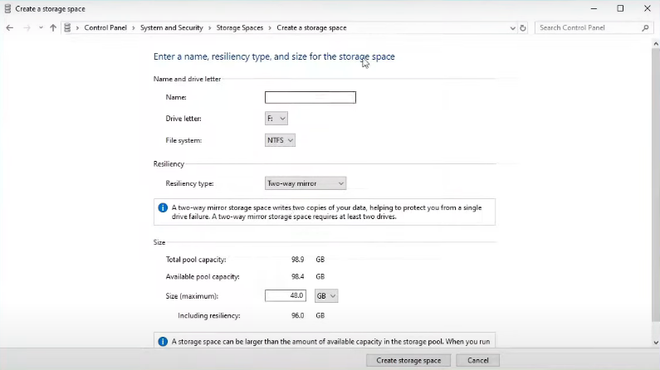
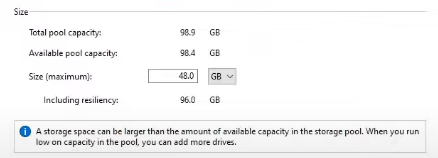
👁 Image12. Set the new Drive size under Size, if any changes to the existing are needed to be made.
👁 Image13. Select Create storage space to create your RAID array.
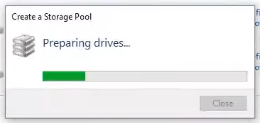
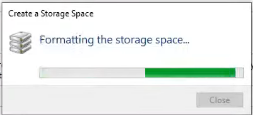
👁 Image14. Patiently Wait for the process to complete and then in Disk management check if one drive with the right size is visible.
👁 Image15. If everything goes accordingly without any errors while processing, you will have your own RAID Array successfully created!!
16. Now your data will be more safe and redundant from hardware failure when the data is saved on only one drive.
This is complete setup your own RAID array.