|
VOOZH | about |
|
VOOZH | about |
EC2 stands for Elastic Cloud Computing and is a service that AWS offers for running applications, hosting websites, processing data, and performing other computing operations.
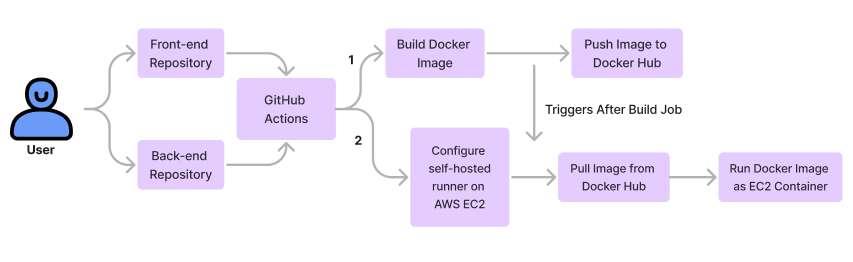
We will push our MERN project frontend and backend into two different repositories on GitHub from our local machine. After that, using GitHub actions, we will build a Docker image for both repositories separately. These images will be pushed to DockerHub and saved in two different repositories on DockerHub. On AWS, we will configure a self-hosted runner for both the front end and back end. When our image is pushed to DockerHub, then our AWS self-hosted runner will pull the image from DockerHub. After this, our application will run on EC2. First, we will deploy the backend, and then, in a similar way, we will deploy the frontend. Hurray! Now you have hosted the MERN stack application on EC2.
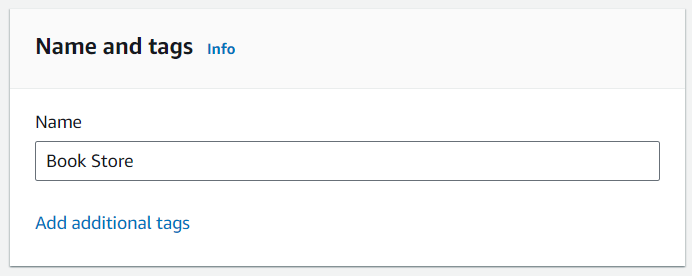
Here I have my "Book Store," an application developed using the MERN stack. To deploy any MERN stack application, the process is similar.
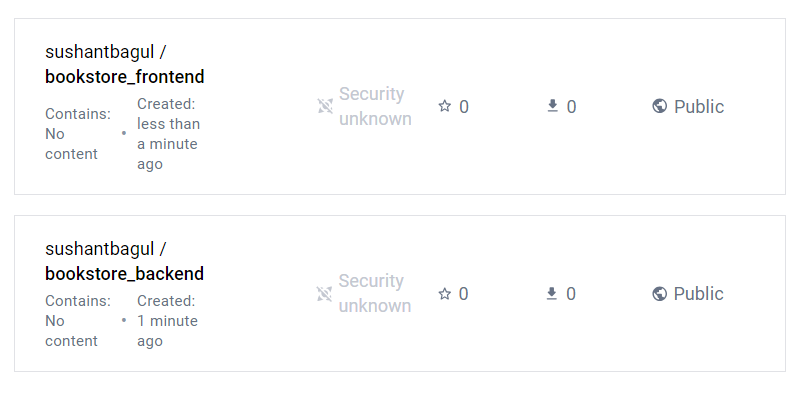
Login to DockerHub and create two public repositories, one for the frontend and the other for the backend. Also, note the username and repository name that we will need when we write the CICD workflow for our frontend and backend applications.
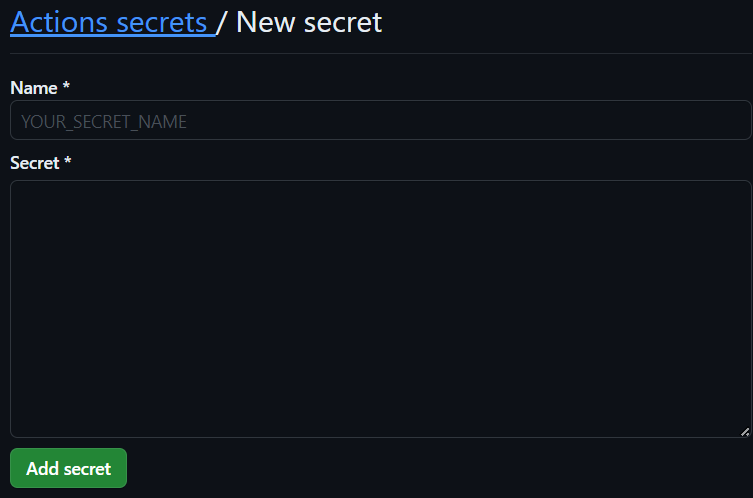
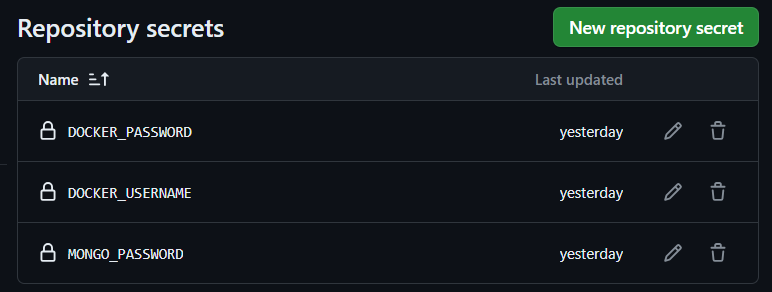
Remember, we have to store our DockerHub username and password in GitHub secrets when we create a repository for our project on GitHub.
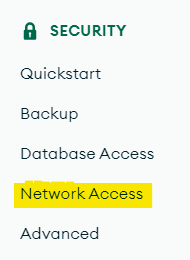
So our first step is to allow access to MongoDB from anywhere on the internet. Sometimes MongoDB allocates our IP to access the database; because of that, we can only access it from our network. This happens because we tested our application locally many times. To access it from anywhere, log in to your MongoDB account and go to the network access of your database. This option is present in the left-site navigation bar when you open your database under the Security section.
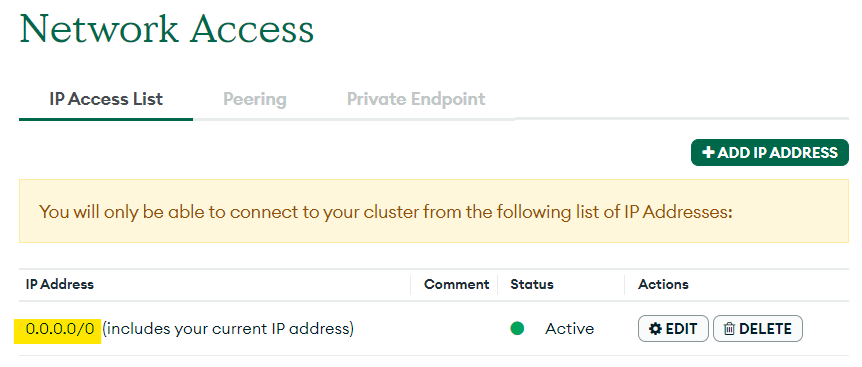
Now you will see an IP access list for your database. If you see IP "0.0.0.0/0," then it is accessible from anywhere. If you see any other IP address, delete that and enter the given IP address.
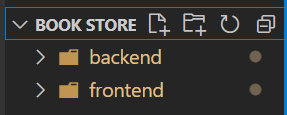
There will be two folders for your MERN application. First for the backend, and second for the frontend.
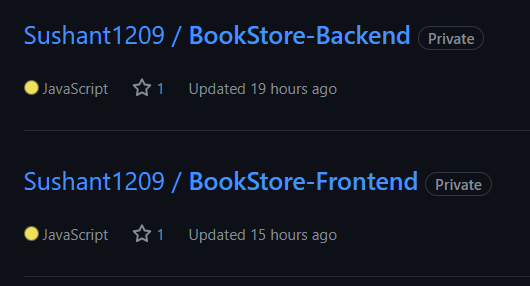
Now create two different repositories for frontend and backend, and push frontend folder files into the frontend GitHub repository and backend folder files into the backend GitHub repository of your project.
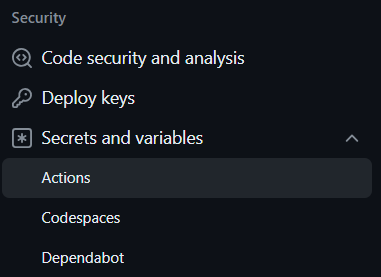
Adding GitHub Secrets: Hardcoding our username, password, and API inside code is not good practice. To secure our credentials in the production environment, GitHub provides a feature to add secrets. These secrets can be our "env" variables that we add at the time of development, connection keys or our credentials.
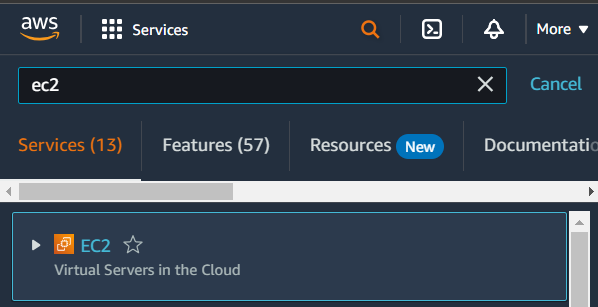
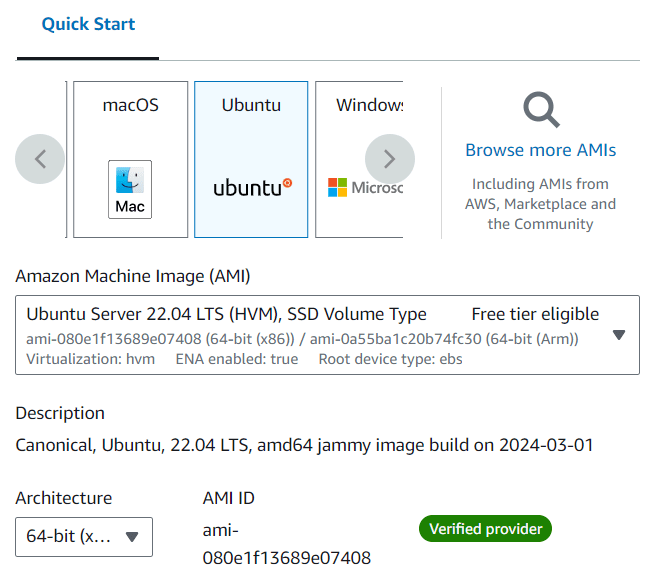
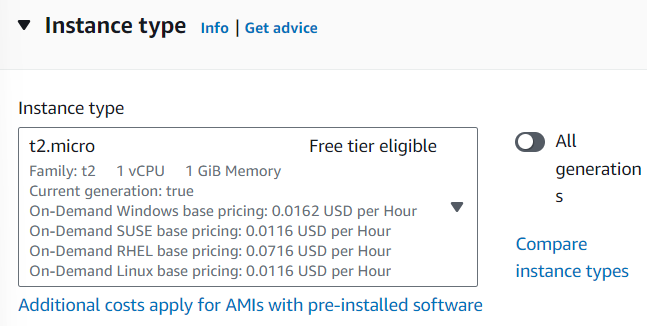
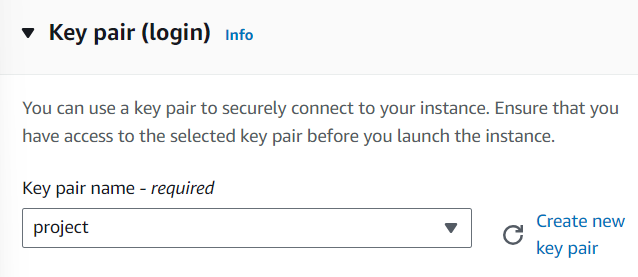
Log in to your AWS account as an IAM user. If you don't have an IAM user, then create one and login with that user. Search for EC2 in the AWS console and click on the EC2 option appearing in the search result.
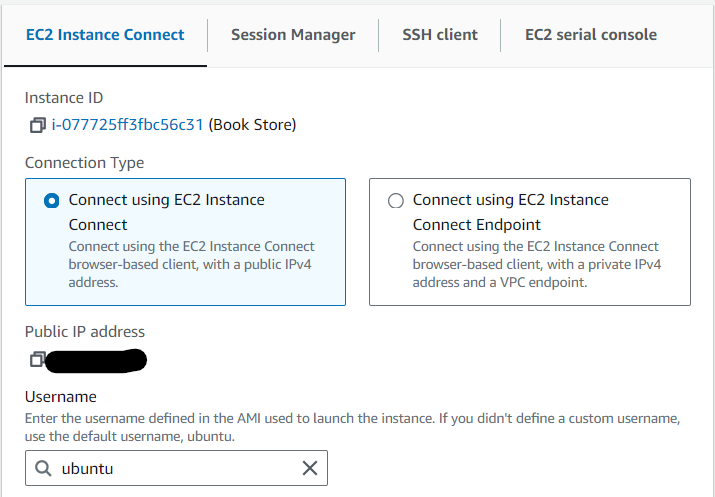
In previous steps, we successfully created our EC2 instance. Let's connect them. Go to instances, click on our created instance, and click on "Connect."
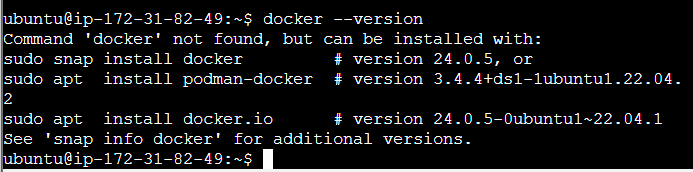
Use the below commands to install Docker on AWS EC2:
 sudo apt-get update
sudo apt-get install docker.io -y
sudo systemctl start docker
sudo docker run hello-world
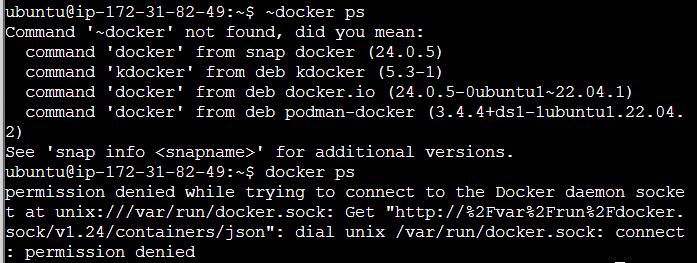
docker ps
After running this command, we will get permission denied as output. To give permission, we have to run the following command:
sudo chmod 666 /var/run/docker.sock
sudo systemctl enable docker
docker --version
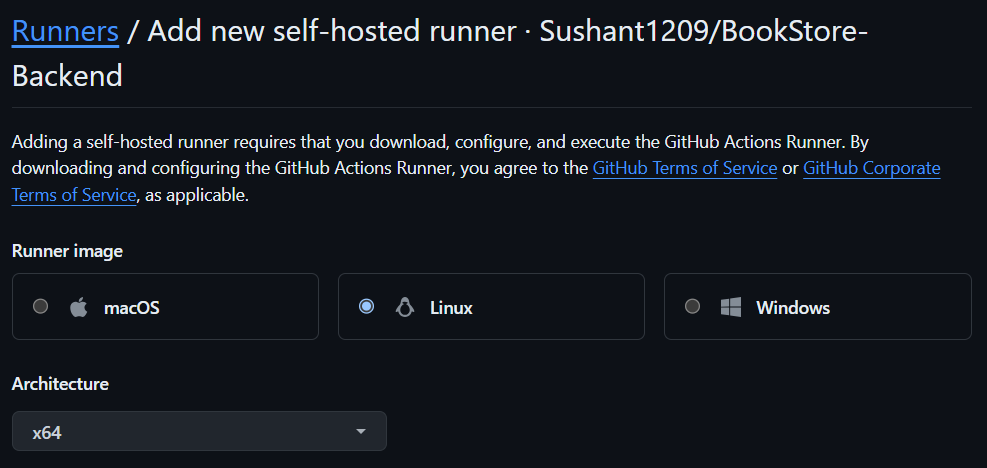
We have to create a runner on EC2, and that should be run simultaneously. To do this, we have to Configuring the self-hosted runner application as a service. To do this, we have to go to our created repositories in Step 3. So first, we will create a runner for our repository, "BookStore-Backend". The process to create runners for both runners is the same.
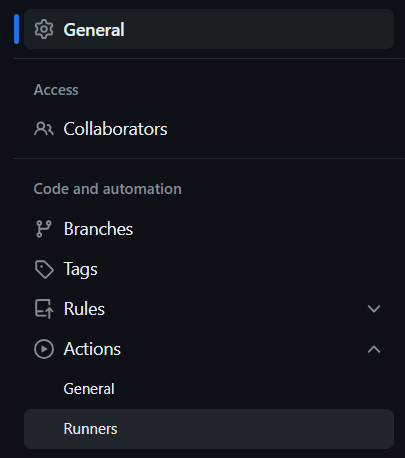
Creating a "BookStore-Backend" repository runner: Open our "BookStore-Backend" repository and click on settings. On the left navigation bar, you will see the option "Actions". Click on that dropdown, and you will see the "Runners" option. Click on that.
Commands under the download section:
Commands under the configure section:
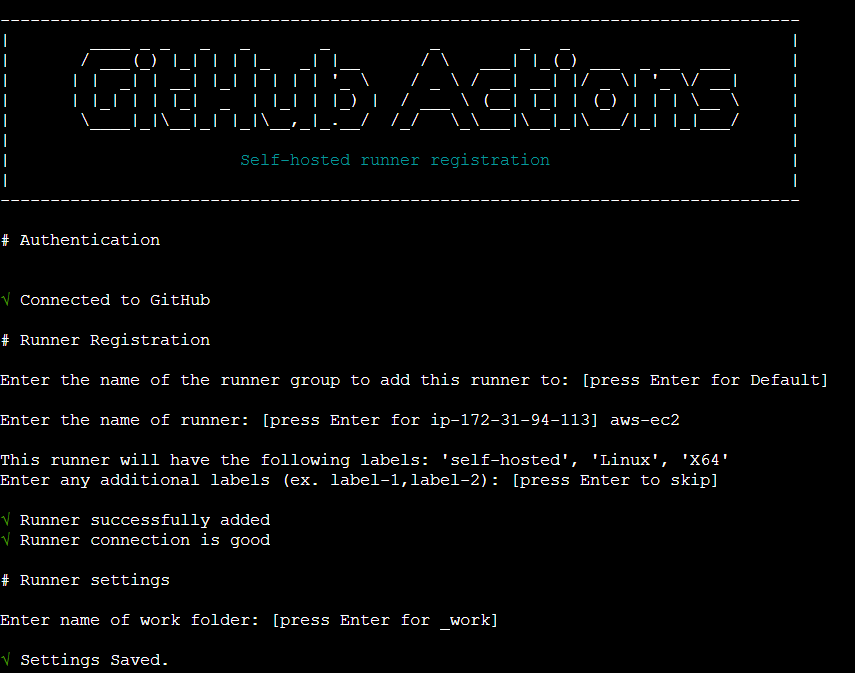
When we run our configuration command, the output terminal looks like this, and it asks for some input. We select some information by default and just add the name of the runner, "aws-ec2". To run this runner, we have to run the "./run.sh" command every time.
Configure A Self-Hosted Runner As A Service: To run this runner without running a command every time, we have to configure Runner as a service. To do this in the terminal, run the following commands:
sudo ./svc.sh install
sudo ./svc.sh start
After running these commands, our runner will go into an "idle" state. It will run continuously.
Creating a "BookStore-Frontend" repository runner:
Note: Our terminal is in our backend folder, so we have to come into the root directory. To do this, run the "cd . . " command.
When we run our configuration command, the output terminal looks like this, and it asks for some input. We select some information by default and just add the name of the runner, "aws-ec2.". To run this runner, we have to run the "./run.sh" command every time.
Configure a self-hosted runner as a service: To configure Runner as a service in the terminal, run the following commands:
sudo ./svc.sh install
sudo ./svc.sh start
After running these commands, our runner will go into an "idle" state. It will run continuously. We successfully created a self-hosted runner for both repositories in our EC2 instance.
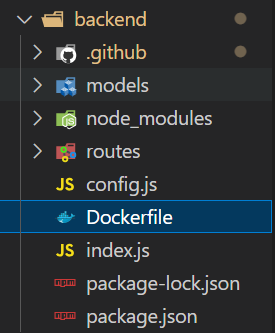
Creating A Dockerfile: To write a Dockerfile for our backend, go to your development IDLE and create a file with the name "Dockerfile" in the root directory of the backend folder.
Inside package.json, see how we are starting our backend server if you are configured like this ("start": "node index.js"), then paste this Dockerfile and change the port number as mentioned in your backend code.
{
 "name": "backend",
 "version": "1.0.0",
 "description": "",
 "type": "module",
 "main": "index.js",
 "scripts": {
 "start": "node index.js",
 "dev": "nodemon index.js"
 },
 "keywords": [],
 "author": "",
 "license": "ISC",
 "dependencies": {
 "cors": "^2.8.5",
 "express": "^4.19.2",
 "mongoose": "^8.2.3",
 "nodemon": "^3.1.0"
 }
}
FROM node:alpine3.18
WORKDIR /app
COPY package.json ./
RUN npm install
COPY . .
EXPOSE 5555
CMD [ "npm", "run", "start" ]
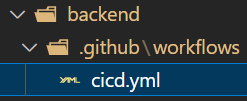
Creating A Workflow For Our Backend Application: Now create a ".github" folder under the "backend" folder. Inside the ".github" folder, create the "workflow" folder, and inside this folder, create the file "cicd.yml".
Now we will write a workflow that will trigger GitHub actions when we push these updated files into our GitHub repository. I will keep my application details inside this. I will underline what you have to change inside this "cicd.yml". At the time of changes, you have to remove details with an underline, update the file with your details, and also remove the underline from a particular section. In the curly bracket, I will mention what details you have to add.
name: Deploy
on:
 push:
 branches:
 -

jobs:
 build:
 runs-on: ubuntu-latest
 steps:
 - name: Checkout Source
 uses: actions/checkout@v4
 - name: Login to docker hub
 run: docker login -u ${{ secrets.DOCKER_USERNAME }} -p ${{ secrets.DOCKER_PASSWORD }}
 - name: Build Docker Image
 run: docker build -t
 - name: Publish Image to docker hub
 run: docker push


 deploy:
 needs: build
 runs-on: self-hosted
 steps:
 - name: Pull image from docker hub
 run: docker pull
 - name: Delete old container
 run: docker rm -f
 - name: Run Docker Container
 run: docker run -d -p  --name  -e MONGO_PASSWORD='${{ secrets.MONGO_PASSWORD }}'
Our GitHub action will look like this:
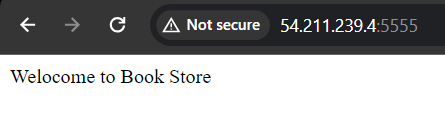
After successfully building and deploying our backend, we have to test it. To do this, we will require our EC2 instance public address. Copy your EC2 instance public address, paste it in the browser, and give your backend deployment port number.
👁 Backend-Output-ec2The URL will be a combination of these: http://<Your-EC2-Public-IP>:<Allocated-Port-Number> My app URL is http://54.211.239.4:5555 Note: This URL is for demo purposes.
Adding Secrets To The Frontend Repository: Our frontend application needs a backend to run, and we have deployed our backend successfully, so we will add our backend server URL to GitHub secrets. Go to the GitHub secret page and give a name according to your frontend base URL configuration variable name. And in value, paste your backend deployment URL in the format "http://<Your-EC2-Public-IP>:<Allocated-Port-Number>" and save this secret.
Note: If you have hardcoded the base URL in the frontend, then you have to manually change the base URL to the backend URL. Example: If your hardcode URL looks like this: "post('http://localhost/books', data)," then it will be changed to "post('http://54.211.239.4:5555/books', data)" inside your pages.
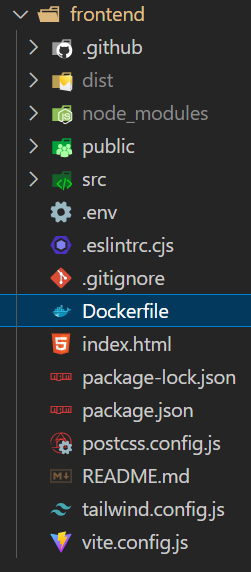
Creating a Dockerfile: To write a Dockerfile for our frontend, go to your development IDLE and create a file with the name "Dockerfile" in the root directory of the frontend folder.
Dockerfile: We will select an alpine image for our frontend and build our app. And after building, serve that with Niginx. Copy the following Dockerfile and paste it in your Dockerfile.
Note: Before saving inside your frontend folder root directory, run the command "npm run build" and see which new file is being created in your folder structure. And give the same name as the new folder name in this copy command, "COPY --from=build /app/dist ." at the place of dist.
FROM node:alpine3.18 as build
# Build App
WORKDIR /app
COPY package.json .
RUN npm install
COPY . .
RUN npm run build
# Serve with Nginx
FROM nginx:1.23-alpine
WORKDIR /usr/share/nginx/html
RUN rm -rf *
COPY --from=build /app/dist .
EXPOSE 80
ENTRYPOINT [ "nginx", "-g", "daemon off;" ]
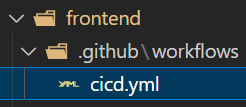
Creating a Workflow for our frontend: Now create a ".github" folder under the "frontend" folder. Inside the ".github" folder, create the "workflow" folder, and inside this folder, create the file "cicd.yml".
Now we will write a workflow that will trigger GitHub actions when we push these updated files into our GitHub repository. I will keep my application details inside this. I will underline what you have to change inside this "cicd.yml". At the time of changes, you have to remove details with an underline, update the file with your details, and also remove the underline from a particular section. In the curly bracket, I will mention what details you have to add.
Note: If you have not allocated a port for the frontend, then it will by default run on port 5173, so we will write this in the last command as "5173:80."
name: Deploy BookStore-Frontend (GitHub Repository Name)

on:
 push:
 branches:
 -

jobs:
 build:
 runs-on: ubuntu-latest
 steps:
 - name: Checkout Source
 uses: actions/checkout@v4
 - name: Login to docker hub
 run: docker login -u ${{ secrets.DOCKER_USERNAME }} -p ${{ secrets.DOCKER_PASSWORD }}
 - name: Build Docker Image
 run: docker build -t


 - name: Publish Image to docker hub
 run: docker push

 deploy:
 needs: build
 runs-on: self-hosted
 steps:
 - name: Pull image from docker hub
 run: docker pull
 - name: Delete old container
 run: docker rm -f
 - name: Run Docker Container
 run: docker run -d -p  --name
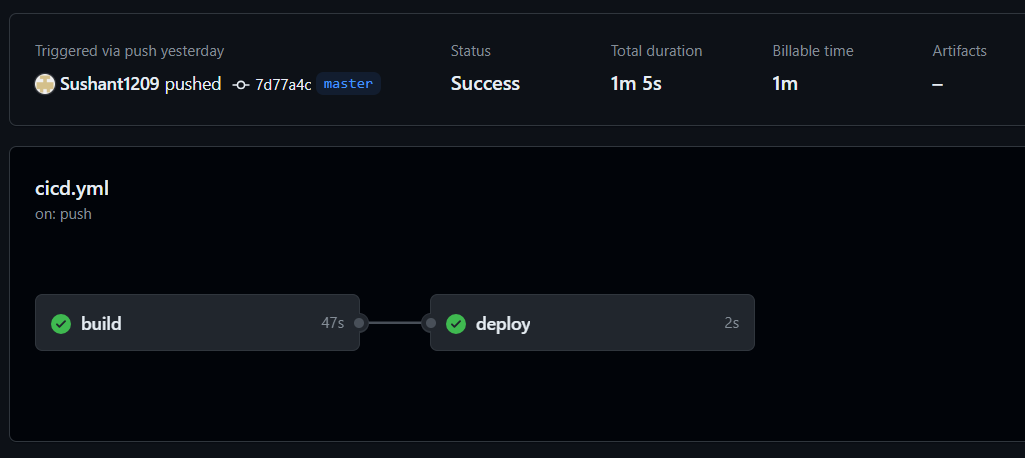
Our GitHub action will look like this:
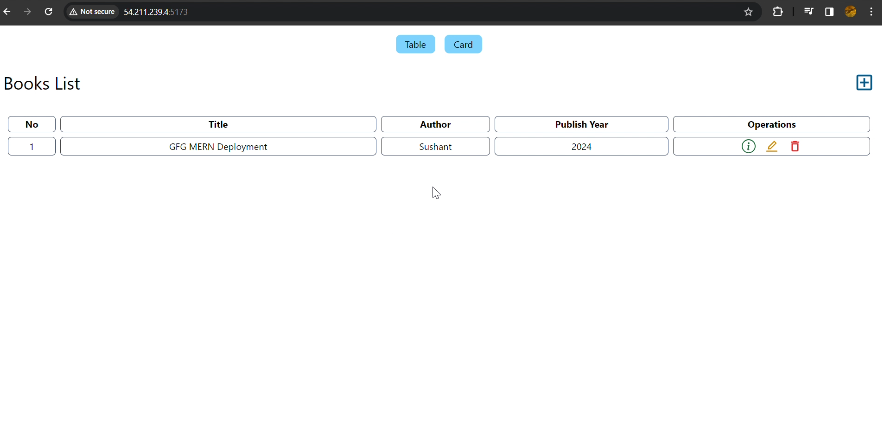
After successfully building and deploying our frontend, we have to test it. To do this, we will require our EC2 instance public address. Copy your EC2 instance public address, paste it in the browser, and give your frontend deployment port number.
The URL will be a combination of these: http://<Your-EC2-Public-IP>:<Allocated-Port-Number/Default-Port> My app URL is http://54.211.239.4:5173 Note: This URL is for demo purposes.
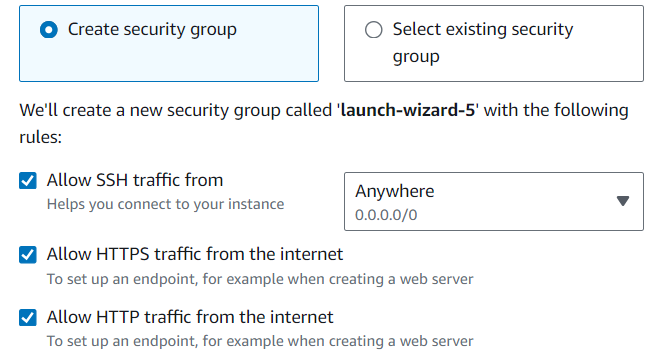
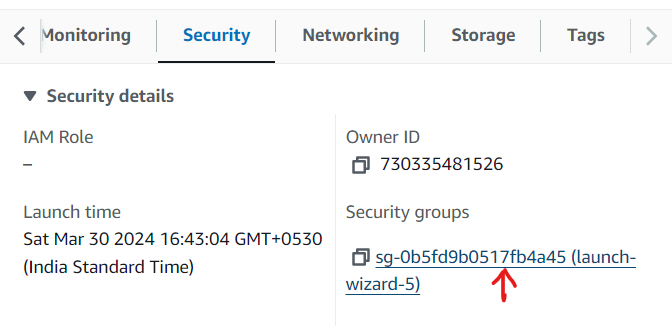
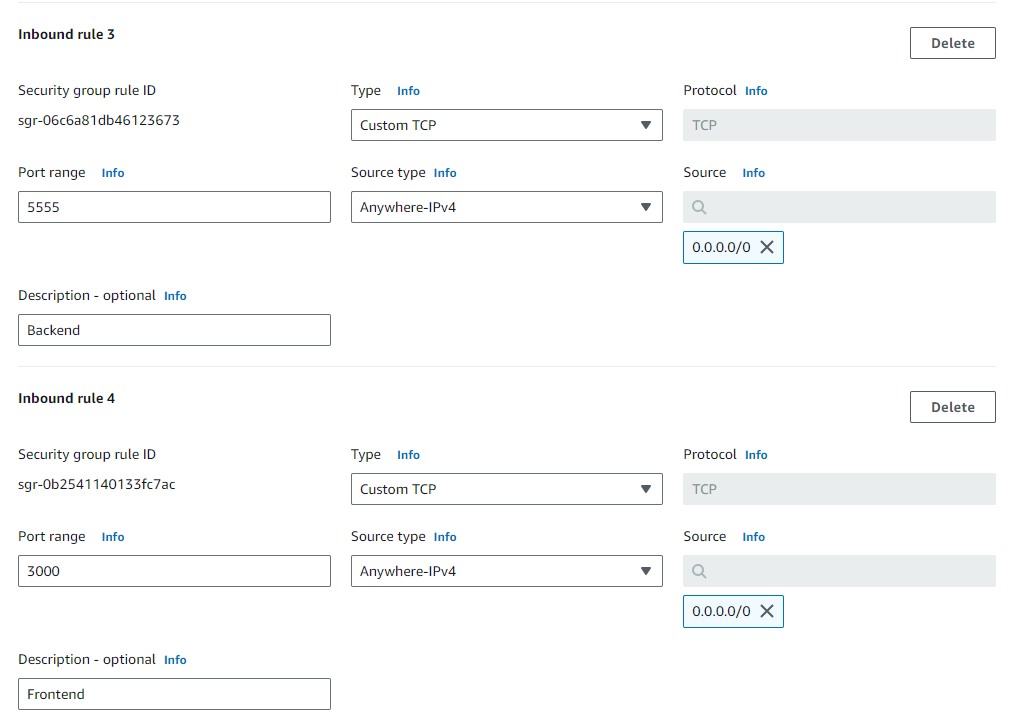
Note: Remember to add the inbound rule to the EC2 instance and the correct port number that you have configured.
We successfully deployed our backend application and frontend application on an EC2 instance, and it is working the same as in the local system.
A Recap Of the Steps That We Have Taken To Deploy The MERN Application
Using GitHub actions, we first deployed our backend application on our EC2 instance. By using our backend application's public IP address, we configured our frontend BaseURL inside our frontend repository secrets. Then we deployed our front-end application on our EC2 instance. By performing all these steps, you can successfully deploy your MERN Stack application in AWS EC2 using Docker through GitHub actions