|
VOOZH | about |
|
VOOZH | about |
Docker applies abstraction at the software layer of the operating system to create an instant and portable environment that includes everything you need: a Linux kernel, libraries, system tools like grep or sshfs, plus applications (web servers/services) and all dependencies needed by those applications (e.g., database engines). When deployed, these containers are all bundled up and run in a single, isolated process. The benefits stem from using containers rather than virtual machines and enabling you to run the exact same application production environment on different servers without modifying it (or without having to purchase servers for every deployment).
Using the right tools ensures that you are going to be delivering a great user experience, and if you want that experience to be easier and more consistent across all your environments, you should consider Docker. The developer community has been successful in growing open-source tools and frameworks in many industries because they allow companies to rapidly iterate on their products without having to go through expensive tooling investments. The environments Docker creates are not the same as virtual machines, but the benefits you will see when you use them should outweigh these costs.
Docker is an open-source containerization platform for apps and services. It allows developers to build, ship, and run any application in a consistent, reproducible way across whatever machines they choose. It was developed by Solomon Hykes in 2013 while working at dotCloud as a way to speed up their development process.
Docker is not a replacement for virtual machines, but rather a way for you to use containers and host your larger web applications closer to their users. Docker's greatest advantage is that it can help you scale out your applications, which means more instances running at any given time. It also provides isolation between containers so that they don't step on each other.
Web applications are the most prevalent types of applications built in the 21st century, and they are a great way for organizations to expand their reach and increase their revenue. Web apps have the potential to become more convenient and seamless than ever with services like Google Docs or Salesforce.com. You may want to take advantage of Docker in order to do this.
You might want to consider using Docker if you need to run multiple instances of your application on a single host. You may also want to look into other tools like systemd containers support, rkt (pronounced as "rocket", a CLI tool for running app containers on Linux) written from scratch for security and ease of use, or lightweight Hypervisor VirtualBox.
First we need to install the docker on the servers for that refer tot he following
Dockerfiles are meant to be used from within the terminal, in a text editor, or on the command line. Compilers include support for defining programs by embedding a text representation of an executable image into a Dockerfile. The result is an entirely self-contained container image. However, it opens you up to vulnerabilities that could potentially give outside parties access to your source code or private keys if someone were to hack or brute-force your Docker daemon.
FROM tomcat:8.0.43-jre8
COPY target/helloworld.war /usr/local/tomcat/webapps/
EXPOSE 8080
RUN chmod +x /usr/local/tomcat/bin/catalina.sh
CMD ["catalina.sh", "run"]
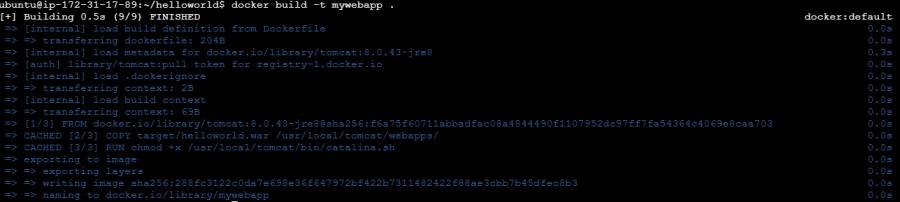
FROM tomcat:8.0.43-jre8: Specifies the base image to use, which is Tomcat version 8.0.43 with Java Runtime Environment (JRE) version 8.EXPOSE 8080: Informs Docker that the container listens on port 8080 at runtime. This does not actually publish the port; it serves as documentation for users about which ports are intended to be published.RUN chmod +x /usr/local/tomcat/bin/catalina.sh: This command ensures the `catalina.sh` script has execute permissions, allowing Tomcat to start properly inside the container.CMD ["catalina.sh", "run"]: Specifies the command to run when the container starts. In this case, it runs the catalina.sh script with the argument run, which starts Tomcat and makes it serve the deployed web applicationBuild a Docker Image of your web app.
$ docker build -t [image name] .docker build -t mywebapp .List the Docker Images
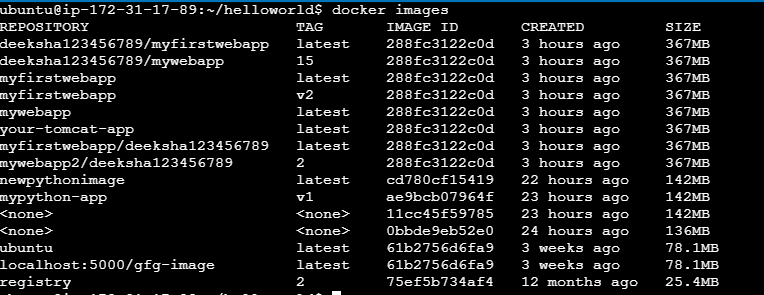
docker imagesLogin to docker hub
docker loginRetag docker image
docker tag [existing_image_name:tag] [new_image_name:tag]Push docker image
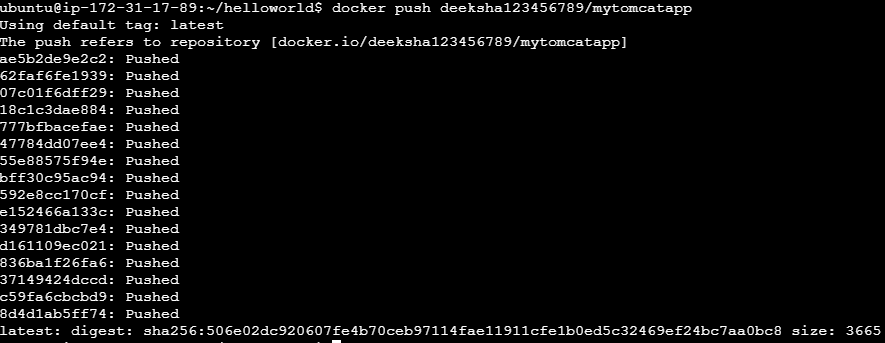
docker push username/image_nameTo pull and run a Docker image in Linux, use the docker run command with the image name. This command automatically pulls the image if it's not available locally and starts a container based on that image.
docker pull username/image_name👁 pull docker imagedocker run -d -it -p 8080:8080 image_name:tagThis docker run command creates and runs a new Docker container based on the specified image. Let's break down the options:
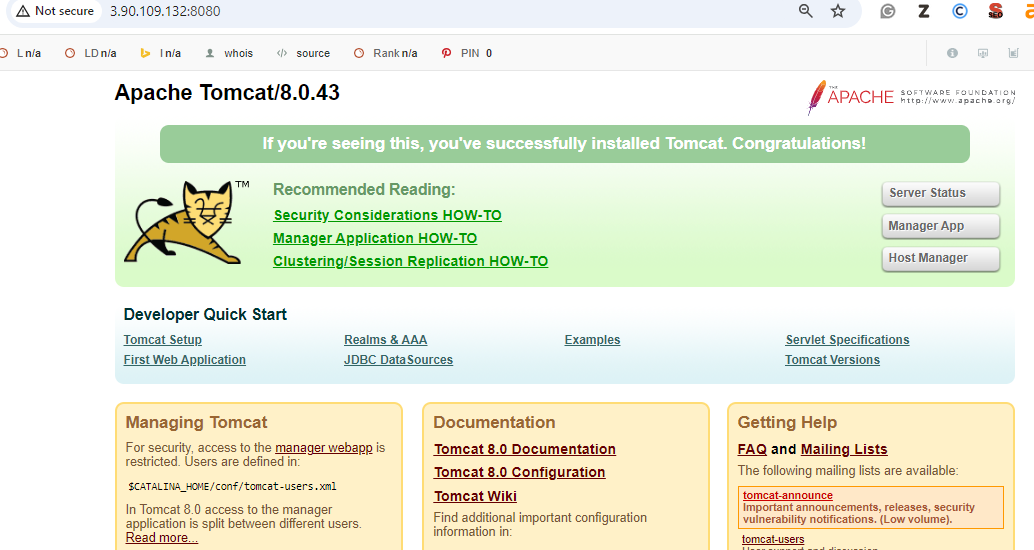
-i: Keeps STDIN open even if not attached.-t: Allocates a pseudo-TTY, which allows you to interact with the container's shell.-d: Detaches the container and runs it in the background.-p 8080:8080: Maps port 8080 of the host machine to port 8080 of the container.image_name:tag: Specifies the name and tag of the Docker image used to create the container.To access a Docker container from an EC2 instance and localhost, you need to ensure that the container is running and exposed on a port accessible from both the EC2 instance and localhost. Once the container is running and the port is exposed, you can use the EC2 instance's public IP or DNS name to access the container from the EC2 instance, and you can use localhost or public ip along with the mapped port to access the container from localhost.