|
VOOZH | about |
|
VOOZH | about |
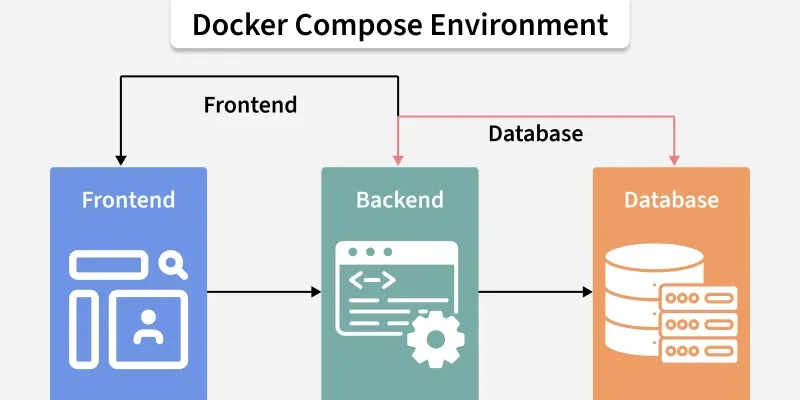
Docker Compose is a lightweight orchestration tool for defining and running multi-container Docker applications. In a typical setup, services like a web server, backend API, database, and cache run in separate containers. It allows you to configure and manage them together as a single application using one docker-compose.yml file.
Docker is excellent at creating and running individual containers, managing the lifecycle and communication between them manually presents significant challenges:
Docker Compose directly addresses these issues by providing a declarative, automated, and reproducible way to manage your entire application stack. You declare the desired state of your application in the YAML file, and Docker Compose handles the rest.
Here’s a sample Compose file that defines two services, a shared network, and a volume:
version: '3.8'

services:
 web:
 image: nginx:latest
 ports:
 - "80:80"
 networks:
 - frontend
 volumes:
 - shared-volume:/usr/share/nginx/html
 depends_on:
 - app

 app:
 image: node:14
 working_dir: /app
 command: node server.js # Specify a command
 networks:
 - frontend
 volumes:
 - shared-volume:/app/data

networks:
 frontend:
 driver: bridge

volumes:
shared-volume: # Remove incorrect syntaxExplanation:
Here’s a sample configuration that demonstrates how these options are used:
version: '3.8'
services:
 db:
 image: postgres:13
 environment:
 - POSTGRES_USER=user
 - POSTGRES_PASSWORD=pass
 volumes:
 - db_data:/var/lib/postgresql/data

 web:
 build: ./web
 ports:
 - "5000:5000"
 volumes:
 - web_data:/usr/src/app
 environment:
 - DATABASE_URL=postgres://user:pass@db:5432/mydb
 depends_on:
 - db

volumes:
 db_data:
 web_data:
Explanation:
Docker Compose deployments use networks to allow secure communications between the services. Services defined in a docker-compose.yml file are by default placed on one network and are able to connect to each other without any additional setup. For more strict control, you can create additional networks and assign services to them in order to control the way they communicate or to separate some groups of services as the need arises.
Below is an example Compose file that sets up two networks, one for database communication and another for web access.
version: '3.8'

services:
 db:
 image: postgres:13
 networks:
 - backend

 web:
 image: nginx:latest
 networks:
 - frontend
 - backend
 ports:
 - "80:80"

networks:
 frontend:
 driver: bridge

backend:
 driver: bridge
 ipam:
 config:
 - subnet: 172.16.238.0/24
Explanation:
Volumes in docker compose are used to persist data created or used by the docker containers. By doing so they enable the data to persist even if containers are stopped or removed in your docker-compose. Within a docker-compose. yml file, the volumes section describes all the volumes that are attached to the services allowing you to manage data that exists independently of the container lifecycle.
Here’s a practical example showing how to configure a volume for a Pos-tgreSQL database, ensuring that its data is stored persistently.
version: '3.8'

services:
 db:
 image: postgres:13
 environment:
 - POSTGRES_USER=user
 - POSTGRES_PASSWORD=pass
 volumes:
 - db_data:/var/lib/postgresql/data

volumes:
 db_data:
 driver: local
 driver_opts:
 type: none
 o: bind
 device: /path/to/local/db_data
Explanation
Environment variables are a simple and effective way to pass configuration settings from your host operating system through Docker Compose in order to get to your services. You can set these variables directly on the service definition by using the environment section or load them from an external file.
Here’s an example that demonstrates both methods of setting environment variables for a web application and a database service.
version: '3.8'

services:
 db:
 image: postgres:13
 environment:
 - POSTGRES_USER=user
 - POSTGRES_PASSWORD=pass
 volumes: - db_data:/var/lib/postgresql/data


 web: image: my-web-app:latest
 build: ./web
 environment:
 - DATABASE_URL=postgres://user:pass@db:5432/mydb
 env_file:
 - .env

volumes:
 db_data:
Explanation
With a good understanding of these basic principles, developers are ready to use Docker Compose to manage and orchestrate applications that can be quite complex and involve many Docker containers.
We can run Docker Compose on macOs, Widows, and 64-bit Linux.
sudo apt-get updatesudo chmod +x /usr/local/bin/docker-composedocker compose --versionIn this project, we will create a straightforward Restfull API that will return a list of fruits. We will use a flask for this purpose. And a PHP application will request this service and show it in the browser. Both services will run in their own containers.
mkdir dockerComposeProjectcd dockerComposeProjectwe will create a custom image that will use Python to serve our Restful API defined below. Then the service will be further configured using aDockerfile.
mkdir product
cd productInside the product folder, create a file named requirements.txt and add the following dependencies:
flask
flask-restfulfrom flask import Flask
from flask_restful import Resource, Api
# create a flask object
app = Flask(__name__)
api = Api(app)
# creating a class for Fruits that will hold
# the accessors
class Fruits(Resource):
def get(self):
# returns a dictionary with fruits
return {
'fruits': ['Mango', 'Pomegranate', 'Orange', 'Litchi']
}
# adds the resources at the root route
api.add_resource(Fruits, '/')
# if this file is being executed then run the service
if __name__ == '__main__':
# run the service
app.run(host='0.0.0.0', port=80, debug=True)FROM python:3
WORKDIR /usr/src/app
COPY requirements.txt .
RUN pip install --no-cache-dir -r requirements.txt
COPY . .
CMD ["python", "api.py"]
FROM accepts an image name and a version that the docker will download from the docker hub. The current working directory's contents can be copied to the location where the server expects the code to be by using the copy command. Moreover, the CMD command takes a list of commands to start the service once the container has been started.
Let's create a simple website using PHP that will use our API.
cd ..
mkdir website
cd website
index.php
<!DOCTYPE html>
<html lang="en">
<head>
 <title>Fruit Service</title>
</head>
<body>
 <h1>Welcome to India's Fruit Shop</h1>
 <ul>
 <?php
 $json = file_get_contents('http://fruit-service');
 $obj = json_decode($json);
 $fruits = $obj->fruits;
 foreach ($fruits as $fruit){
 echo "<li>$fruit</li>";
 }
 ?>
 </ul>
</body>
</html>cd ..version: "3"
services:
fruit-service:
build: ./product
volumes:
- ./product:/usr/src/app
ports:
- 5001:80
website:
image: php:apache
volumes:
- ./website:/var/www/html
ports:
- 5000:80
depends_on:
- fruit-serviceNote on
depends_on: This option controls the startup order, but it does not wait for the application inside to be ready. If your PHP app tries to connect before the Python app has finished booting, it might fail. In production, use "healthchecks" to solve this.
The first line is optional where we specify the version of the docker-compose tool. Next services define a list of services that our application is going to use. The first service is fruit service which is our API and the second one is our website. The fruit service has a property build that contains the dockerfile that is to be built and created as an image. Volumes define storage mapping between the host and the container so that we can make live changes. Finally, port property exposes the containers port 80 through the host's 5001.
The website service does not use a custom image but we download the PHP image from the Docker hub and then map the websites folder that contains our index.php to /var/www/html (PHP expects the code to be at this location). Ports expose the container port. Finally, the depends_on specifies all the services on which the current service depends.
👁 Docker Compose folder structure
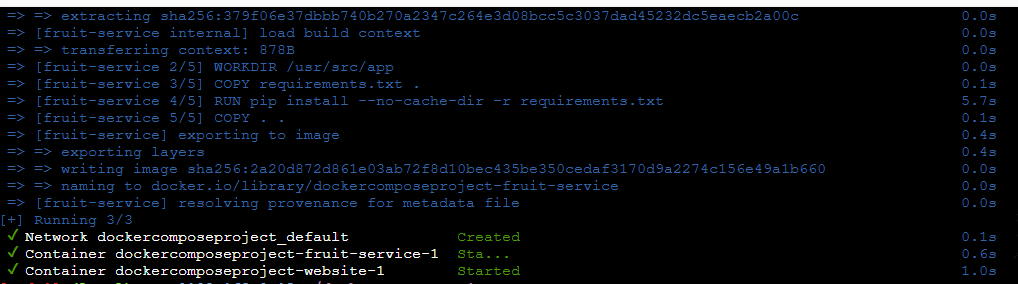
docker compose up -d Now all the services will start and our website will be ready to be used at localhost:5000.
docker compose stop Shows logs from services. Add service name to filter logs for troubleshooting.
Example: docker compose logs web
Runs a command inside a running service container. Good for debugging or direct interaction.
Example: docker-compose exec db psql -U user -d mydb
Builds/rebuilds images defined in docker-compose.yml. Use after Dockerfile changes or updates.
Example: docker-compose build
Pulls the latest images from registries to ensure up-to-date versions.
Example: docker-compose pull
Starts already-defined containers without recreating them. Quick restart for stopped services.
Example: docker-compose start
Stops running containers but keeps them intact. Can be restarted later with start.
Example: docker-compose stop
Validates and displays the configuration from docker-compose.yml. Helps check errors before deployment.
Example: docker-compose config