|
VOOZH | about |
|
VOOZH | about |
PowerView is a reconnaissance tool that enables security professionals to extract detailed information from an Active Directory environment without requiring elevated privileges in many cases. Using PowerView, you can enumerate:
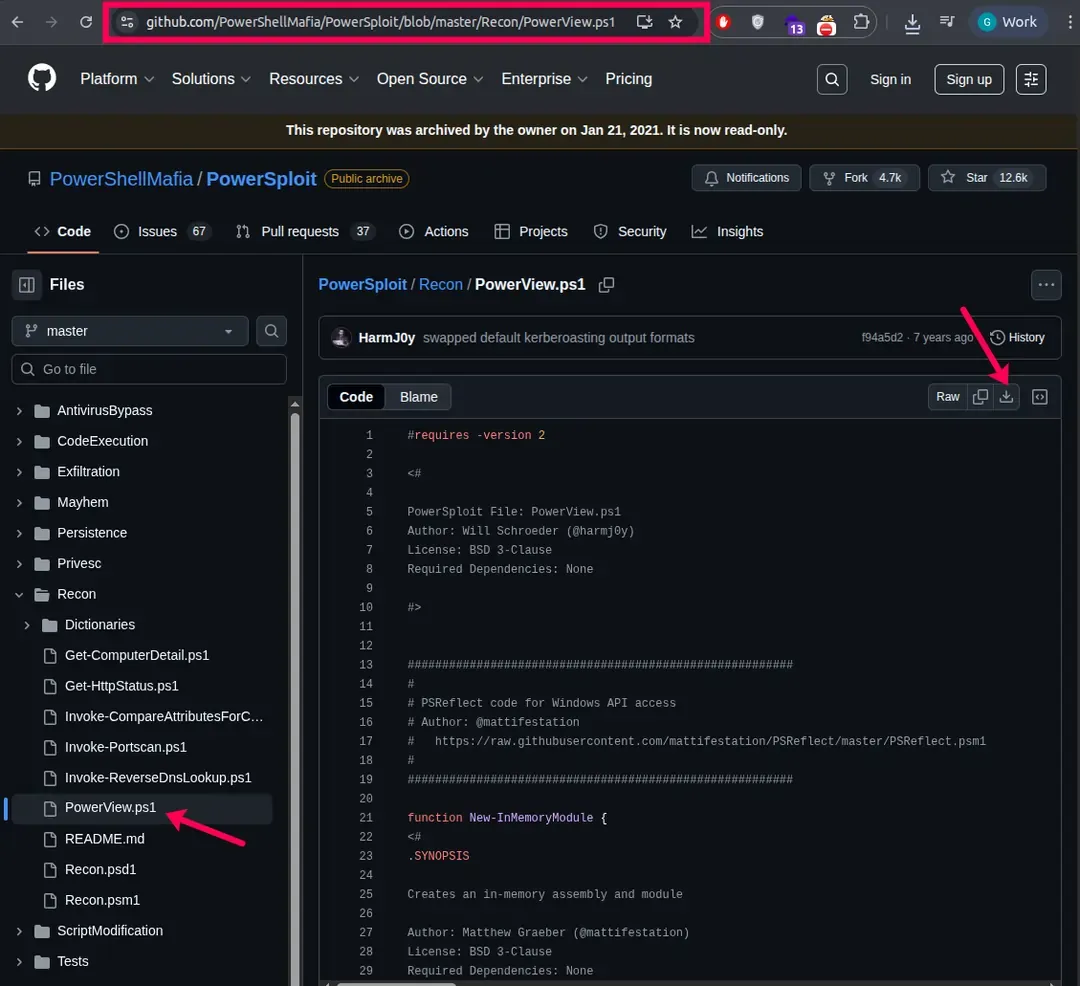
In this lab, we will run PowerView directly on a Windows 10 machine (PC1).
Output:
If your lab machine does not have internet access:
Output:
Open PowerShell and move to the file location:
Command:
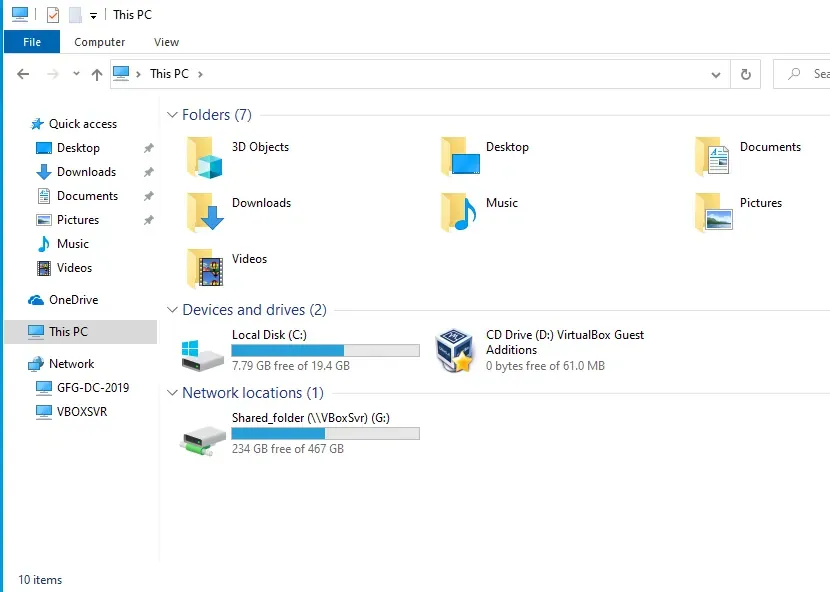
cd C:\Users\<Username>\DownloadsI have copied powershell file to my downloads folder in the PC1. Now open the terminal and go to the file location where the PowerView File is saved.
Command:
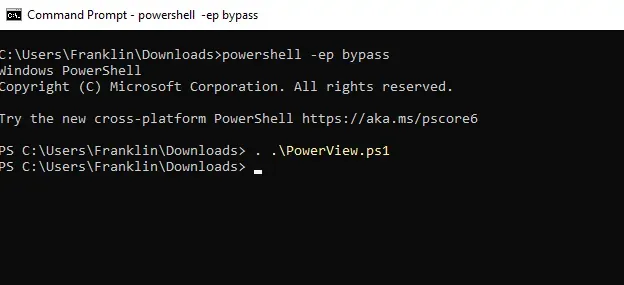
powershell -ep bypassOutput:
Now load the script into memory. Once imported successfully, PowerView functions become available in the current session.
Command:
. .\PowerView.ps1After loading PowerView, we can begin Active Directory reconnaissance.
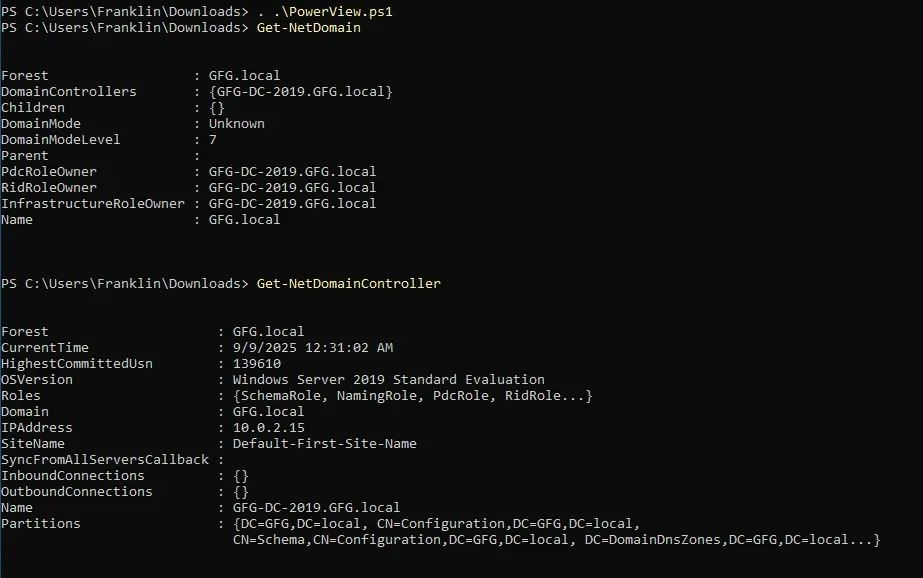
These commands provide Domain name and structure, Domain controllers, Key configuration details
Command:
Get-NetDomain
Get-NetDomainController
Output:
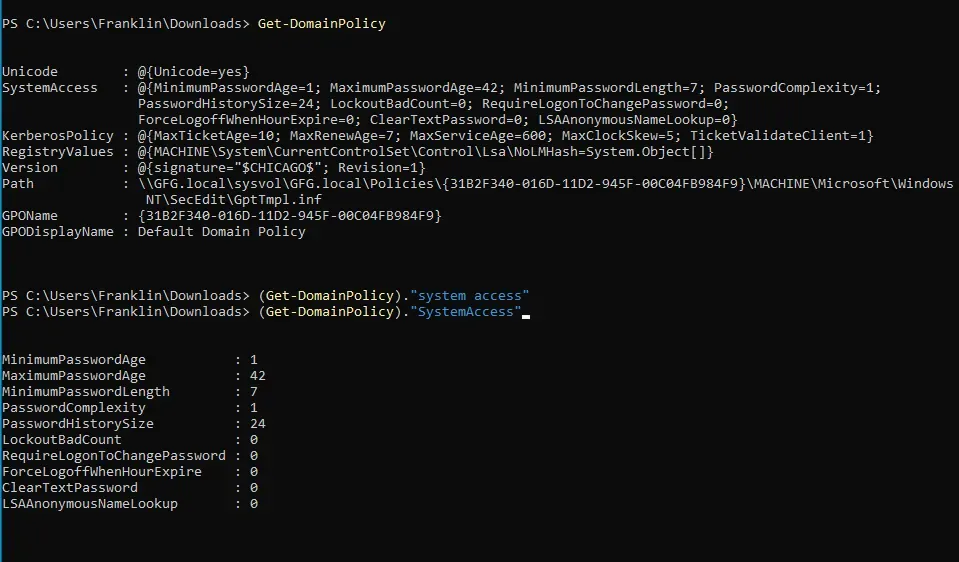
This reveals Password policies, Lockout thresholds, Security configurations
Command:
Get-DomainPolicy
(Get-DomainPolicy)."SystemAccess"
Output:
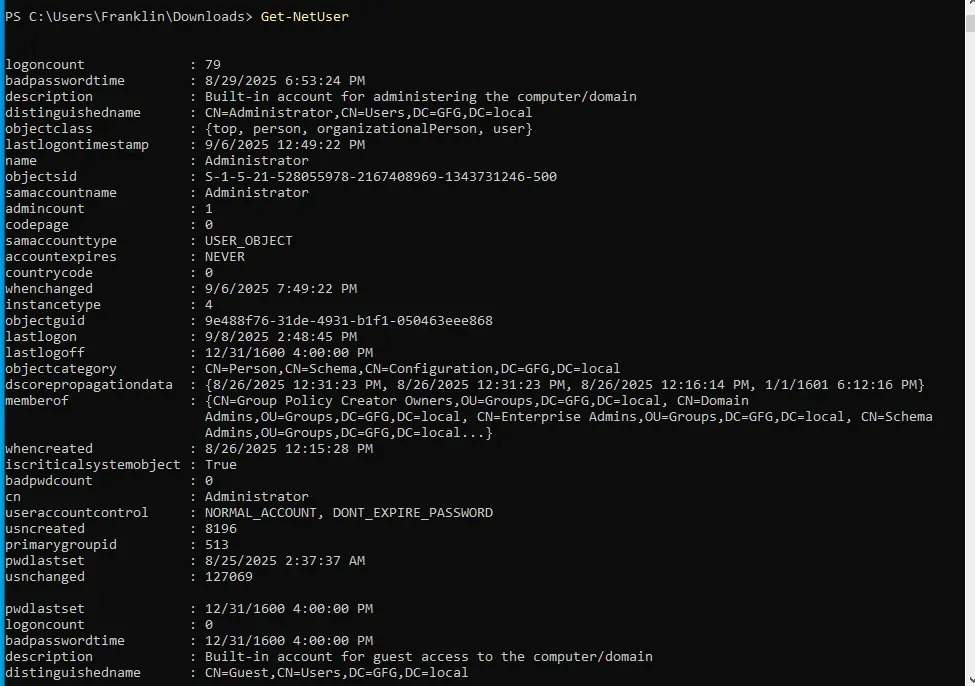
User accounts are one of the most important attack surfaces in Active Directory.
Command:
Get-NetUserFilter specific attributes:
Command:
Get-NetUser | select cn
Get-NetUser | select samaccountname
Get-NetUser | select description
Output:
Useful for identifying Inactive users, Brute-force attempts, Weak account hygiene.
Command:
Get-UserProperty
Get-UserProperty -Properties pwdlastset
Get-UserProperty -Properties logoncount
Get-UserProperty -Properties badpwdcount
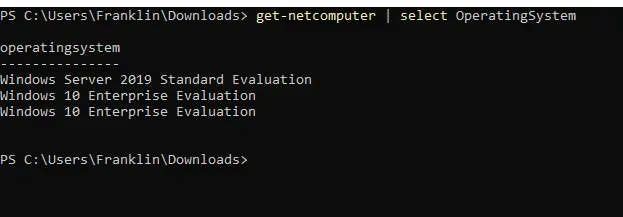
This helps identify Machines in the domain, OS versions (useful for vulnerability mapping)
Command:
Get-NetComputer
Get-NetComputer | select OperatingSystem
Ouput:
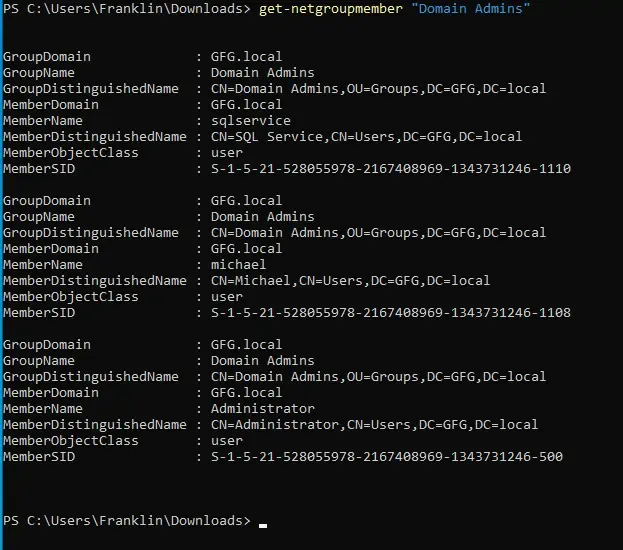
This reveals Privileged groups, Administrative access paths.
Get-NetGroup
Get-NetGroup -GroupName "Admin"
Ouput:
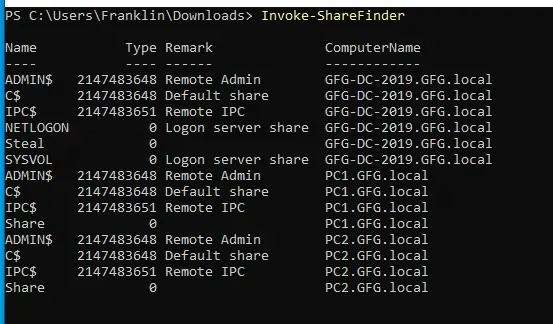
This command identifies Accessible SMB shares, Potential sensitive file exposure.
Command:
Invoke-ShareFinderOutput:
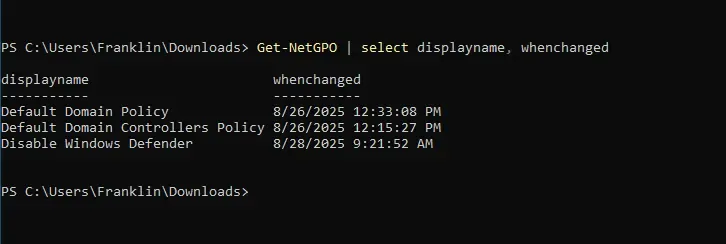
These commands help you Identify applied policies, Track administrative changes, Detect weak security settings.
Command:
Get-NetGPO
Get-NetGPOGroup
Ouput: