|
VOOZH | about |
|
VOOZH | about |
To add images from the camera in Flutter, we'll use the image_picker package. For this, you'll need to use your real device.
Create a new Flutter application using the command Prompt. To create a new app, write the below command and run it.
flutter create app_nameTo know more about it refer this article: Creating a Simple Application in Flutter
To add the dependency to the pubspec.yaml file, add image_picker as a dependency in the dependencies part of the pubspec.yaml file, as shown below:
Now run the below command in the terminal.
flutter pub getUse the below line of code in the main.dart file to import the image_picker dependency.
import 'package:image_picker/image_picker.dart';- To access the camera.
selectFromCamera:
-
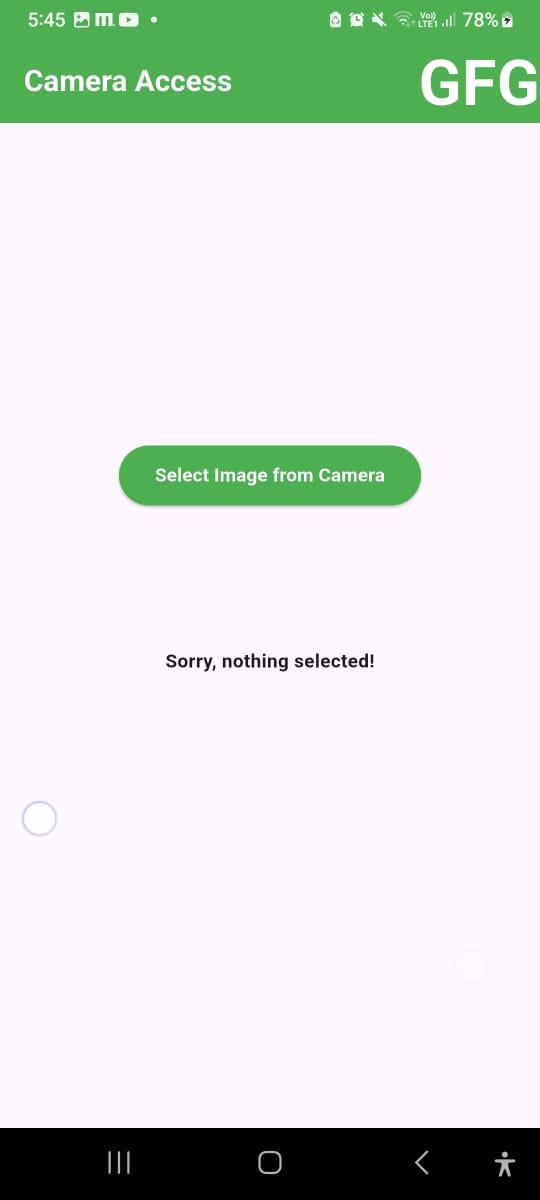
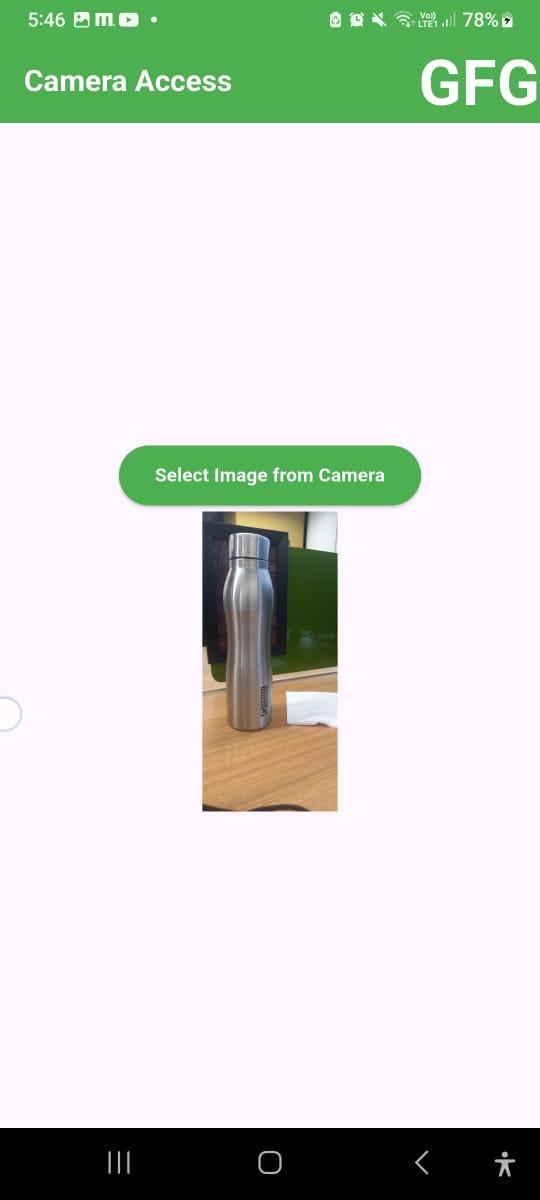
Show the captured picture, if the user doesn't capture anything, then show "Sorry, nothing selected!".
main.dart:
Output:
When no image is selected, the following will result:
When the button is tapped, the mobile's camera will be opened to capture the image, as shown below:
When the image is captured, it will be displayed on the screen, as shown below: