|
VOOZH | about |
|
VOOZH | about |
Firebase helps developers to manage their mobile apps easily. It is a service provided by Google. Firebase has various functionalities available to help developers manage and grow their mobile apps. In this article, we will learn how to write and read data into/from Firebase.
Follow the 3-step procedure to create application to read-write data in Firebase:
To interact with Firebase, we have to register our app to Firebase. Follow this link to complete the initial setup.
After completing the above setup, follow these steps:
After creating your project on the left-hand side, you will see these options
👁 firebase menuSelect the cloud Firestore and then select create database and then select test mode and press next.
👁 FirestoreSelect any location or you can keep it as it is and press enable
👁 locationAfter creating Cloud Firestore you will see the empty database, now you have to just create a table and add data to it later we will add data from our app. Follow the below steps to create a collection(tables).
Press Start Collection
👁 ImageEnter a name for collection id and select auto id for its document
👁 collection idPress Add Field and add Field and Value as key-value pair
👁 key-value pairFinally this is how your final screen will look
👁 final screenIn your flutter project open pubspec.yaml and under dependencies add the following packages:
dependencies:
 flutter:
 sdk: flutter
 firebase_core: "^0.5.0"
 cloud_firestore: ^0.14.1
Save the above file.
Note: While adding the above code ensure that the code added should on the same level as flutter.
In the terminal execute the following line.
flutter pub getNote: Before executing the above lines of code check whether you are in the right directory or not. The above code gets all the packages. If any error occurs please check your spacing while adding packages and also check that you have added the correct version of those packages.
Explanation of the above Code:
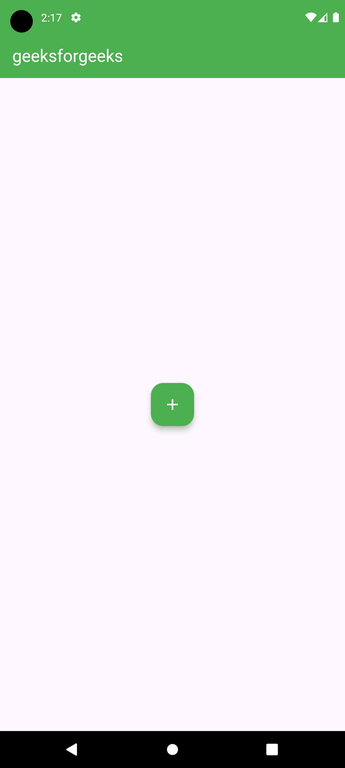
In the above code, we have created a floating action button in the center of the screen. When we press that button the key-value pair which we defined is sent to firebase and stored in it. Data will get stored repeatedly if the button is pressed multiple times.
Explanation of the above Program:
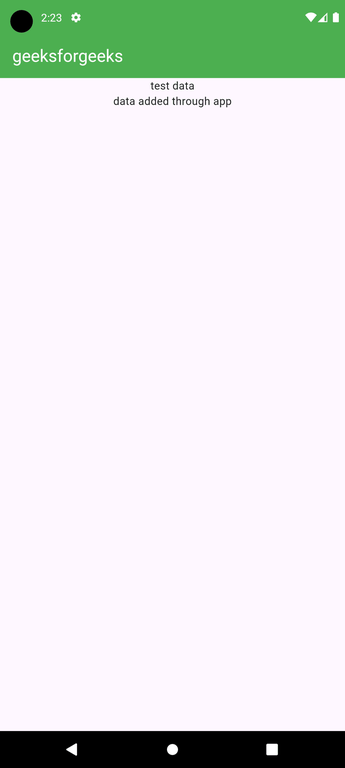
In the above code, we fetch data from firebase and store it as a snapshot of our data. To print that data on screen we build a List view that displays the data as text.