|
VOOZH | about |
|
VOOZH | about |
This article will show how to set up Android Studio to run Flutter Applications. Android Studio is one of the popular IDE( integrated development environment ) developed by Google itself to create cross-platform Android applications. First, you have to install Android Studioversion 3.0 or later, as it offers an integrated IDE experience for Flutter. You can refer to this for details: Android Studio.
After successfully installing Android Studio, you must install Flutter and Dart plugins. To do so, follow the steps mentioned below:
Open plugin preferences:
Now, Select Marketplace, select the Flutter plugin and click Install.
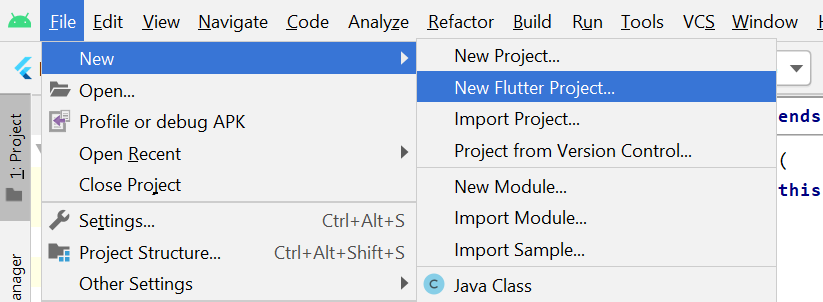
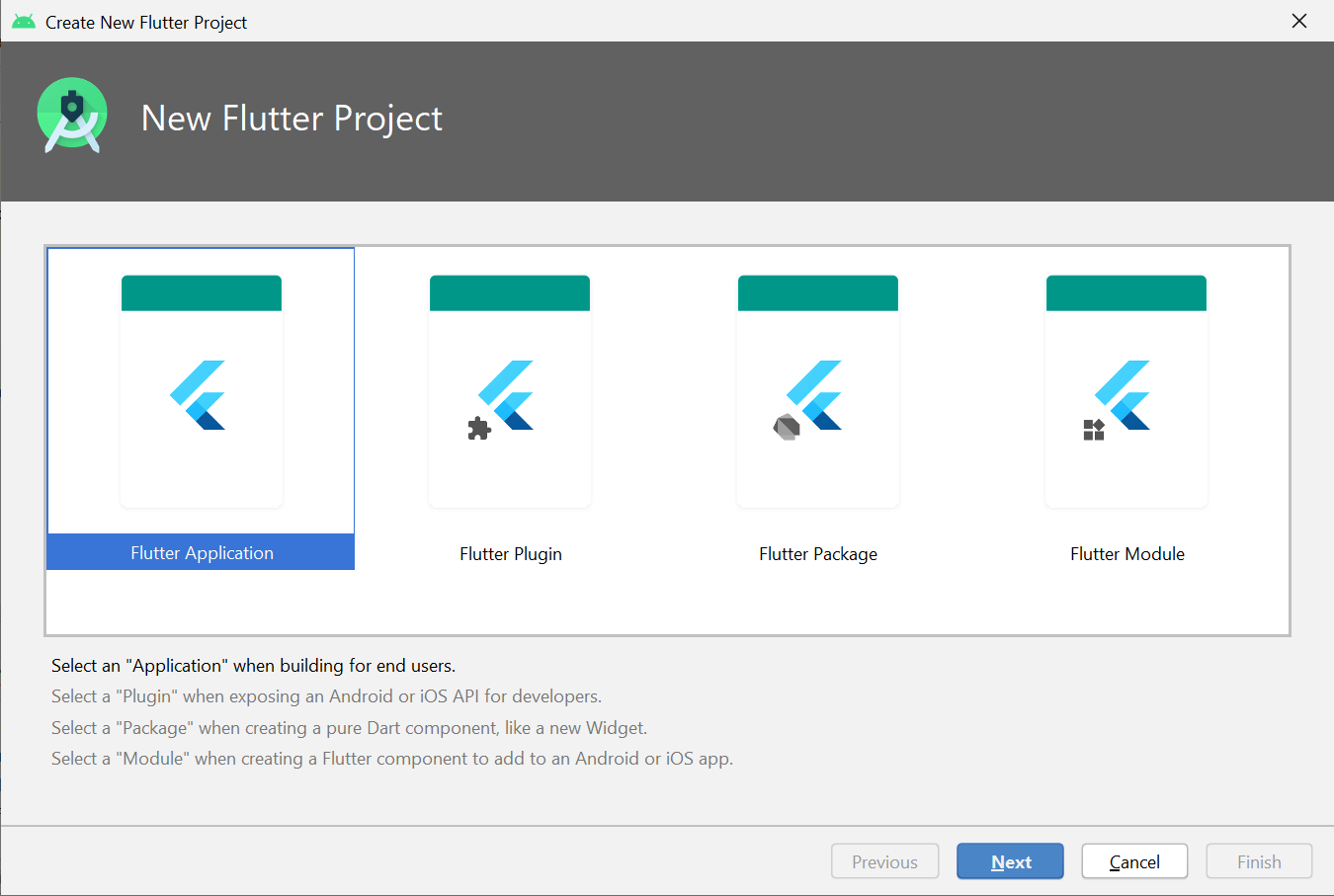
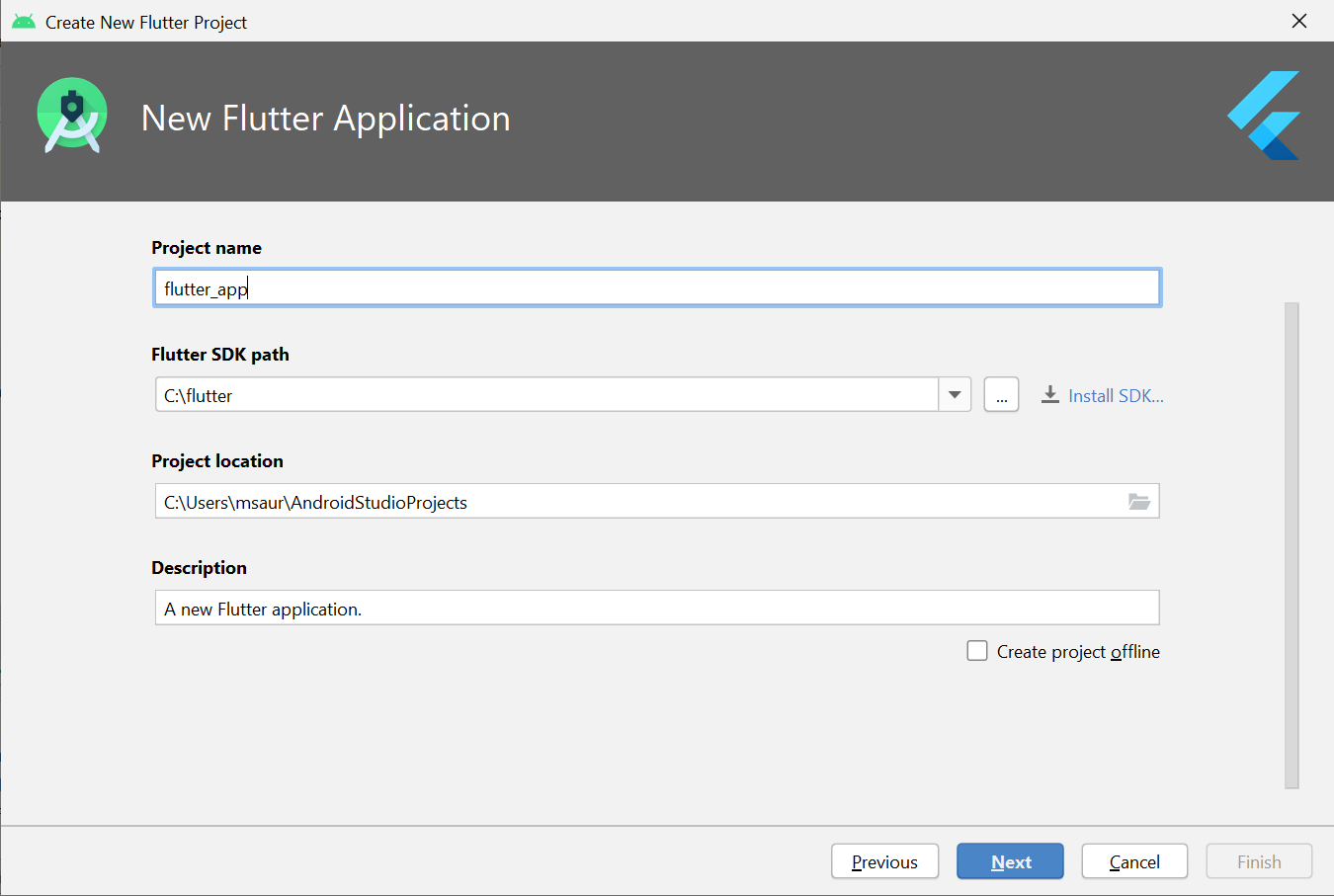
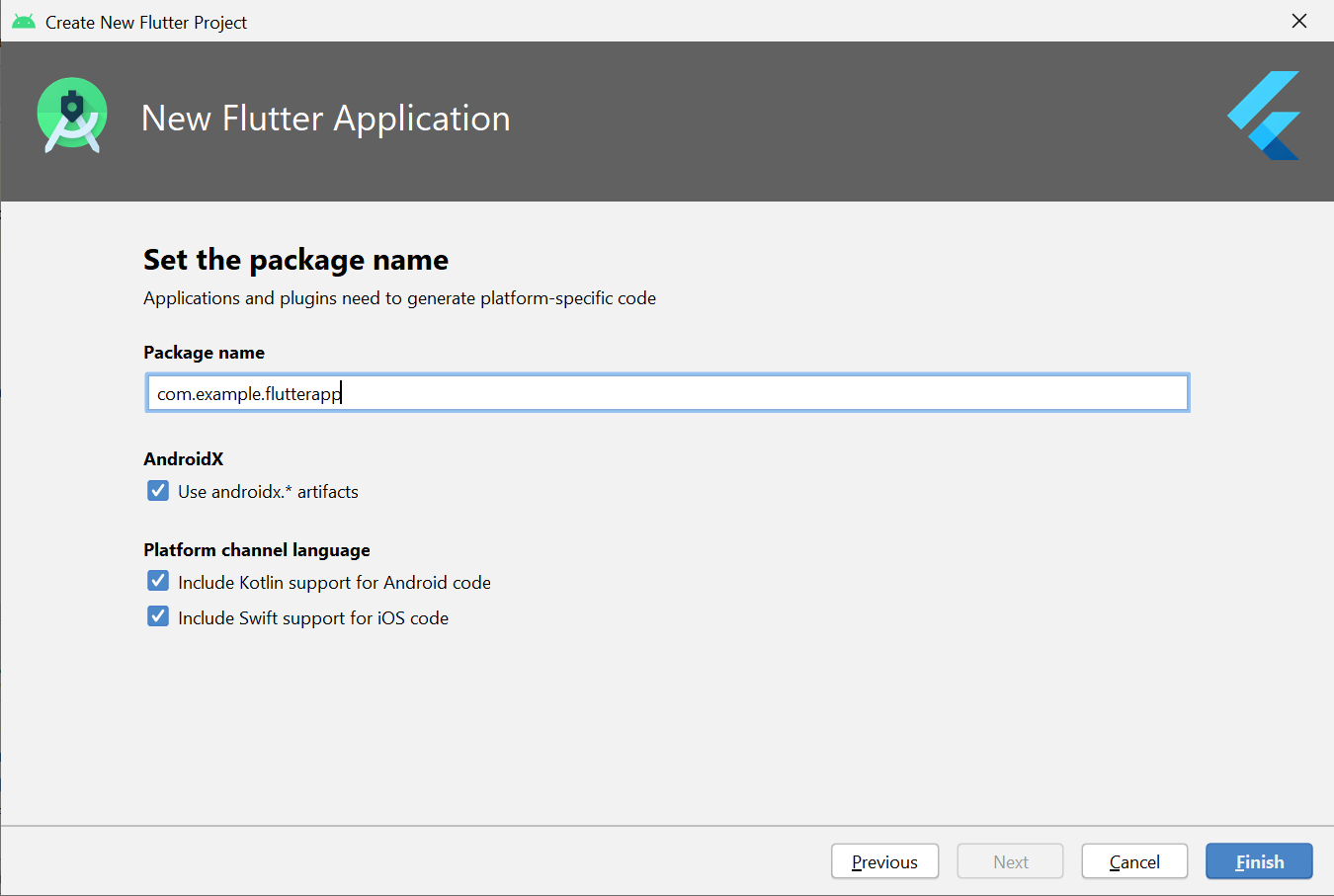
After installing Dart and Flutter plugins create a flutter app to check if it is working properly or not. To do so, follow the steps mentioned below:
Note: When creating a new Flutter app, some Flutter IDE plugins ask for a company domain name in reverse order, something like com.example. The company domain name and project name are used together as the package name for Android (the Bundle ID for iOS) when the app is released. If you think that the app might be released, it’s better to specify the package name now. The package name can’t be changed once the app is released, so make the name unique.
The above steps create a Flutter project directory called flutter_app that contains a simple demo app that uses Material Components.
Follow the below steps to run the flutter application that was structured above:
Step 1: Locate the main Android Studio toolbar.
Step 2: In the target selector, select an Android device for running the app. If none are listed as available, select Tools> Android > AVD Manager and create one there. For details, see Managing AVDs.
Step 3: Click the run icon in the toolbar or invoke the menu item Run > Run.
After the app build is complete, you’ll see the starter app on your device.