|
VOOZH | about |
|
VOOZH | about |
Firestore is a free platform that provides users or developers to test their apps without any cost. However, you have to pay a small amount of money with which you hosted your app and earn money through their services. Firebase or Firestore provides a variety of services:
In this article, we will discuss how to upload the image to the Firestore.
First, you have to add the dependency from the pubs.dart website. Just write image picker there will appear the dependency,
import 'package:image_picker/image_picker.dart';
Another package is:
import 'package:firebase_storage/firebase_storage.dart';
Starting with how to upload the image:
First, declare the variable named:
File? _image;
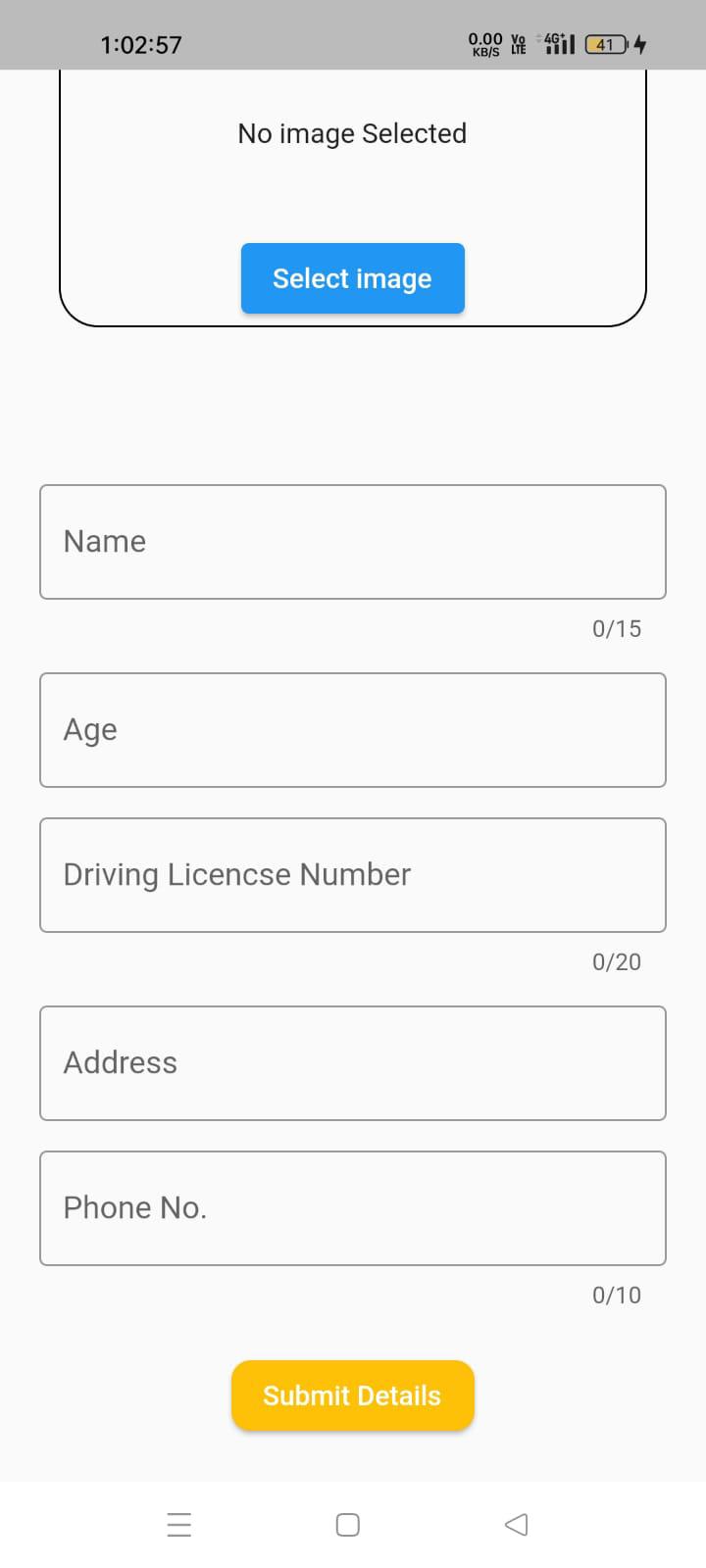
This is the code part that will create the center widget which checks if the _image variable is empty then it will declare "No image selected " else the image will be shown.
Expanded(
 child: Center(
 child: _image == null
 ? Text('No image selected.')
 : Image.file(_image!),
 ),
),
The next code is that it creates the button if it is clicked then it will redirect you to the gallery and allows you to select the image.
ElevatedButton(
 onPressed: () async {
 final image = await ImagePicker().getImage(source: ImageSource.gallery);
 if (image != null) {
 _image = File(image.path);
 }
 },
 child: Text('Select image'),
 ),
Next code part is it will set the variable name, storage reference by the name of 'driver _images' in Firebase and the put method is used to upload the image to the Firebase then we also use the downloadUrl variable which gets the URL through the reference which is used at the time of importing the image and other details.
var imageName = DateTime.now().millisecondsSinceEpoch.toString();
var storageRef = FirebaseStorage.instance.ref().child('driver_images/$imageName.jpg');
var uploadTask = storageRef.putFile(_image!);
var downloadUrl = await (await uploadTask).ref.getDownloadURL();
Here is the full code in Dart:
This is how the data is uploaded to the Firebase
And the images are also being uploaded to the storage section of Firebase
And our app screen looks like this
This is how the images in the Firestore are being uploaded in Flutter using Android Studio.

.jpg)
.jpg)