|
VOOZH | about |
|
VOOZH | about |
A push notification is a short message that appears as a pop-up on your desktop browser, mobile home screen, or in your device notification center from a mobile app. For receiving and showcasing push notifications in flutter using local_notifications. There are 3 conditions when we receive notifications
Here we will handle all the notifications.
Step 1: Create a Flutter project
flutter create .
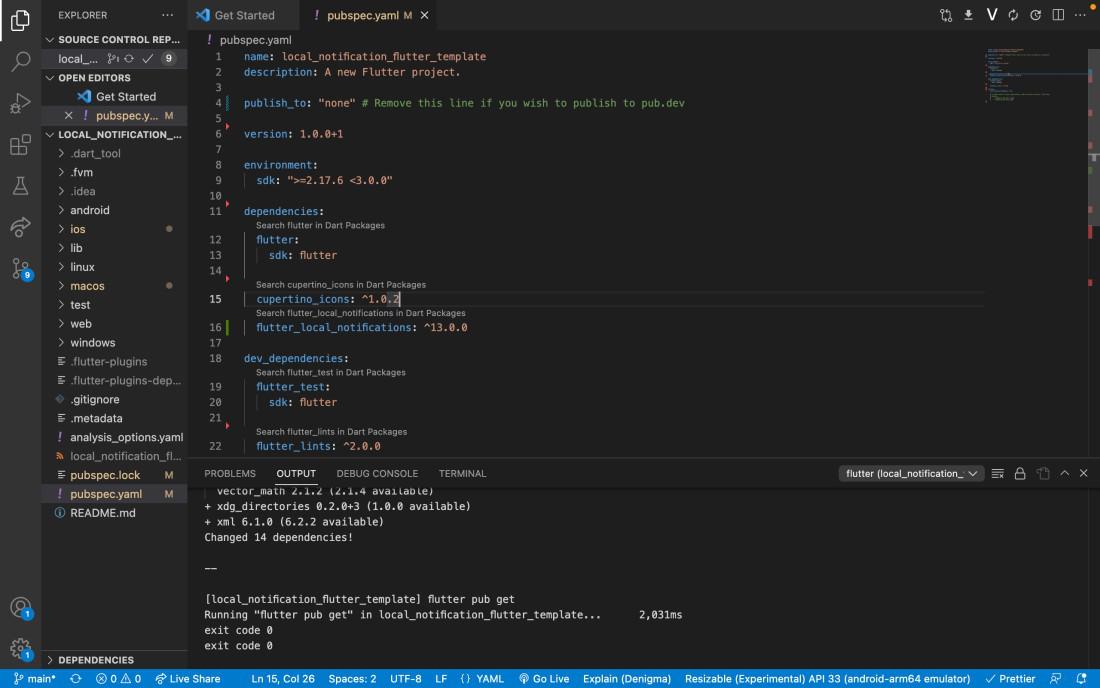
Step 2: Add local notification package
// Add in dependencies in pubspec.yaml file
flutter_local_notifications:
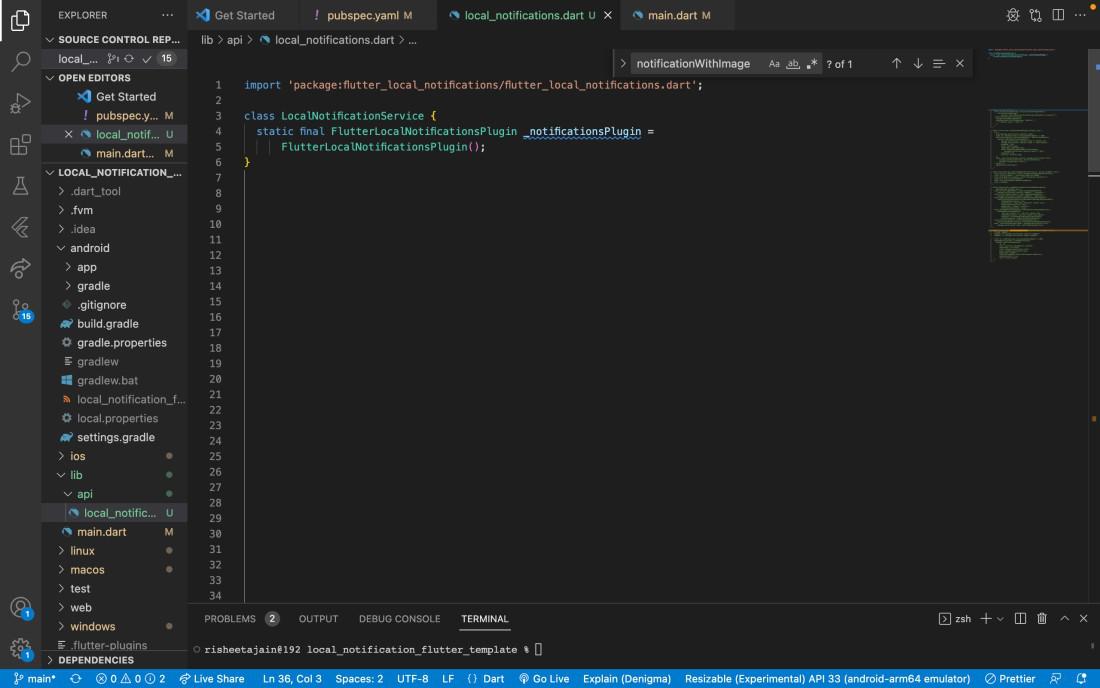
Step 3: Create 1 class for adding all local notifications functions and add an Instance of local notification in it
Step 4: Add initialize function in this class
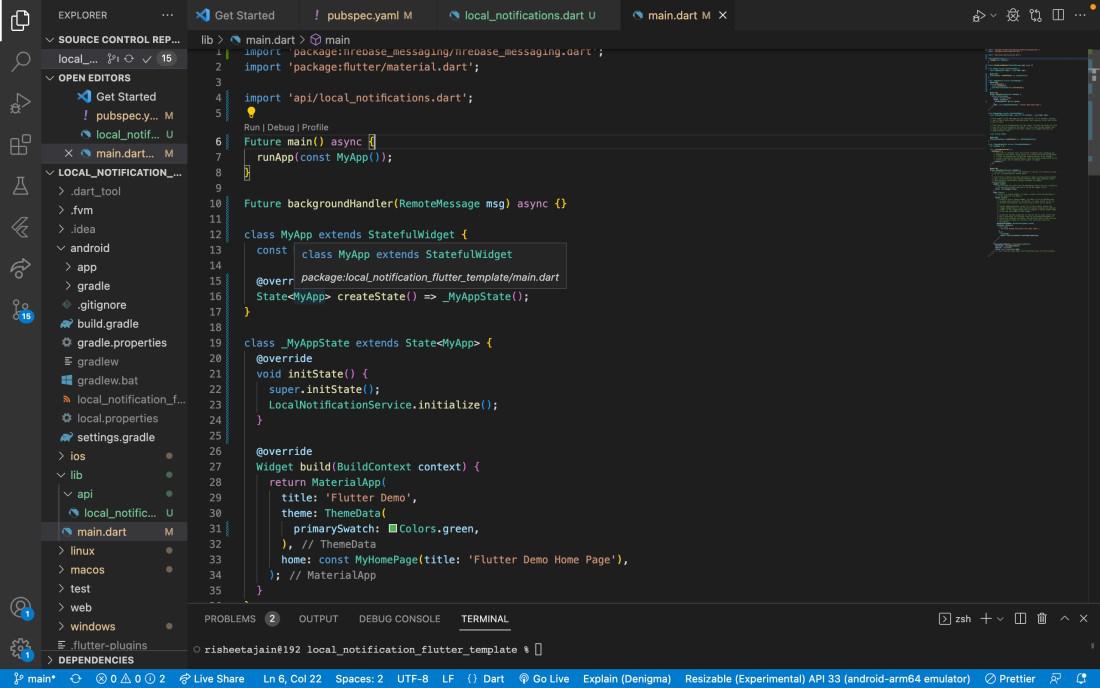
Step 5: Call this function in the Widget you are putting in the runApp function like this
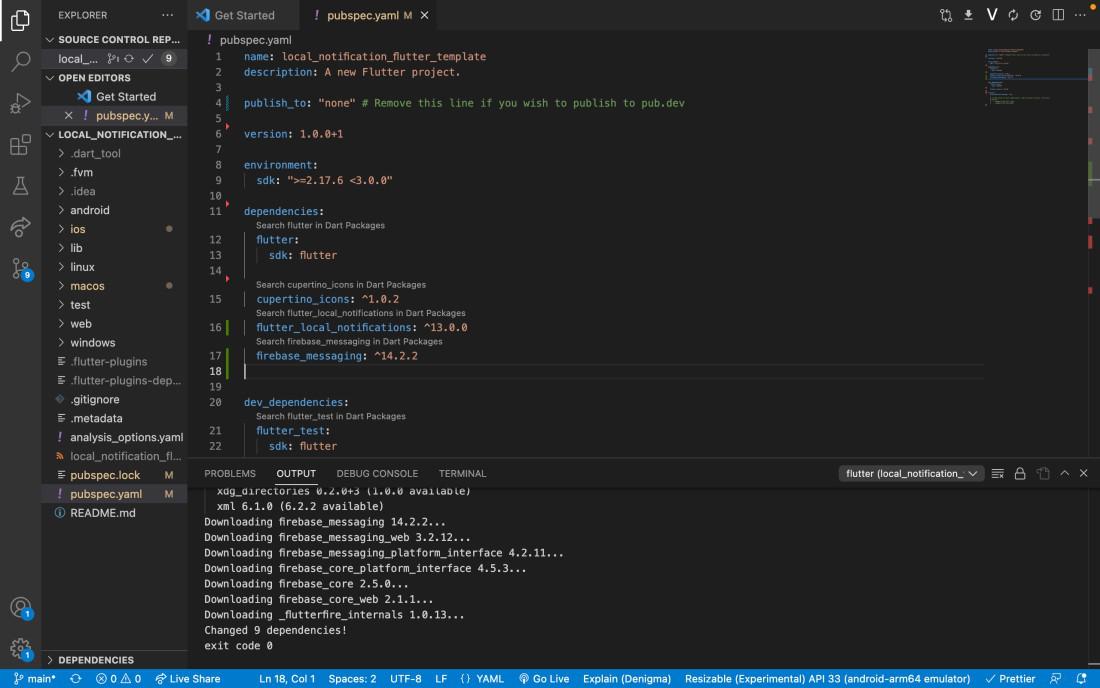
Step 6: For handling all these conditions we have to add firebase messaging and for this add firebase to your flutter project
To add firebase to your project read this article How to Add Firebase to Flutter App.
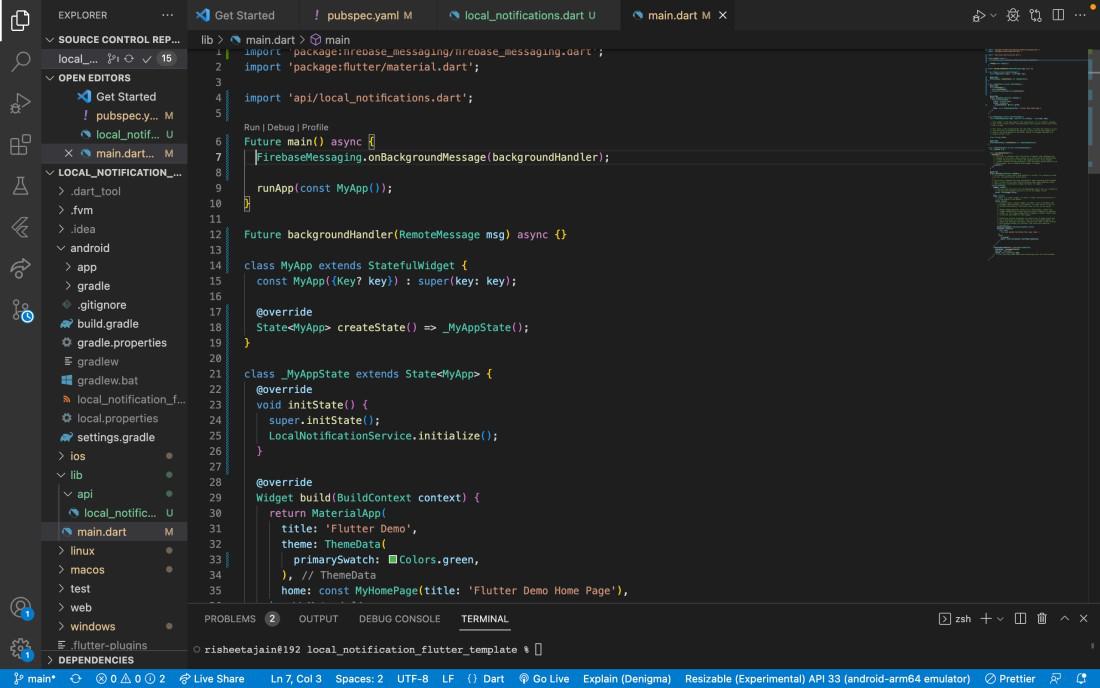
Step 7: To handle background notifications add this to the main function
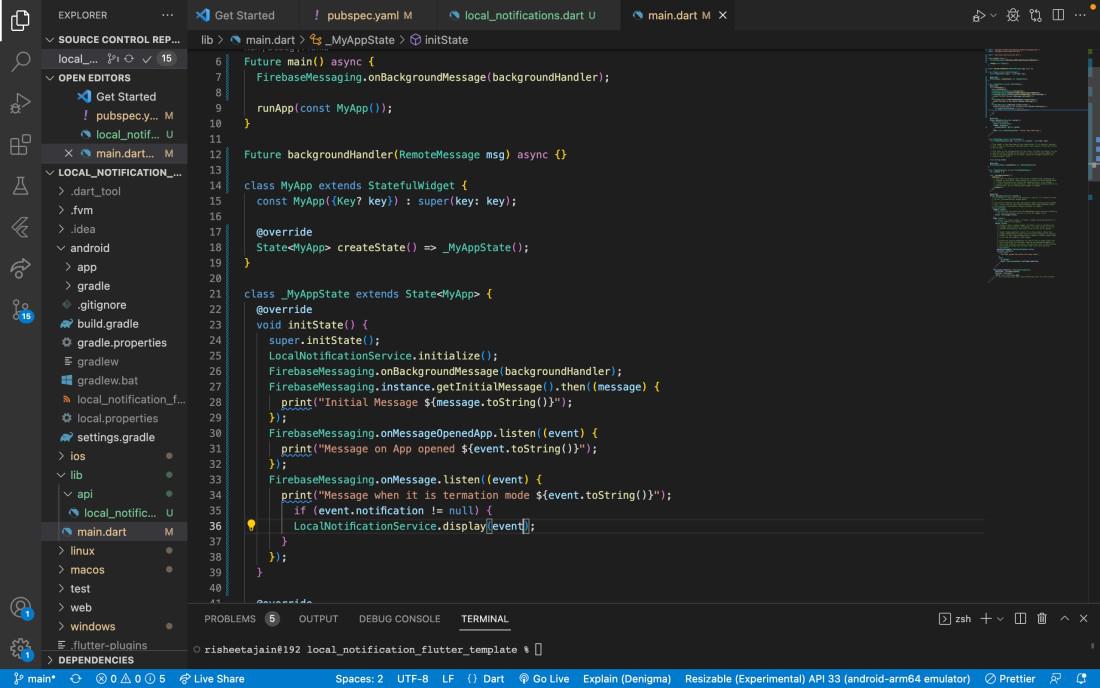
Step 8: Now to handle the other 2 conditions add this in the init function below initialization of local notification
Step 9: To display notifications you have to add this function in the local notification
Also, add these settings to the android folder
1. Create a file named colors.xml in android/app/src/main/res/values and add these codes to this file
2. Add this code in android/app/src/main/AndroidManifest.xml
Note:
If you want to receive notifications you need 1 token which is unique for every phone and may expire in some time. You need to store this token in your server if you want to send notifications to individual people To get the token you can use this function of firebase messaging
Now you can receive notifications on your android phone. For receiving notifications on the web you have to do the following settings. Create this file in the web folder and named as firebase-messaging-sw.js
3. Do the following changes in index.html
4. Add this function in location_notification_service.dart file in the lib folder
For dynamic dialog either add this code below localnotificationservice class file or create a new file
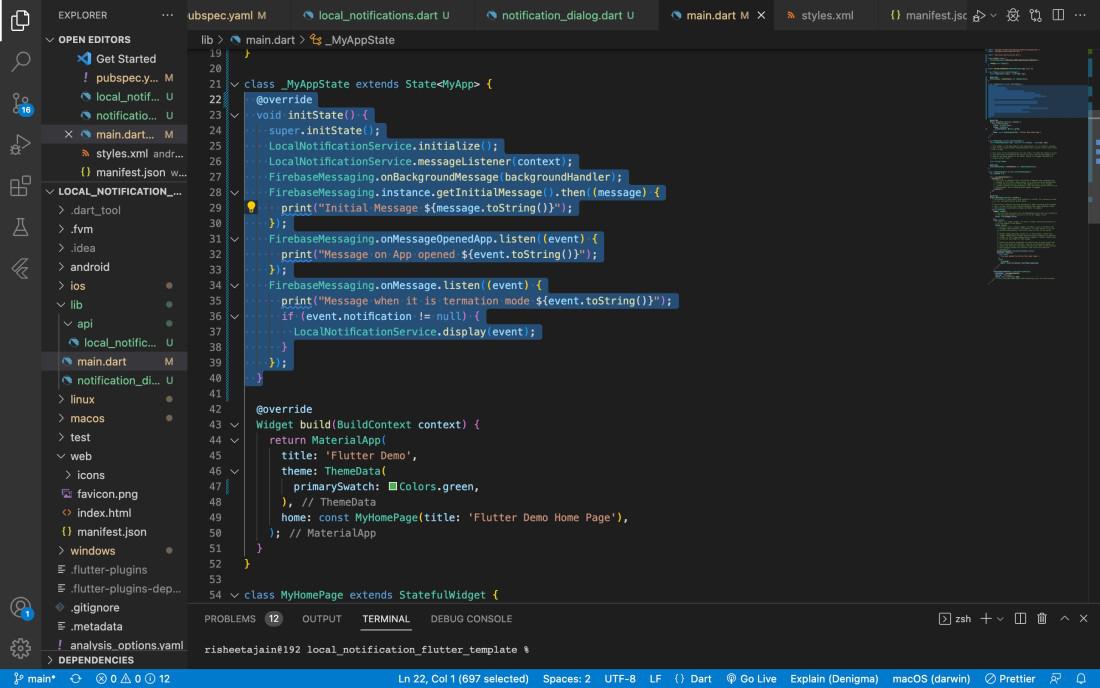
Call these functions below the initialization of the local_notification service like this