|
VOOZH | about |
|
VOOZH | about |
The Flutter team recently released Flutter version 2.10 with Desktop support. Desktop support allows you to compile Flutter source code to a native Windows, macOS, or Linux desktop app. Flutter’s desktop support also extends to plugins—you can install existing plugins that support the Windows, macOS, or Linux platforms, or you can create your own.
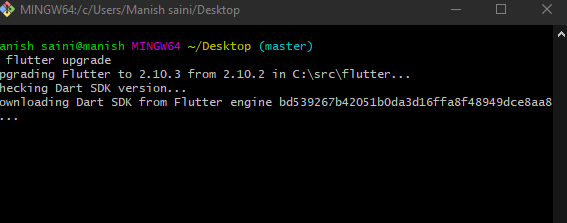
As you know, Desktop support is available in Flutter version 2.10 or higher. So you need version 2.10 or higher. Upgrade Flutter SDK from the command line:
flutter upgrade
Create a new Flutter application using the command Prompt. To create a new app, write the following command and run it.
flutter create app_nameTo know more about it refer this article: Creating a Simple Application in Flutter
On Windows, desktop support is enabled on Flutter 2.10 or higher. On macOS and Linux, desktop support is disabled by default in the stable channel. You can manually enable it with one of these commands, depending on which platform you are running:
flutter config --enable-macos-desktop flutter config --enable-linux-desktopNote: You only need to execute flutter config --enable-<platform>-desktop once.
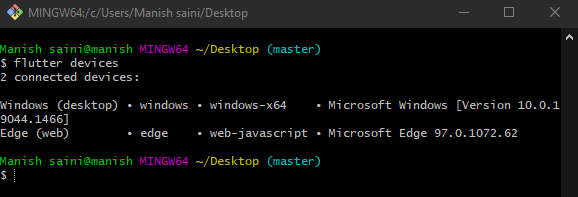
To test that desktop support is configured, use the flutter devices command to list the available targets.
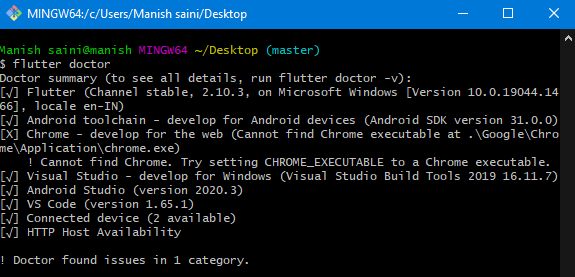
flutter devices This will show you the available devices in your system. You might also run flutter doctor to see if there are any unresolved issues. You should see a checkmark for each successfully configured area. It should look something like the following on Windows, with an entry for “develop for Windows”:
Creating a windows desktop app is simple as creating a flutter project for another platform like Android. Once you’ve configured your environment for desktop support, you can create and run a desktop application either in the IDE or from the command line. Don't remove the default code, we are going to run the default code of flutter.
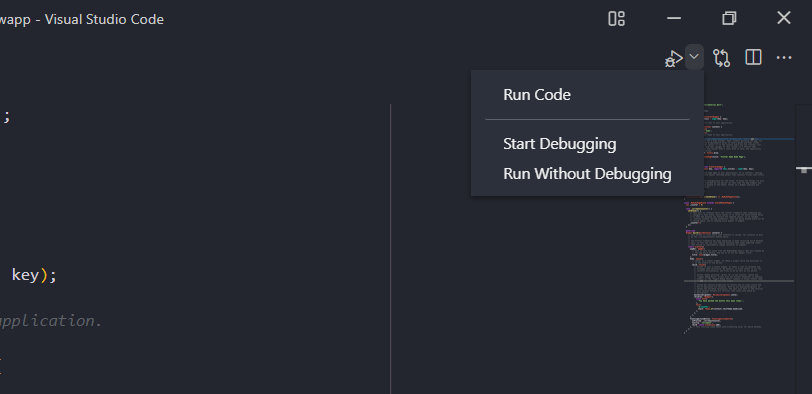
From IDE, you have to click on Start Debugging in the top right corner as shown image below.
This will take a few minutes,
👁 Outputcd project-name👁 Image
flutter run -d windows
To generate the release build, run the following in the command line,
flutter build windows
flutter build macos
flutter build linux