|
VOOZH | about |
|
VOOZH | about |
Designing a video streaming app is a fun task to improve your development skills and design fun applications. Using Flutter, an open-source UI toolkit developed by Google, you can design for apps in iOS and Android, web and desktop all at once. Here, in this article, the reader will be introduced to the approach of developing a video streaming application in Flutter with the focus on the key actions and elements that are necessary to consider while implementing this type of application. As a result of completing this lesson, you will have a fully working application that can play a video from a URL with the ability to also have controls and navigation.
To develop a video streaming app using Flutter, there are certain delicate stages that must be followed diligently including; Follow these steps to create your own video streaming app: Follow these steps to create your own video streaming app:
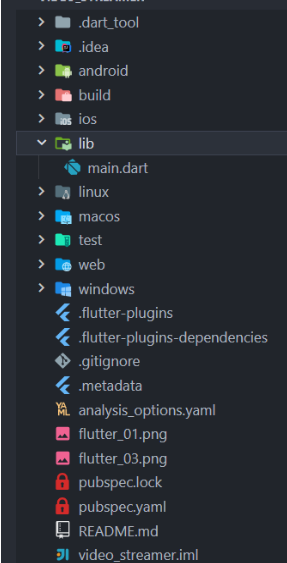
Before diving into the code, let's look at the directory structure of our project:
In a Flutter application, to play videos, it is necessary to request the video_player plugin, which displays the video material using a widget. Both network and asset videos are supported, that means that you can choose how exactly you want to use video playback in your application.
Open your terminal and create a new Flutter project by running the following command:
flutter create video_streaming_appNavigate to the project directory:
cd video_streaming_appTo stream videos, we need to add the video_player package to our project. Open the pubspec.yaml file and add the following dependency:
video_player: ^2.9.1Run flutter pub get to install the package.
Import the video_player package into your Dart file where you want to play the video:
Create a VideoPlayerController and initialise it with a video source. This can be a network URL or a local asset.
For this example, we’ll use a network video:
Use the VideoPlayer widget to display the video controlled by your VideoPlayerController.
We have also added Playback icon and a progress bar:
After completing the code, run your app using:
flutter run