|
VOOZH | about |
|
VOOZH | about |
Creating a portfolio website is a great way to showcase your work, skills, and personal brand to companies/recruiters. Let's create a simple portfolio using only HTML.
<!DOCTYPE html> this declaration tells the browser that this is an HTML5 document, which is the latest standard version of HTML. <html> is the root element that encompasses all the content of the webpage.
<head> contains meta-information about the document, which isn't displayed directly on the webpage but is crucial for browser handling and SEO.
<body> contains all the contents of the web page that are visible to the viewer.
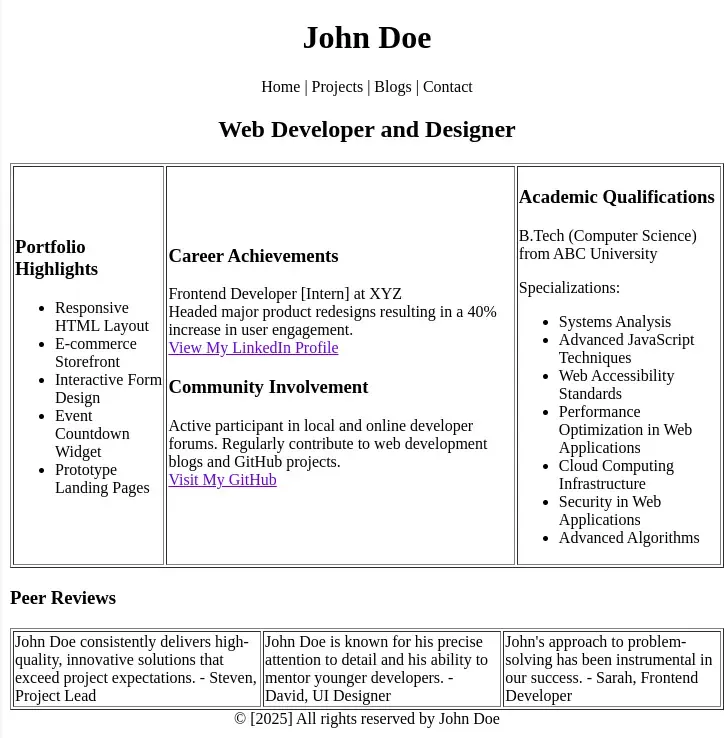
<header> serves as the top section of the website. <h1> and <p> display the name 'John Doe' and a simple navigation menu (Home | Projects | Blogs | Contact). These elements are centrally aligned using inline CSS (style="text-align: center;").
<h2> is a subtitle that describes John Doe’s professional role as "Web Developer and Designer", also centered.
<table> organizes the main content into three columns, each housed in <td> tags:
Peer Reviews: Another <table> providing testimonials from colleagues, emphasizing John’s skills and impact in his field. This is a strategic addition to build credibility and showcase real-world validation of his abilities.
Footer Element: <footer> closes the webpage with copyright information, symbolizing ownership and rights over the content. This is also centrally aligned for consistency with the rest of the page’s styling.
Since this HTML page may not look very appealing right now due to the lack of colors and interactivity, don’t worry! As you move forward in this course, you’ll learn CSS and JavaScript to style and add functionality to your portfolio website.