|
VOOZH | about |
|
VOOZH | about |
Buttons play an important role in user interfaces, and adding hover effects can improve the overall user experience. In this tutorial, you'll explore step-by-step instructions to implement creating awesome button hover effects in a React application.
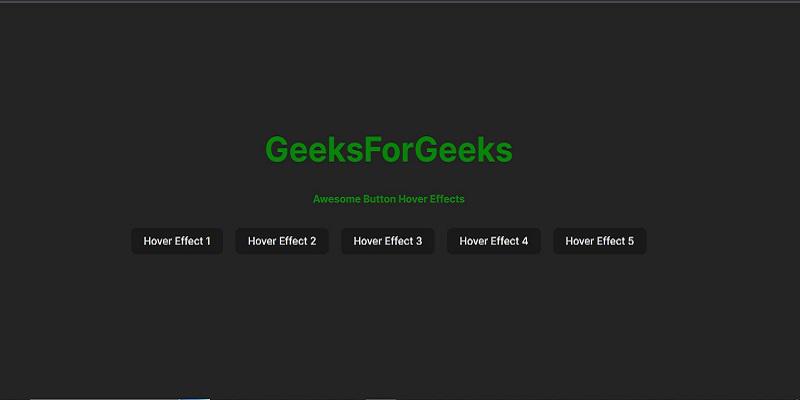
Preview Image: Let us have a look at how the buttons will look like.
We will discuss the following approaches to create Awesome Button Hover Effects in React
Table of Content
Step 1: Create a new React app using vite
npx create-vite@latest awesome-button-app --template react
cd awesome-button-app
npm install
Step 2: Create a Components folder and Create "Button.jsx" and " Button.css" files.
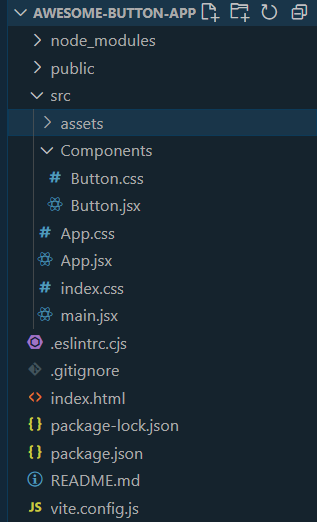
Folder Structure:
The updated dependencies in package.json file will look lik:
"dependencies": {
 "react": "^18.2.0",
 "react-dom": "^18.2.0"
 },
 "devDependencies": {
 "@types/react": "^18.2.43",
 "@types/react-dom": "^18.2.17",
 "@vitejs/plugin-react": "^4.2.1",
 "eslint": "^8.55.0",
 "eslint-plugin-react": "^7.33.2",
 "eslint-plugin-react-hooks": "^4.6.0",
 "eslint-plugin-react-refresh": "^0.4.5",
 "vite": "^5.0.8"
}
Example: Write these code in the respective files.
The button smoothly scales up on hover, creating a subtle zoom-in effect. Simultaneously, the background color and text color change, providing a good looking transformation.
Code Syntax:
/* Button.css */
.effect1 {
 transition: transform 0.3s, background-color 0.3s, color 0.3s;
}
.effect1:hover {
 transform: scale(1.1);
 background-color: #4caf50;
 color: white;
}
Preview:
As the button is hovered, a shadow appears around it, that giving the illusion of lift and depth. Additionally, the button's corners gradually round, contributing to a sleek and modern appearance.
Code Syntax:
/* Button.css */
.effect2 {
 transition: box-shadow 0.3s, border-radius 0.3s;
}
.effect2:hover {
 box-shadow: 0 4px 8px rgba(94, 203, 233, 0.2);
 border-radius: 20px;
}
Preview:
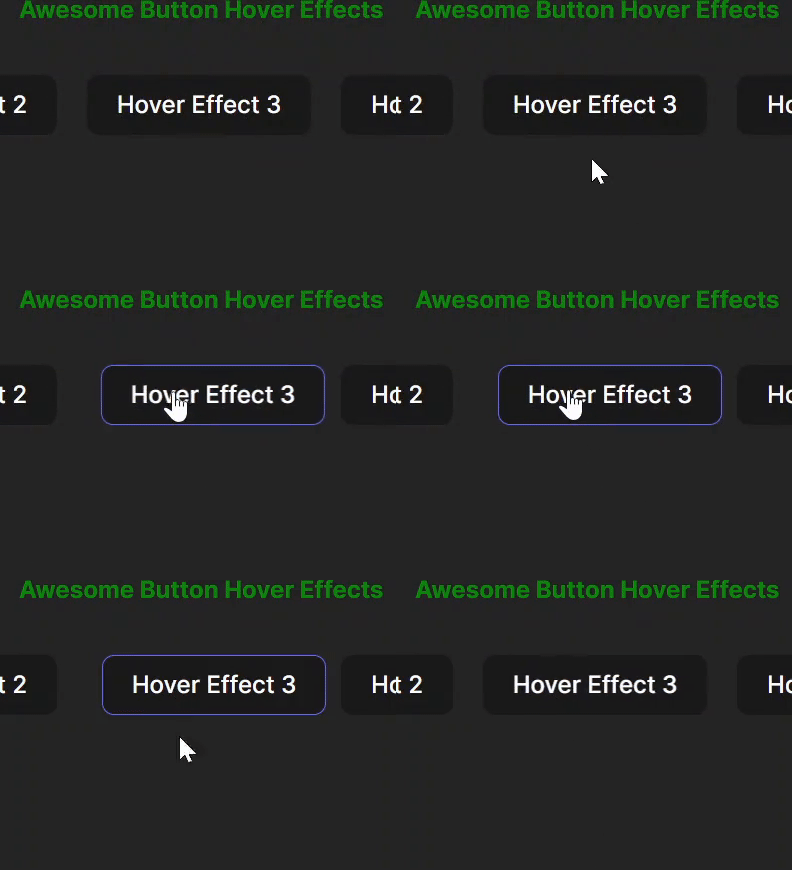
As you hover, it gracefully slides to the side while the background undergoes a smooth gradient transition. This combination brings both movement and color to your button.
Code Syntax:
/* Button.css */
.effect3 {
 transition: transform 0.3s, background-position 0.5s ease;
}
.effect3:hover {
 transform: translateX(10px);
 background-position: right bottom;
}
Preview:
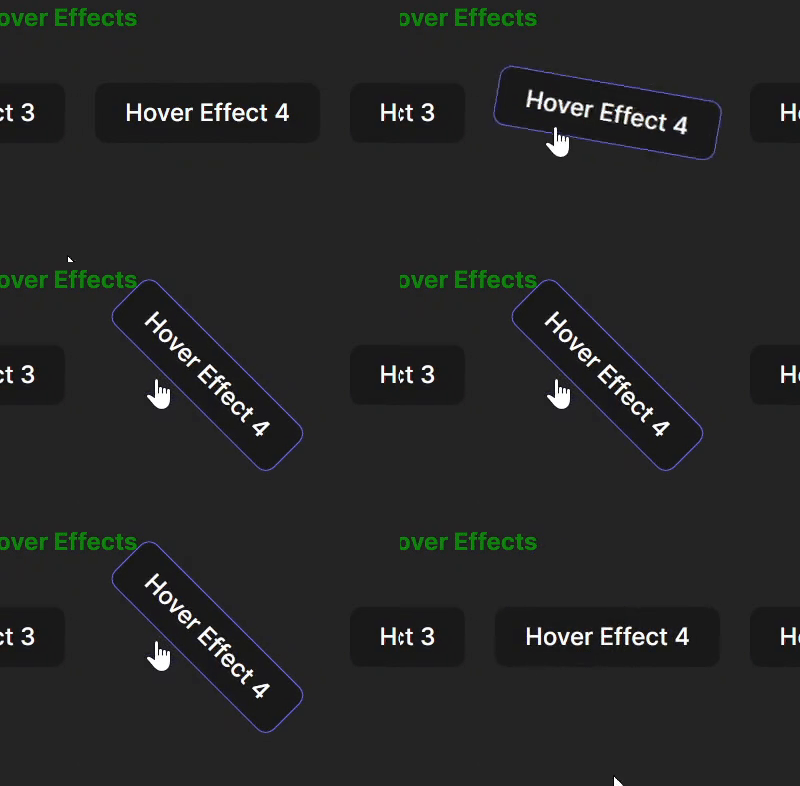
Add a playful twist to your button! When hovered, it rotates, providing a fun and interactive visual effect. It's a simple yet engaging way to make your button more interesting.
Code Syntax:
/* Button.css */
.effect4 {
 transition: transform 0.3s;
}
.effect4:hover {
 transform: rotate(45deg);
}
Preview:
👁 gif4Surprise your users with a unique twist! When hovered, the button flips horizontally, offering an unexpected and eye-catching transformation. This effect adds a touch of creativity to your button design.
Code Syntax:
/* Button.css */
.effect5 {
 transition: transform 0.3s;
}
.effect5:hover {
 transform: scaleX(-1);
}
Output: