VOOZH about

URL: https://www.geeksforgeeks.org/reactjs/build-a-learning-management-system-using-nextjs/

⇱ Build a Learning Management System Using Next.js - GeeksforGeeks


  • Courses
  • Tutorials
  • Interview Prep

Build a Learning Management System Using Next.js

Last Updated : 23 Jul, 2025

A Learning Management System (LMS) is a platform for delivering, tracking, and managing educational courses. In this article, we'll guide you through building a simple LMS using Next.js, covering course creation, listing, and basic management features.

Prerequisites

Approach to Build a Learning Management System Using Next.js:

  • Use create-next-app to initialize a new Next.js project.
  • Create a reusable Navbar component for navigation.
  • Create a CourseListing component to list all courses.
  • Create an AddCourse page with a form to add new courses.
  • Create a ManageCourse page to manage existing courses, including editing and deleting courses.
  • Use React’s useState and useEffect hooks to manage the application state, such as the list of courses and form inputs.
  • Implement functions to handle form submissions, including data validation and storing course data to localstorage.
  • Utilize bootstrap to style the application.

Steps to Build a Learning Management System Using Next.js:

Step 1: Initialized the Nextjs app.

npx create-next-app@latest news-aggregator 

Step 2: It will ask you some questions, so choose as the following.

√ Would you like to use TypeScript? ... No
√ Would you like to use ESLint? ... No
√ Would you like to use Tailwind CSS? ... No
√ Would you like to use `src/` directory? ... Yes
√ Would you like to use App Router? (recommended) ... Yes
√ Would you like to customize the default import alias (@/*)? ... No

Step 3: Install the necessary package for your project using the following command.

npm install bootstrap

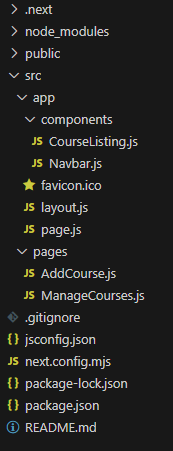
Project Structure

πŸ‘ file
Folder Structure

Dependencies

"dependencies": {
"bootstrap": "^5.3.3",
"next": "14.2.5",
"react": "^18",
"react-dom": "^18"
}

Example: Create the required files and write the following code.

To start the application run the following comand

npm run dev

Output

Comment