|
VOOZH | about |
|
VOOZH | about |
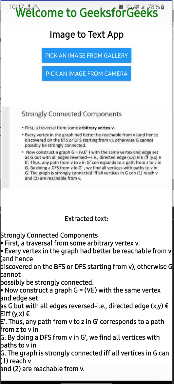
In this article, we are going to build a step-by-step Image to Text app using React-Native. This application will allow users to extract the text from the image using OCR (Optical Character Recognition) and later copy it to the clipboard or share it with others. This application is a perfect usage of React Native as the perfect framework for application development. The application will allow the user to either pick an image from the gallery or click a photo using the camera implemented in the application. Later the image will be shown and a Text component will display the extracted text.
👁 Screenshot-2023-09-22-221722
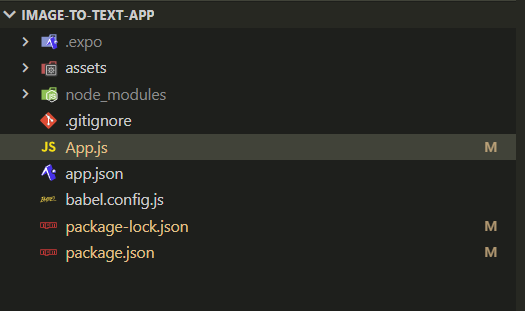
Step 1: Create the project
npx create-expo-app image-to-text-appStep 2: Navigate to the project
cd image-to-text-appStep 3: Install the expo-location package.
npx expo install expo-image-picker👁 Screenshot-2023-09-16-115619
Here's package.json file for dependencies and respective versions.
{
 "name": "image-to-text-app",
 "version": "1.0.0",
 "main": "node_modules/expo/AppEntry.js",
 "scripts": {
 "start": "expo start",
 "android": "expo start --android",
 "ios": "expo start --ios",
 "web": "expo start --web"
 },
 "dependencies": {
 "expo": "~49.0.11",
 "expo-status-bar": "~1.6.0",
 "react": "18.2.0",
 "react-native": "0.72.4",
 "expo-image-picker": "~14.3.2"
 },
 "devDependencies": {
 "@babel/core": "^7.20.0"
 },
 "private": true
}
Example: This example shows the use of the above-explained approach.
Step 4: Run the application
npx expo startStep optional: To run on Web, you need to install the following packages
npx expo install react-dom react-native-web @expo/webpack-configStep 5: To run on web, press w on Terminal will application is running. For Android/IOS, install the Expo app and scan the QR code or enter the link of Metro in the Terminal.
Output: