|
VOOZH | about |
|
VOOZH | about |
Animated Toggle Switch Button using framer-motion & React is a button that shows some animation/transitions and switches the states when clicked.
To design an animated toggle switch button using framer motion in react we will be using the animated and motion components for showing transitions and useState hook to store, useEffect to render the components after state changes.
Step 1: Create a React application using the following command:
npx create-react-application demoStep 2: After creating your project folder i.e. demo, move to it using the following command:
cd demoStep 3: Install framer-motion from npm.
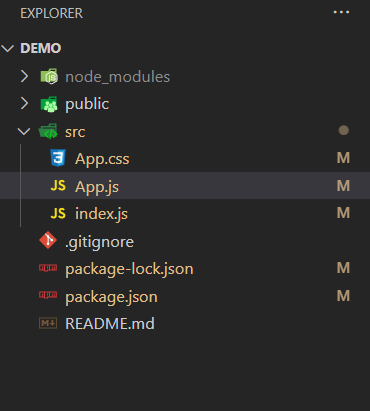
npm i framer-motionProject Structure:
👁 ImageThe updated list of dependencies after installing required modules:
"dependencies": {
 "@testing-library/jest-dom": "^5.17.0",
 "@testing-library/react": "^13.4.0",
 "@testing-library/user-event": "^13.5.0",
 "framer-motion": "^10.16.4",
 "react": "^18.2.0",
 "react-dom": "^18.2.0",
 "react-scripts": "5.0.1",
 "web-vitals": "^2.1.4"
}
Example: This example implemets animated toggle switch button using motion and animate components of framer-motion.
Step to Run Application: Run the application using the following command from the root directory of the project.
npm start
Output: Now open your browser and go to http://localhost:3000/, you will see the following output.