|
VOOZH | about |
|
VOOZH | about |
React Native is a JavaScript framework for cross-platform mobile app development. In this article, we'll see how to add a phone number input field in a React Native app using Expo CLI.
Adding a phone number input field in React Native is helpful for collecting user phone numbers during registration or login. It typically consists of a text input component and can include a country picker for selecting the country code.
Step 1: Set Up the Development Environment
To start, install Expo CLI globally on your system by running this terminal command:
npm install -g expo-cliStep 2: Create React Native Application With Expo CLI
Create a new React Native project with Expo CLI using this terminal command:
expo init input-phone Step 3:Navigate to the project directory by using this command:
cd input-phoneLibraries like react-native-phone-input can be used to provide more advanced features, such as formatting and country code selection.
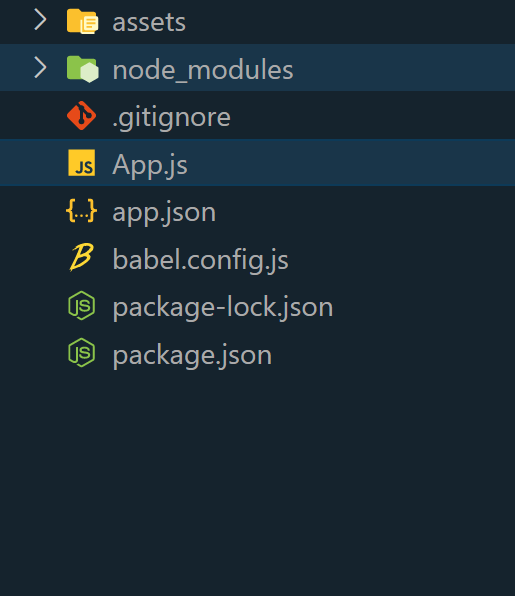
👁 React-Native-Project-Structure.png
Step 4: Install Required Dependencies
Install the necessary dependencies for the phone number input functionality in the project directory using this command:
npm install react-native-country-picker-modal react-native-phone-inputInstall react-native-country-picker-modal or the country picker and react-native-phone-input for the phone number input field.
To add a phone number input in React Native, set up a new project using Expo CLI, install required dependencies, implement the PhoneInput component for input handling and the CountryPicker component for country selection, customize styling, and test the functionality using Expo CLI.
Example: In this example, One input and two buttons the first button is used to select the country code for submission and the second button is used to submit the input.
Step 6: To run the react native application, open the Terminal and enter the command listed below.
npx expo startnpx react-native run-androidnpx react-native run-iosOutput: