|
VOOZH | about |
|
VOOZH | about |
Over the past few years, dark mode has gained widespread popularity as a feature in various applications and websites. It provides a visually pleasing and more comfortable viewing experience, particularly in low-light environments. If you're using ReactJS and Material UI, incorporating dark mode functionality into your web application is a straightforward process.
Step 1: Create a React application using the following command:
npx create-react-app foldernameStep 2: After creating your project folder i.e. folder name, move to it using the following command:
cd foldernameStep 3: After creating the React.js application, install the material-UI modules using the following command.
npm install @material-ui/core
npm install @material-ui/icons
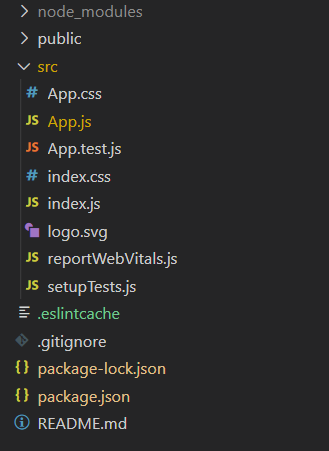
Project Structure:
The updated dependencies in package.json file will look like:
"dependencies": {
 "@material-ui/core": "^4.12.4",
 "@material-ui/icons": "^4.11.3",
 "react": "^18.2.0",
 "react-dom": "^18.2.0",
 "react-scripts": "5.0.1",
 "web-vitals": "^2.1.4",
}
Explanation: Material-UI comes with two palette types; light (the default) and dark. You can make the theme dark by setting the type: 'dark'.
Step to Run Application: Run the application using the following command from the root directory of the project.
npm startOutput: Now open your browser and go to http://localhost:3000