|
VOOZH | about |
|
VOOZH | about |
Explore the functionality of ReactJS's TreeView component, a powerful tool for seamlessly navigating and displaying hierarchical structures in web applications. This comprehensive guide delves into the integration process, empowering you to represent complex data relationships in an organized and user-friendly manner with ease.
Step 1: Create a React application using the following command:
npx create-react-app foldernameStep 2: After creating your project folder i.e. folder name, move to it using the following command:
cd foldernameStep 3: After creating the ReactJS application, Install the material-ui module using the following command:
npm install @material-ui/core
npm install @material-ui/lab
npm install @material-ui/icons
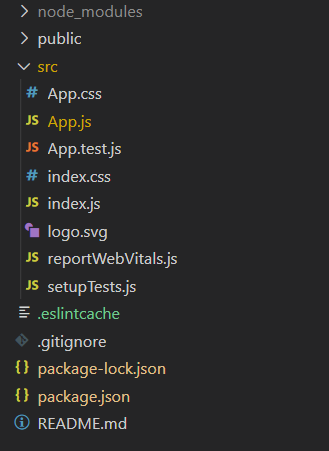
Project Structure:
The updated dependencies in package.json file will look like:
"dependencies": {
 "@material-ui/core": "^4.12.4",
 "@material-ui/icons": "^4.11.3",
 "@material-ui/lab": "^4.0.0-alpha.61",
 "react": "^18.2.0",
 "react-dom": "^18.2.0",
 "react-scripts": "5.0.1",
 "web-vitals": "^2.1.4",
}
Example: Now write down the following code in the App.js file
Step to Run Application: Run the application using the following command from the root directory of the project:
npm startOutput: Now open your browser and go to http://localhost:3000