|
VOOZH | about |
|
VOOZH | about |
Layouts in Next.js allow you to create reusable structures that can be shared across multiple pages. This ensures a consistent look and feel throughout your application while reducing code duplication. Next.js 13 introduced enhanced layout capabilities, allowing for nested and dynamic layouts. In this article, we will see Next.js Layouts.
Layouts in Next.js is a higher-order component (HOC) that wraps your application's pages. It allows you to define a consistent structure and appearance for all your pages, making it easy to maintain a consistent user experience. Layouts are a great way to reuse code and save time, especially when building larger applications.
const Layout = ({ children }) => {
 return (
 <div>
 <header>Your header</header>
 <main>{children}</main>
 <footer>Your footer</footer>
 </div>
 )
}
Define a layout that wraps your entire application. This is typically used for elements like headers, footers, and navigation bars that appear on every page.
The global layout wraps the complete application and for which it is use in _app.js file.
// pages/_app.js

import Layout from '../components/layout'

function MyApp({ children, Component }) {
 return (
 <Layout>
 <Component {...pageProps} />
 </Layout>
 );
}

export default MyApp;
Create layouts that are specific to certain sections of your application. For example, an admin dashboard may have a different layout from the public-facing pages.
// app/dashboard/layout.js
export default function DashboardLayout({ children }) {
 return (
 <div className="dashboard-layout">
 <aside>Dashboard Sidebar</aside>
 <main>{children}</main>
 </div>
 );
}
// app/dashboard/page.js
export default function DashboardPage() {
 return <h1>Dashboard Home</h1>;
}
Adjust layouts dynamically based on the context or route parameters. This is useful for changing the layout based on user roles or specific page requirements.
export default function RoleBasedLayout({ children, params }) {
 return (
 <div className={`layout-${params.role}`}>
 <header>{params.role} Header</header>
 <main>{children}</main>
 </div>
 );
}
// app/[role]/page.js
export default function RolePage({ params }) {
 return <h1>{params.role} Page</h1>;
}
Step 1: First, we need to create a new file in our components folder and name it like "Layout.js"
In this file, we have defined our layout component which consists of a header, a main section, and a footer. The children's prop is used to pass in the content of the page being wrapped by the layout.
Step 2: Single Shared Layout with Custom App
Setting the layout in a single page:
After creating a layout component, it is now available to use on the pages. To do that we can import it and wrap it in a page component with it. For example, if we have a page called "About.js", we can wrap it with the layout below:
In the above code, the About page component is wrapped with the Layout component. The content of the page is passed to the layout component via the children's prop.
Setting the default layout for all pages:
To use the layout as global layout just wrap all the component in _app.js with the required layout.
In the above code, the MyApp component is used as a wrapper for all pages in the application. The Component prop represents the current page being rendered, and the pageProps prop contains any initial props passed to the page.
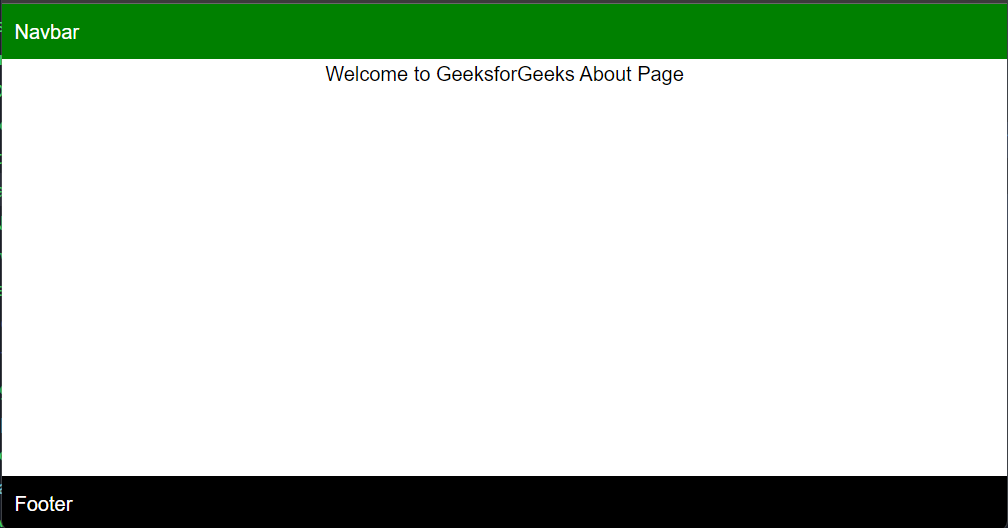
Example: Below example demonstrates how to implement global layout.
In the below example, we have created a layout component in the layout.js file. After creating it, we exported the component to use it on other pages. In the _app.js file inside the pages folder, we have added our layout component by importing it and wrapped the layout component in the About.js component.
Step to run:
Step 1: Run the following command in your project directory:
npm run devStep 2: Go to localhost:portnumber
localhost:3000Output:
Layouts can be very beneficial for all of us while building any web application. Below are some of the benefits that Next.js provide in Layouts:
Layouts in Next.js offer a powerful way to maintain a consistent design across your application while enabling flexibility through nested and dynamic layouts. By leveraging these features, you can create a well-structured, maintainable, and scalable application with a cohesive user experience. Following best practices for modularity, styling, performance, and error handling will help you maximize the benefits of using layouts in Next.js.