|
VOOZH | about |
|
VOOZH | about |
Discord is very popular as a communication platform for building communities. Thus fitting for gamers, content creators, and online groups. It gives real-time voice channels, text chat, and video calls for perfect collaboration and interaction. Changing the Discord username is free and easy; this can be understood as a kind of personalization of one's identity on the platform. Knowing how to change your Discord username is vital if you want to rebrand, update your profile for professional use, or just start fresh. You can customize your Discord username to match your gaming persona, brand identity, or online presence in just a few clicks.
Want to know how to change your name on Discord? This article will help you change your name so that the new username is shown on all of your Discord servers and communities. Learn how to change your Discord username fast and easily to stay connected with friends and followers.
Table of Content
Below are the steps on how to change Discord Username:
To open the Discord app on your desktop, navigate to the Discord icon and give it a click.
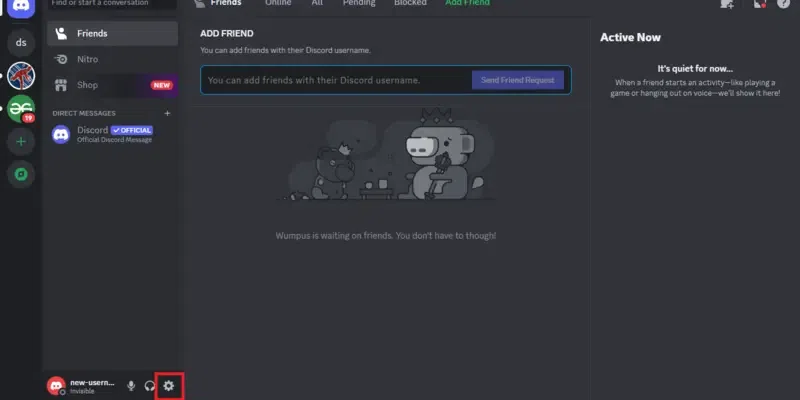
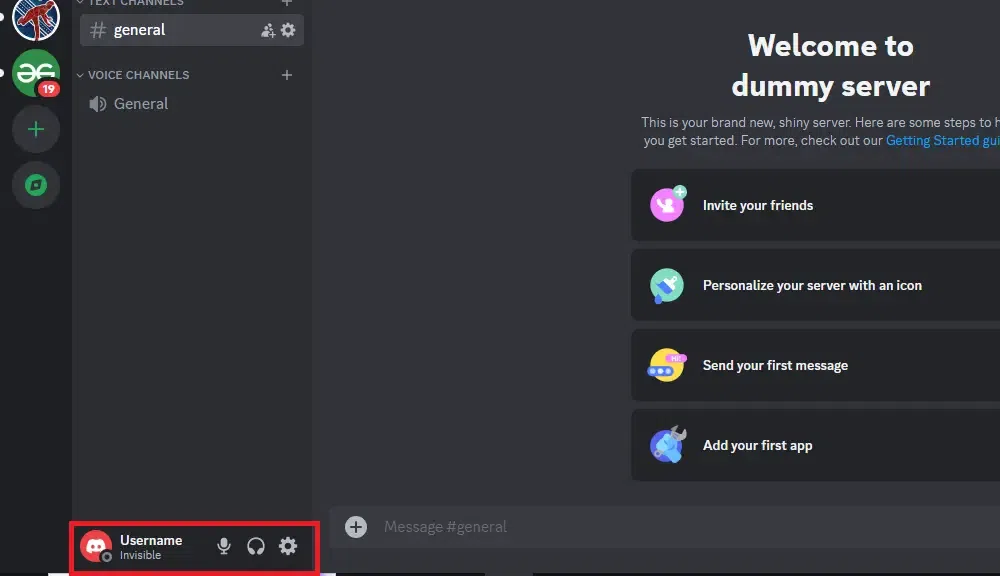
After opening the Discord app click on the gear icon located next to your current username to go to the User Settings.
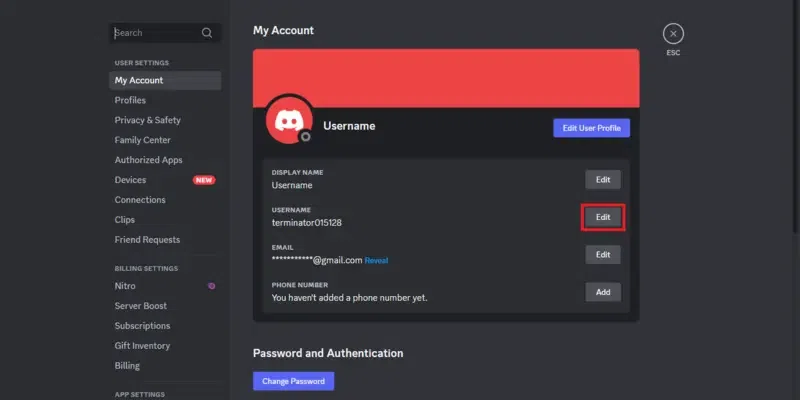
Click on the "Edit" button located next to the username to change the Discord username.
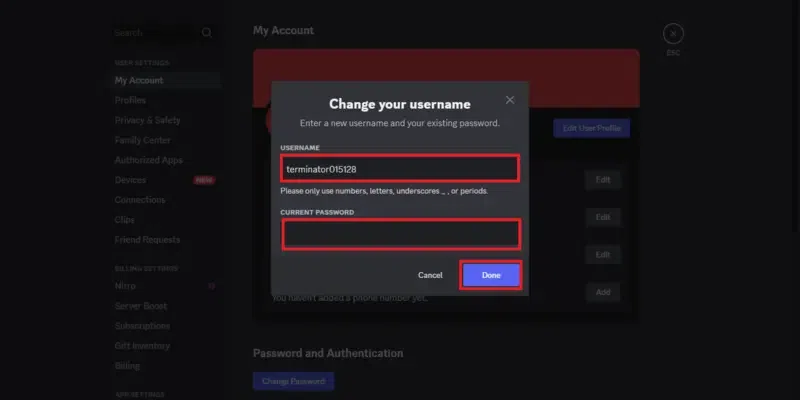
When you will click on the Edit button then a box will appear on the screen asking for the username you can change the username. Also enter the password to change the username.
You have successfully changed your Discord username.
Also Check:How to Make a Discord Server
Discord Username and Discord Nickname are two different things from which we have explored the Discord Username. Now here are the steps to change the Discord Nickname.
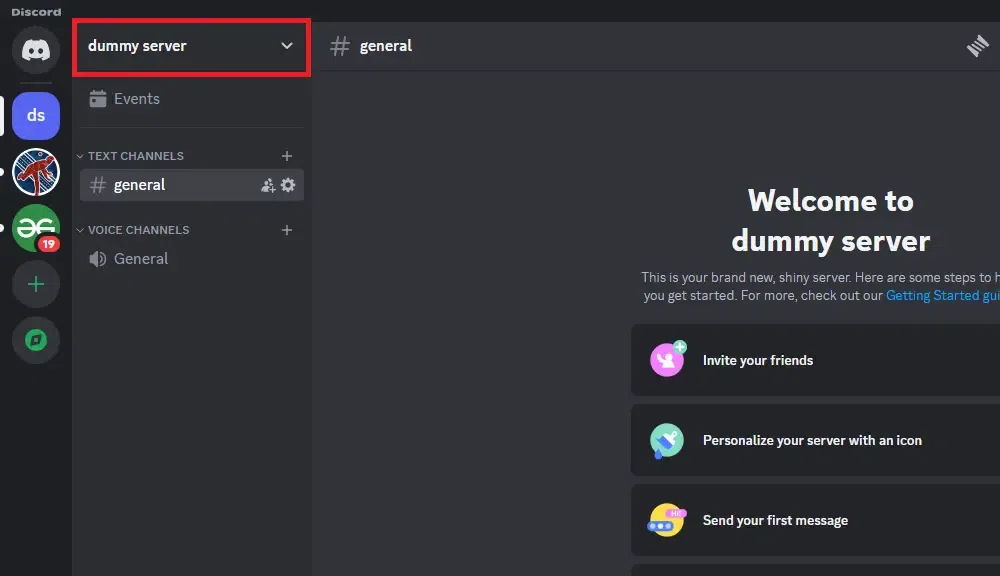
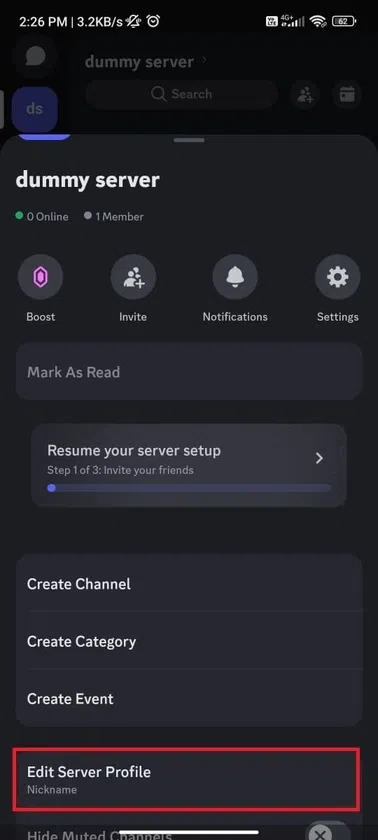
After opening the Discord app navigate to your server and click on the Server Name to open a drop-down menu.
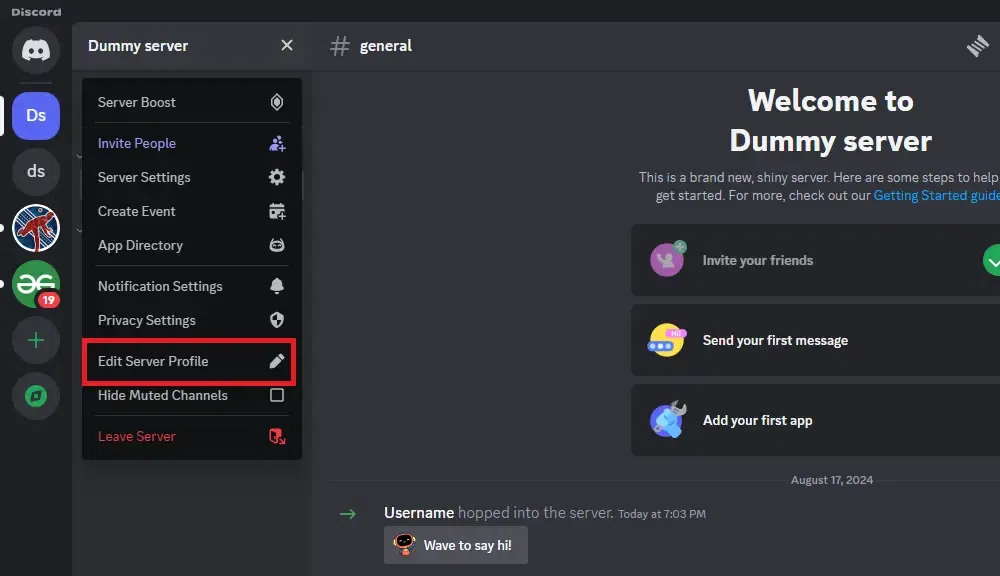
From the drop-down menu select the "Edit Server Profile" button to move to the Server profile.
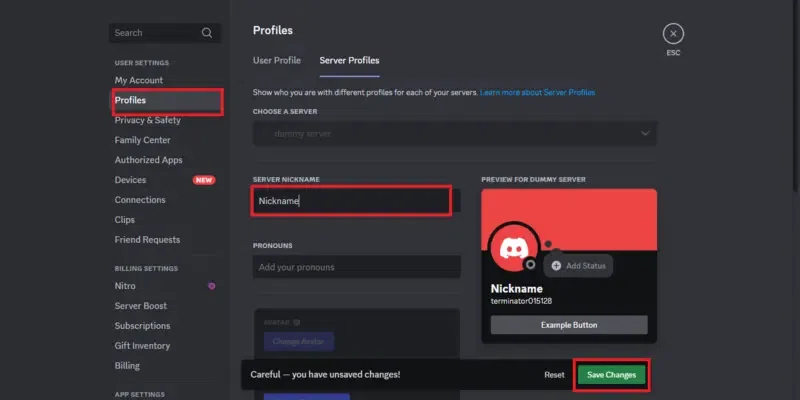
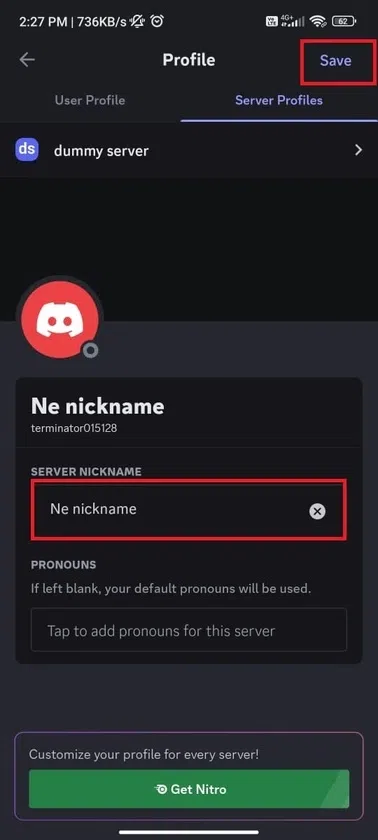
Enter your sever nickname and click on the Save button to save the changes.
Also Visit:How to Create a Account on Discord
Learn how to change your Discord username using the mobile app.
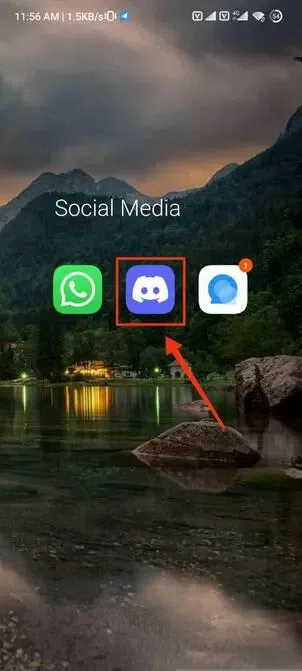
To open Discord Mobile app click on the Discord mobile app.
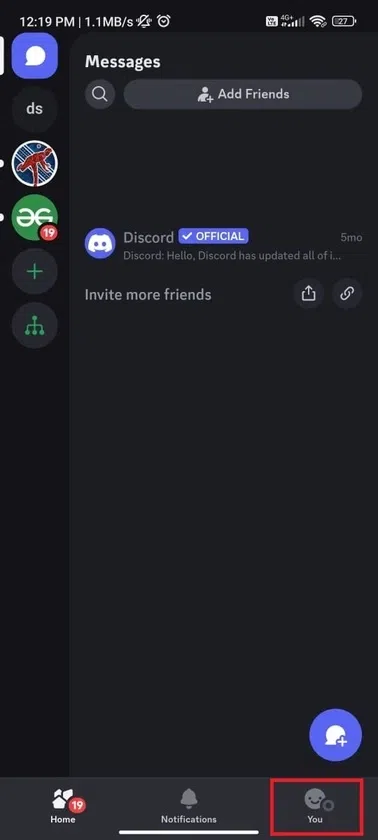
Click on your Profile icon from the bottom left side of the interface.
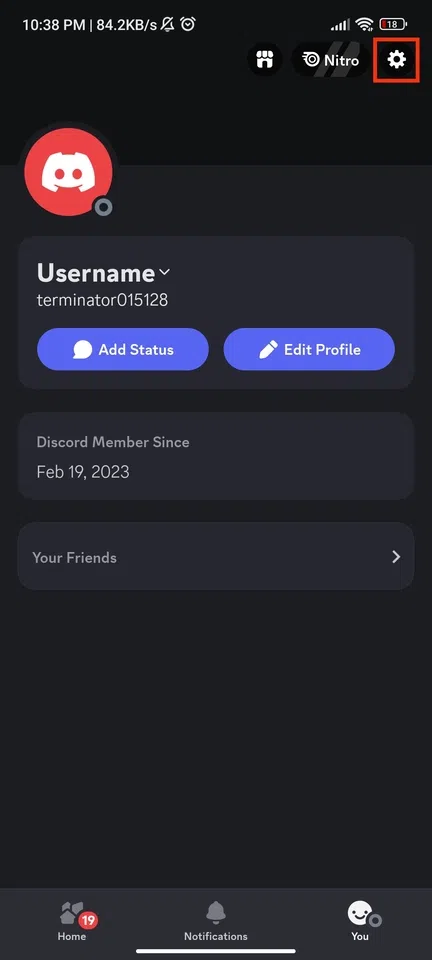
Now click on the Gear icon located at the top right corner of the interface.
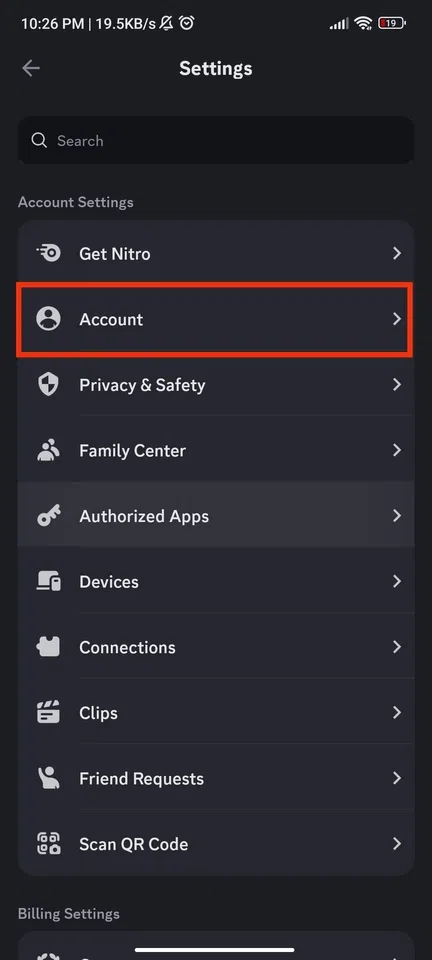
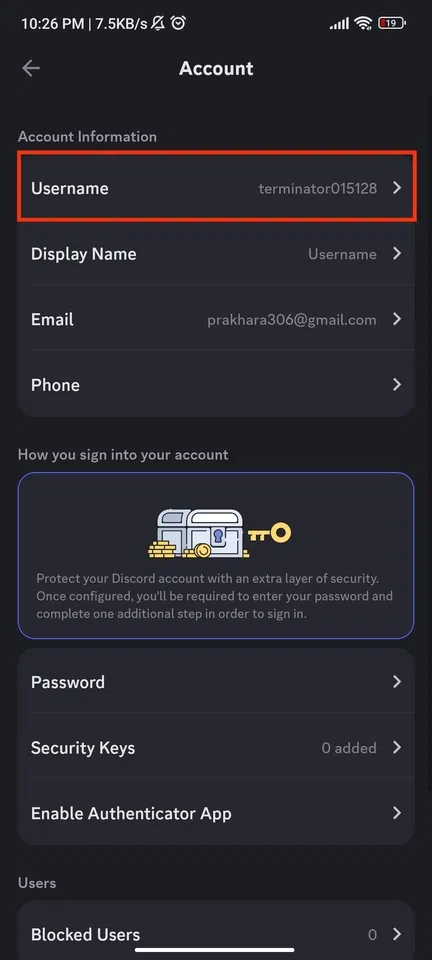
Now in the User Settings select the Account option to open the Account setting.
Click on the username to edit it.
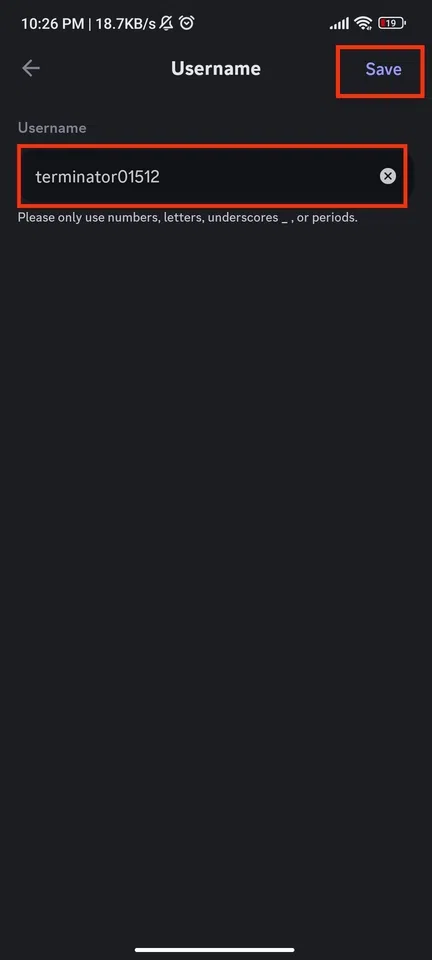
Now enter you deisred username and click on the Save button.
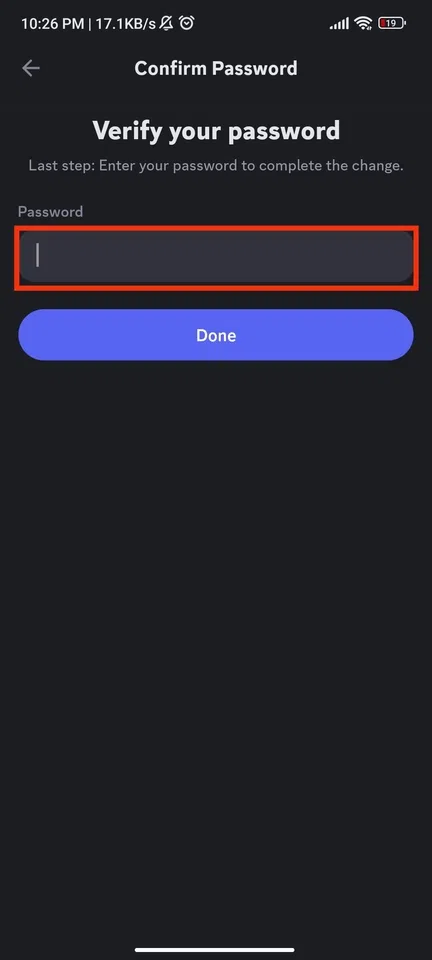
Now enter your password to verify its you.
Also Check:How to Make Discord Private
Understand the difference between a Discord username and a server-specific nickname.
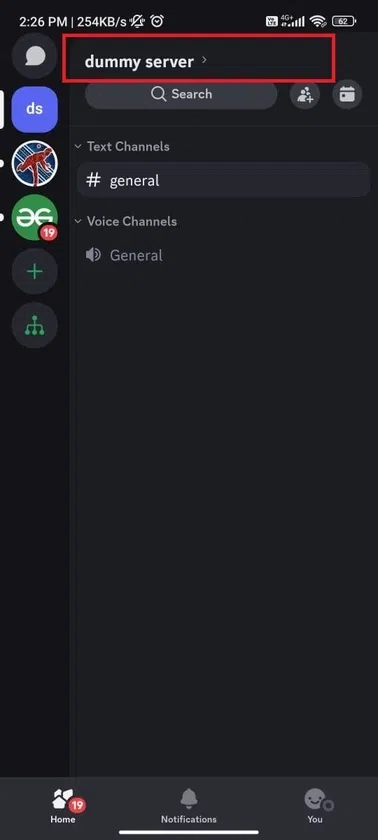
To change your nickname in a server you have to click on the Server name to open a drop-down menu.
From the drop-down menu appeared click on the Edit Server Profile.
Now choose your desired nickname you want to give yourself and enter in the Server Nickname box. After entering your new Server nickname click on the Save button.
Also Check:
Make sure to enter your current password correctly when confirming changes.
Discord allows you to change your username anytime you want, you just have to follow the steps given above and you will be able to change your usernamein Discord. Beside the discord username there is also a Nickname in Discord which identifies your Nickname in each server, you can also change your nickname in Discord by some easy and simple steps.
To change the username in Discord you have to go to User Settings, after reaching to the User Settings click on the Edit button located near to the Username and change it using discord username ideas. By the step-by-step guide you will know how to change Discord Username.