

Productivity
Make the most of your time online. Microsoft Edge has built in tools like Collections, vertical tabs and tab groups that help you stay organized and make the most of your time online.
Top Tips
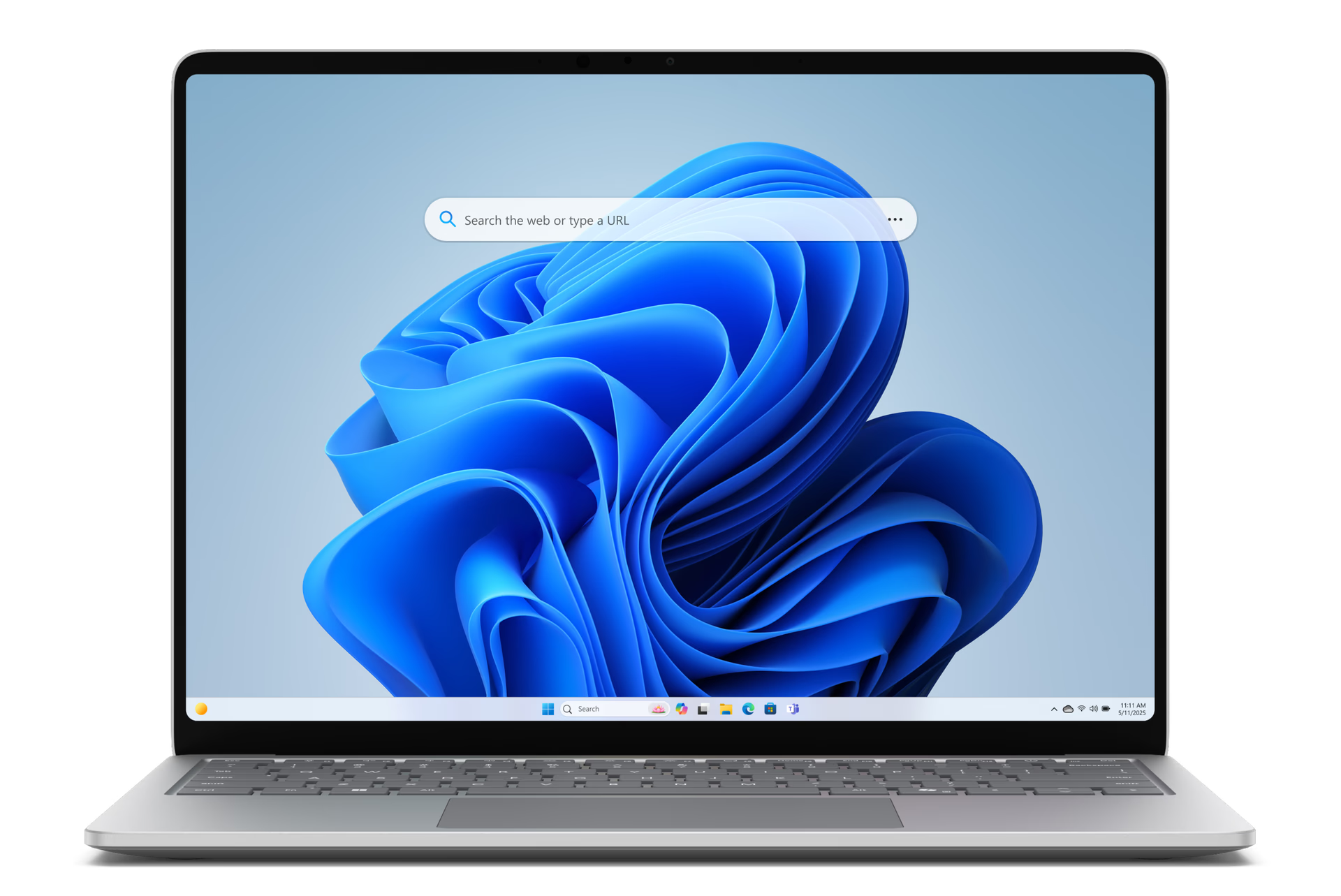
Edge Search Bar
Search smarter with the Edge search bar. Instantly find information and open your favorite sites without leaving your desktop.
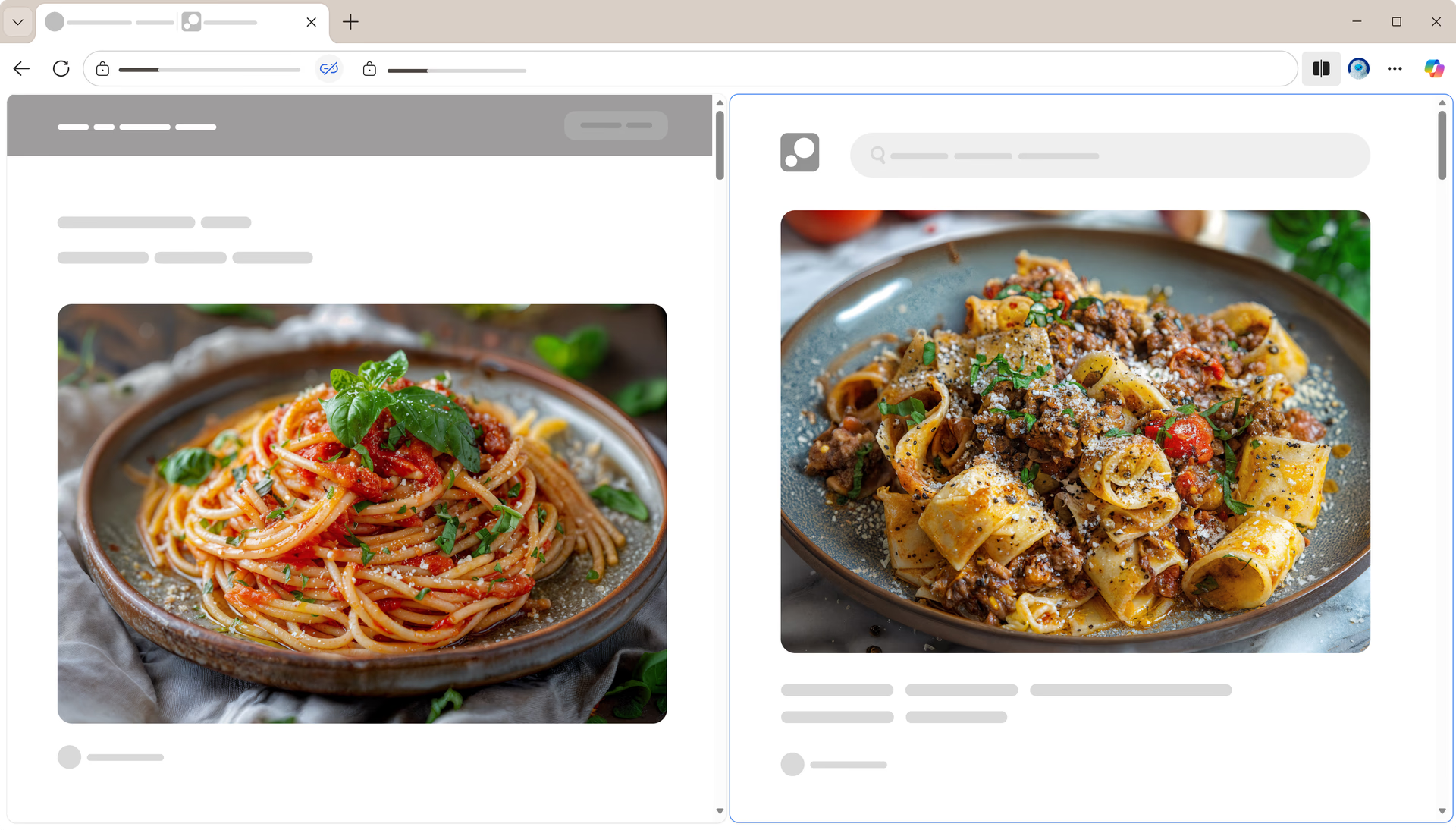
Split your screen, not your attention
Multitask efficiently across side-by-side screens on one browsing tab in Microsoft Edge. Select the Split Screen icon from the tool bar to try it.
Stay focused and organized with Workspaces
Stay focused and organized with Workspaces that help you separate your browsing tasks into dedicated windows and complete specific tasks, such as shopping or trip planning, with ease. Tabs and files are automatically saved and updated in real-time, keeping you and your group on the same page. To get started with Workspaces, select the Workspaces menu icon on the top-left corner of your browser window.
Microsoft 365 and Edge are better together
Get more done with built-in Microsoft 365 features that let you take quick notes or see your email while you browse with Outlook and OneNote integration in sidebar, only in Microsoft Edge.
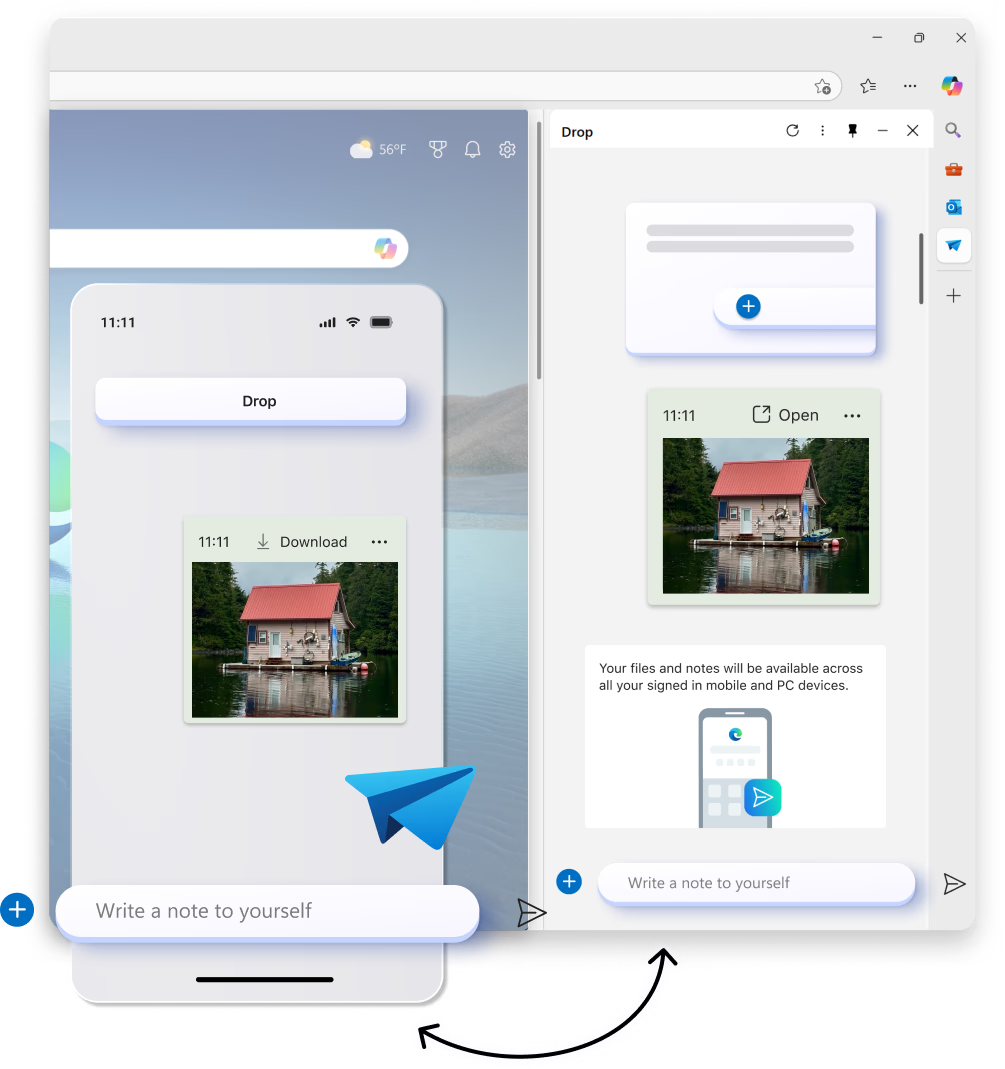
Simplify sharing content between your devices
Share files, links and notes between your desktop and mobile devices faster than ever. Drop in Microsoft Edge allows you to stay in the flow while you browse with easy drag and drop file sharing as well as self-messaging that lets you to quickly send yourself a link or note.
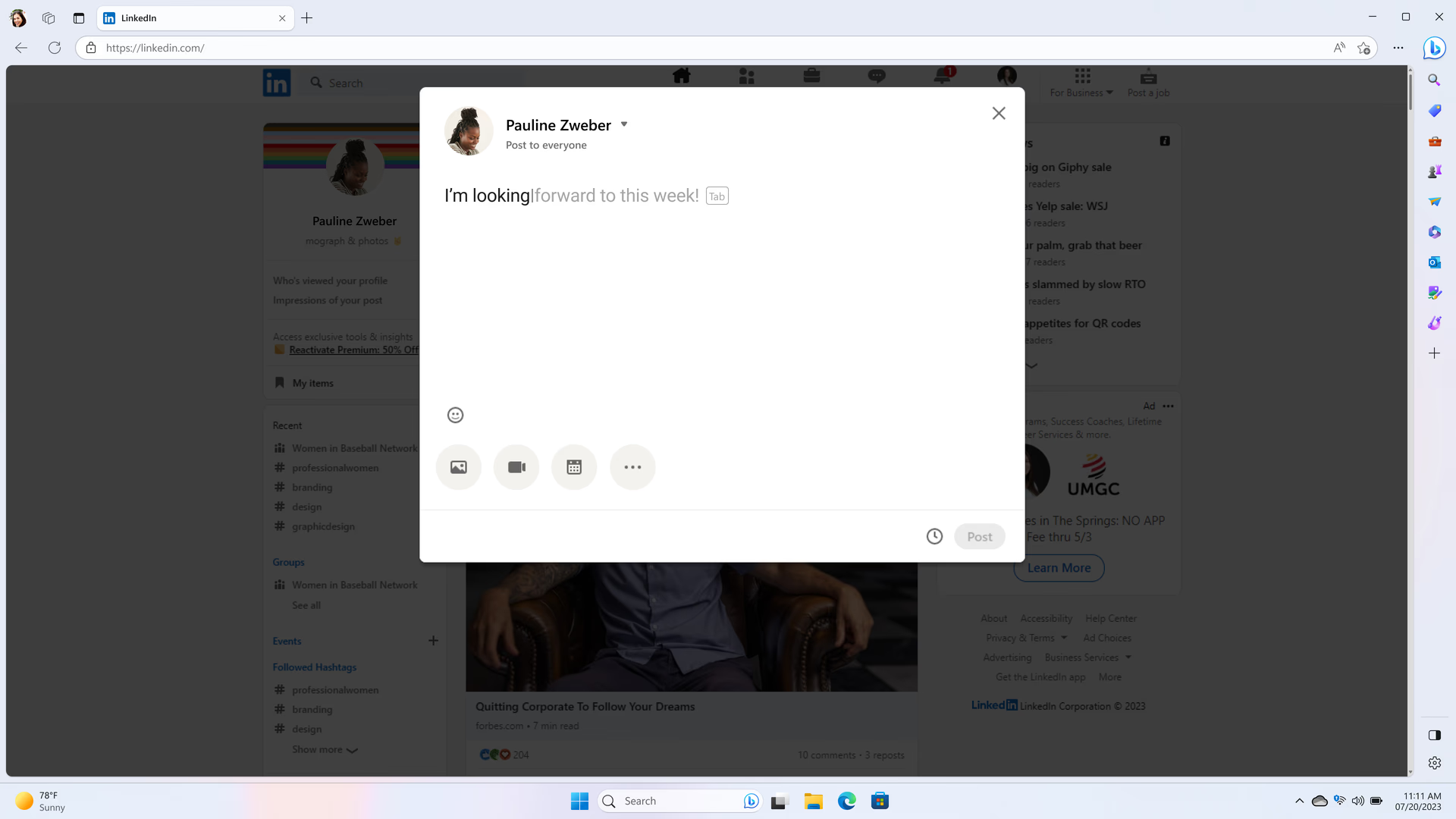
Become a speed writer
Text prediction in Microsoft Edge helps you save time by predicting what you’re going to write next, allowing you to complete sentences more efficiently and stay focused on your writing goals.
Write with confidence
Microsoft Edge provides advanced writing assistance with Editor. Spelling, grammar and synonym suggestions help you write more efficiently and accurately, boosting your productivity.

Capture what matters with screenshots in Microsoft Edge
Take control of your online content with screenshot tools built into Edge. Whether you're saving a snipping of a webpage or capturing the entire screen, Edge makes it easy to grab exactly what you need - fast. Use Control+Shift+S to get started.
Productivity Features
- * Feature availability and functionality may vary by device type, market, and browser version.