 |
VOOZH | about |
|
VOOZH | about |
In the field of Docker container management, the docker stop command serves as a critical tool for mainly shut-down containers. This article talks about the working of the docker stop command, explaining its purpose, usage, and importance of proper container termination.
Table of Content
The primary function of `docker stop` is to stop the execution of a running container. When we run this command shut down, it sends a default SIGTERM signal to the main process within the container, allowing it to perform cleanup operations before terminating the container.
The main process behind the docker container stop goes as, Firstly it sends SIGTERM signal inside the docker container, and after certain short intervals known as grace period, SIGKILL signal command shut will be sent. The first signal SIGTERM acts as warming to the grace period (default 10 secondsthe) it will forcibly seconds shut down, the container.
docker stop [OPTIONS] [CONTAINER...]
The following are the key options of Docker Stop Command:
Options | Description |
|---|---|
-s , --signal | It sends the singal to the container |
-t, --time | It specify the grace period for termination |
docker stop my_containerBefore trying the docker commands ensure that the docker software is set up and the service is active. Check the status of the docker service with the command `systemctl status docker`. If the status is active then the docker service is ready to use and then you are good to perform the container operations and management. To check the status of the docker service use the following command:
systemctl status dockerWhen you use a `docker stop` as a docker command, Docker initiates a immediate shutdown process. The container receives the SIGTERM signal, allowing its main process to perform the cleanup tasks, such as saving state or closing connections. If the container doesn't respond to the SIGTERM signal within a specified timeout (default is 10 seconds), Docker sends a SIGKILL signal, forcefully terminating the container.
docker stop <container_name or Id>1.`-t` or `--time`: It sets a custom timeout period for the docker container to respond to the SIGTERM signal before forcefully stopping it. In this example the docker container with my_containername wait for the 30seconds after sending the SIGTERM signal then it will go for forcefully termination if it is not responded in that 30seconds.
docker stop -t 30 my_container2. `--time=0`: In this, the docker skip the graceful shutdown period and makes immediately send a SIGKILL signal to kill the docker container.
docker stop --time=0 my_containerFor starting a docker container we use docker start command, but in general we go with docker run command which helps in both starting a container and running a container. Here We are the providing an example of start and running a docker container with ubuntu docker image. The command looks as follows:
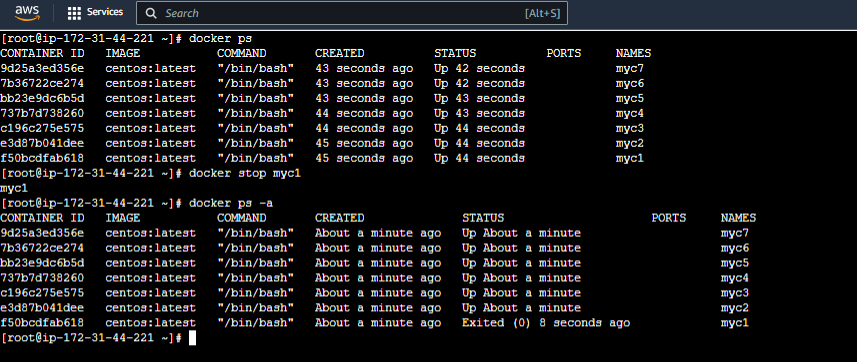
docker run -it --name mycontainer1 ubuntu:latest /bin/bashIn this below figure you can see the containers that are running through `docker ps` command , are get stopped once we run the command of `docker stop container_name/container_id` . In the status section of the docker ps , we can see that earlier the container is running from 16minutes and once we run the docker stop command the containers get termination its been 8 seconds from that moment. To know more about docker commands refer to the Docker-Cheat Sheet.
👁 Docker-stopFollow the below steps to stop one Docker running container at a time.
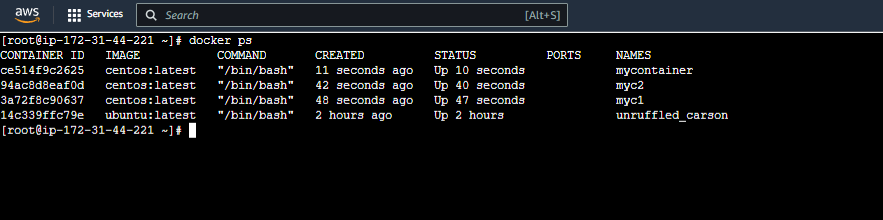
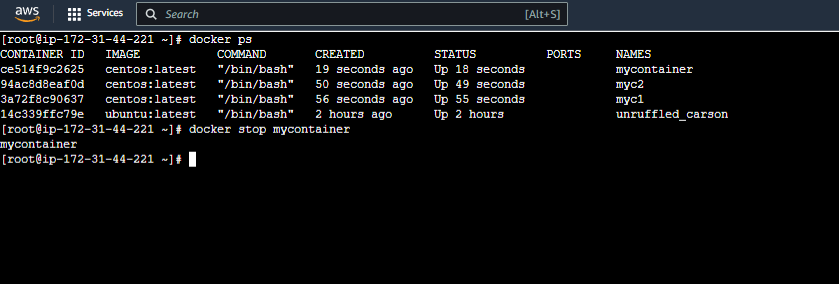
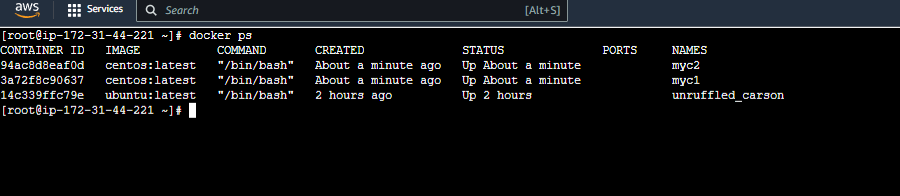
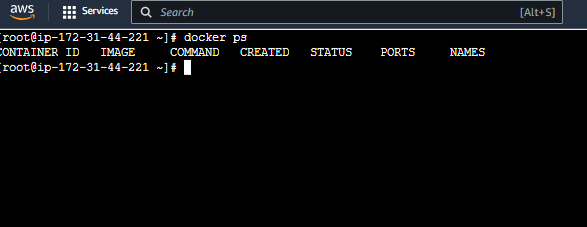
systemctl enable docker --nowdocker run -dit --name mycontainer centos:latestdocker psdocker ps -adocker stop mycontainerStep 5: Stop The Docker Container With Time Period ( Optional )
docker stop --time=30 myc1In this we specified the docker container ID instead of docker container name for stoping from the execution and making the container with id 'd3ca5e7b6f8b' for graceful termination. while specifying the container id we have to make ensure it is unique with id from other , we don't need to specify all the characters of the container id.
docker stop d3ca5e7b6f8When you execute a docker stop command along with the container name or id, the docker on behind sends two single signals to the container before the termination. The first signal known as SIGTERM signal warns the container for possible termination after the default grace time of 10seconds it sends another signal known as SIGKILL signal that terminates the running container. The Flow of docker stop explain in steps as follows:
Step 1: Initiating Stop process by running command as follows:
docker stop <container_name or container_id>
Step 2: Docker sends SIGTERM signal to container.
Step 3: Graceful Shutdown (If possible): When the container receives the SIGTERM signal the main process of container starts cleaning of necessary tasks and closing connections.
Step 4: Timeout Period, By default timeout period 10seconds are provided, or else you can customize and set our time for the main process to clean the tasks.
Step 5: Send SIGKILL Signal (If Necessary), If the container is not able to respond with termination of the container within the specified time, docker sends SIGKILL signal to the container immediately.
Docker kill command sends only one signal known as SIGKILL signal that terminate the running container, it doesn't provide any grace time for the container's main process to clean the tasks, close the connections. That the reason, this docker kill command takes lesser time compared to docker stop command. It is only recommended to use docker kill in necessary cases. It preferred to not to use it in generally.
The force stopping of a docker container is the known killing a container, The above section explained how the docker kill command works. It directly sends a SIGKILL signal to the Container. The following steps helps in killing the docker container.
Step 1: List the docker containers and chose the running container you want to force stop. The following command help in listing the running containers.
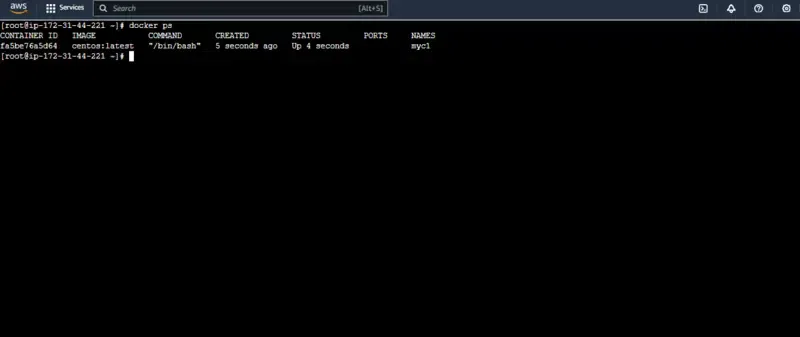
docker psStep 2: Now run the following command to force stop the container that you want to kill. Here I want to force stop the myc1 named running container.
docker kill myc1Step 3: Verify the step2 by listing the containers with the following command:
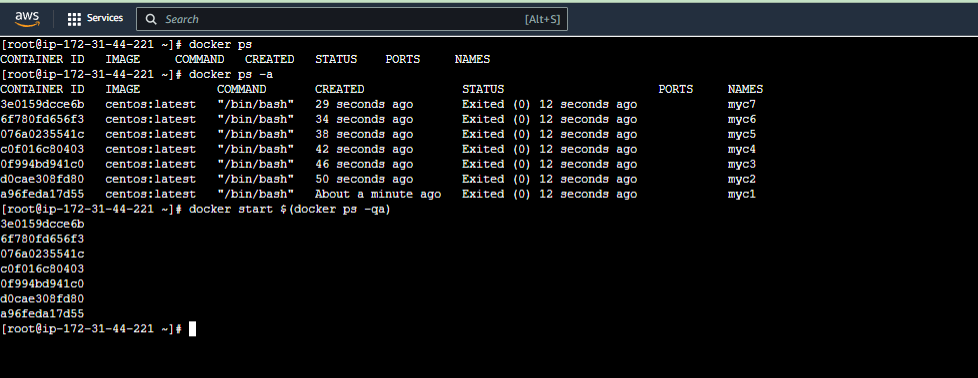
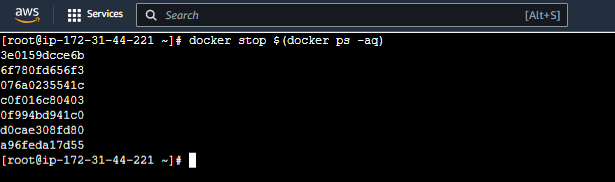
docker psThe following steps guide you in stopping all the running docker containers at once:
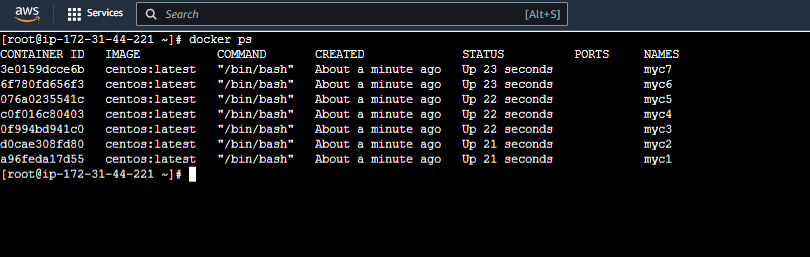
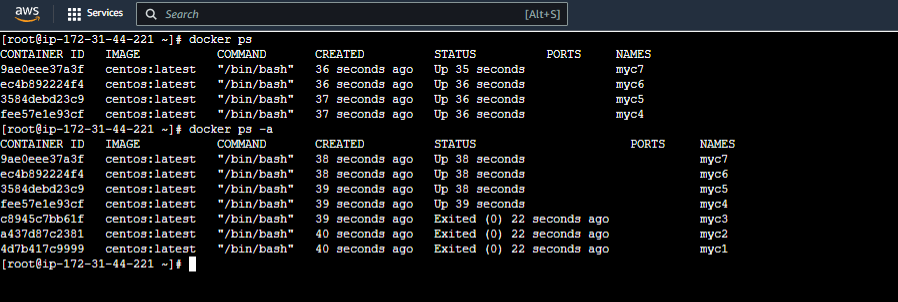
docker start $(docker ps -a -q)
docker ps -a👁 Verify-the-container-by-listing
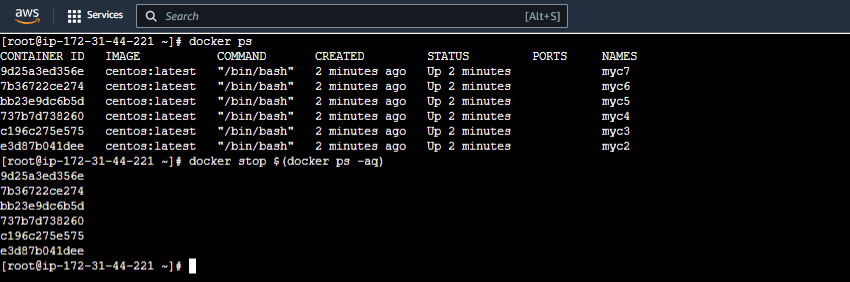
docker stop $(docker ps -aq)( or )
docker stop container1 container2In Docker, Containers can be deleted using rm option similar to for stopping we use stop command. The following are the steps guiding how to delete a docker container.
Step 1: Firstly stop the container that you intended to delete using the steps discussed above section. Its is necessarily recommended to stop the running container before deleting them.
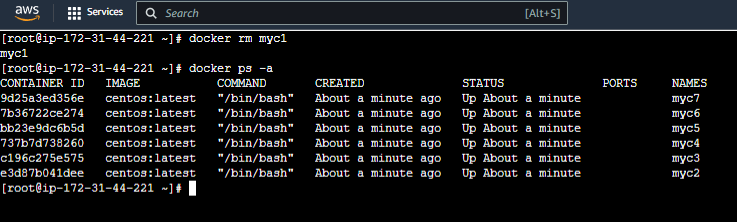
docker stop myc1docker rm myc1docker ps -aThe following steps guide you how to delete all the docker containers:
Note: Ensure to have many containers available in running state to understand this concept clearly.
Step 1: Stop The all the running docker containers with this command:
docker stop `docker ps -q`
(or)
docker stop $(docker ps -aq)
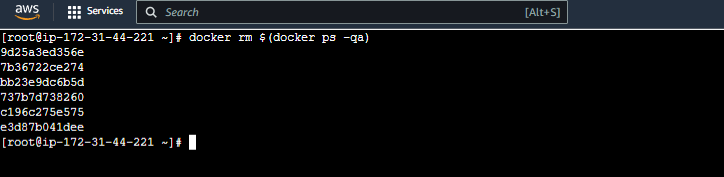
Step 2: Use the following command to delete all the containers:
docker rm `docker ps -aq`
(or)
docker rm $(docker ps -aq)
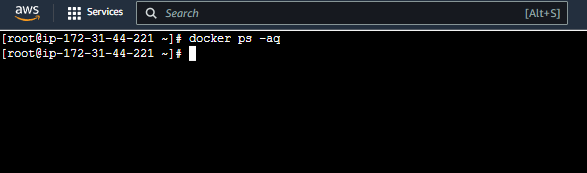
Step 3: Verify whether all containers are removed successfully or not with the following command:
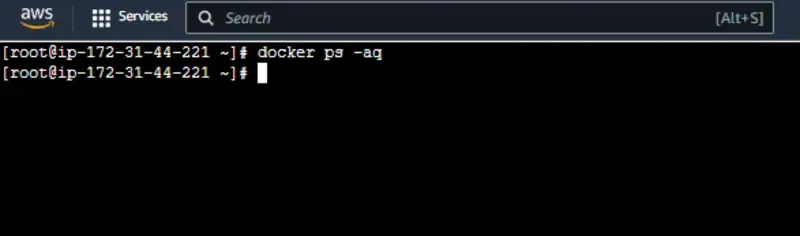
docker ps -aqDocker container can be listed using docker ps command. The following command list all the docker containers with running state.
docker ps 👁 Listing-all-running-containers
The following command is used to list all the containers either it is running or in stopped state.
docker ps -a
In Docker Compose, you can stop and remove the containers that are associated with your Docker compose project file on using the docker-compose down command. Lets following the implementation stepswise.
version: '3.8'

services:
 centos1:
 container_name: mycontainer1
 image: centos:latest

 centos2:
 container_name: mycontainer2
 image: centos:latest
docker-compose updocker-compose downThe following are the examples of Docker stop command with options:
docker stop <container_id_or_name>docker stop -t 30 <container_id_or_name>docker stop <container_id_or_name1> <container_id_or_name2>docker stop $(docker ps -q)Both the commands docker container stop and docker container kill are used for terminating the containers only. But docker container stop will terminated the contianer by genrating 2 signals, firstly it sends warning singal regarding terminal, giving time (grace period) for the container to clear the resources properly and then after grace time it is terminated by docker stop forcely.
Whereas Docker container kill sends only one signal (SIGKILL) it directly shutdown the container, without giving any time for the container to clear the resources properly. That's the reason docker kill command shutdowns the container very fast compared to docker stop. But docker kill command in only recommand to use, when the docker stop taking more time to terminated it, and it is less sensitive container application.
The following are the some of the common issues and troubleshooting tips regarding docker stop command:
docker kill with the container name to forcefully stop the container when they is a need. docker stop -t <seconds> <container_id_or_name> to give more graceful period of time for stopping the processes.sudo systemctl restart docker, when they are some changes or configuration that has to updated or loaded.sudo or add your user to the docker group, if you are getting permissions denied error while excuting the command.The following are the use cases of docker stop command:
Article Name | Article LInk |
|---|---|
Docker Installation on Linux distributions | |
Docker Installation on Windows | |
Docker Installation on MacOS |
In conclusion, the `docker stop` command plays a crucial role in the controlling the termination of Docker containers. It allows containers to handle shutdown signals and ensures that applications have an opportunity to clean up resources before coming to a halt. Whether you're managing a single container or orchestrating complex applications, understanding and utilizing `docker stop` is essential for maintaining a well-organized and efficient Docker environment.








.webp)
